Monthly reporting can quietly drain time and energy. You export reports, you adjust dates, then you copy numbers. Then next month, you do it all again. If you work with Xero or QuickBooks, you probably know this cycle too well.
There is a better way.
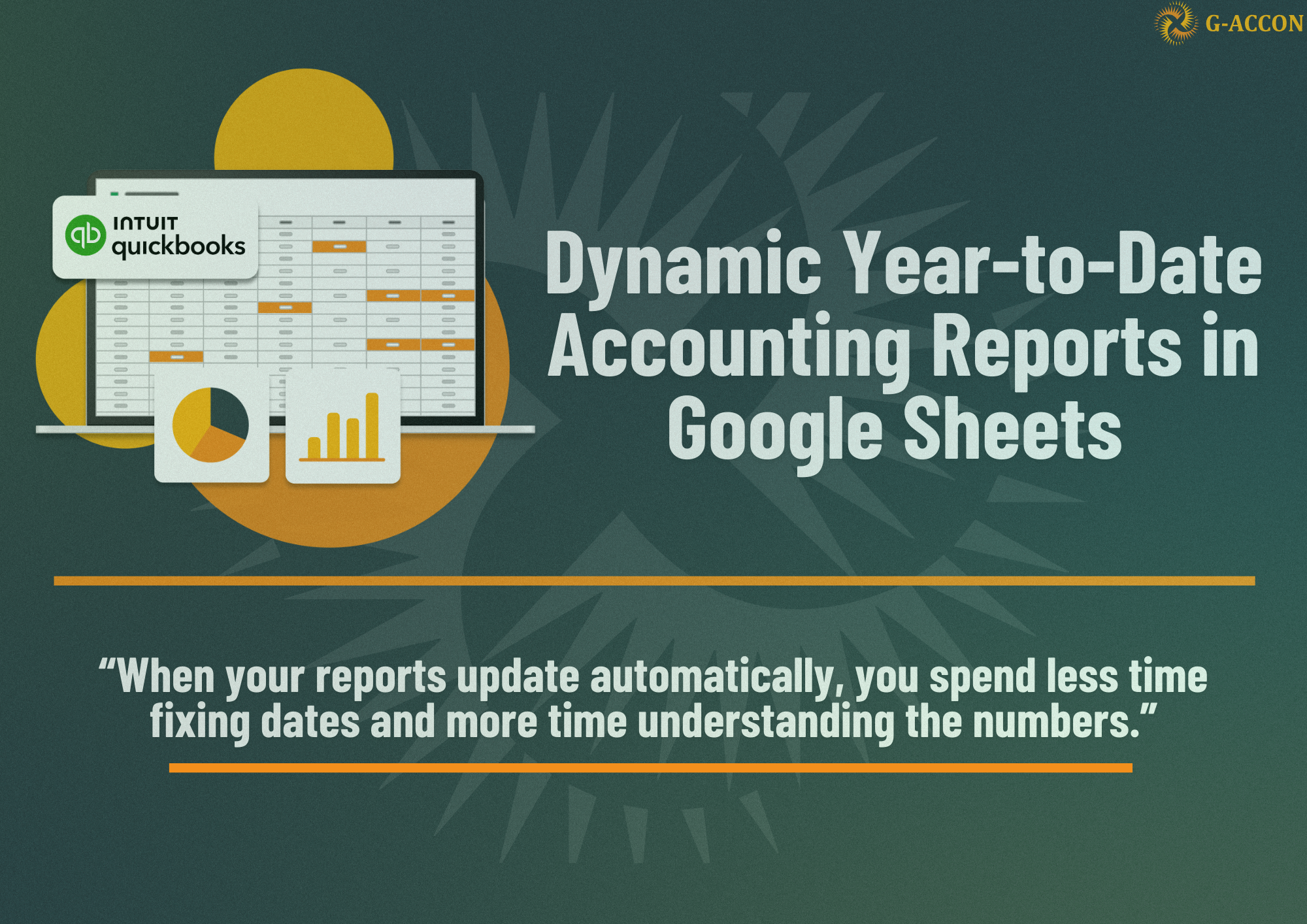
With G-Accon and Google Sheets, you can create dynamic Year-to-Date Accounting Reports that update automatically as each new month begins. No repeated exports. No manual date changes. Just clean, reliable reports that stay current.
This article walks you through how the setup works, why it matters, and how you can use it to generate real-time financial insights without extra effort.
Why Dynamic Year-to-Date Accounting Reports Matter
Most accounting reports are static by default. They reflect a fixed date range. January to March. April to June. Once the month changes, the report is already outdated.
Dynamic year-to-date reports solve that problem. Instead of locking your report to a specific period, you let Google Sheets control the date logic. As the month changes, the report updates automatically. Your Profit and Loss statement. Your Statement of Cash Flows. Always current. Always accurate.
This matters if you:
- Review finances monthly
- Share reports with stakeholders
- Track performance across the year
- Want fewer manual steps in your workflow
With G-Accon, this setup works directly inside Google Sheets using live data from Xero or QuickBooks.
Getting Started With G-Accon in Google Sheets
Everything begins inside Google Sheets.
Once G-Accon is installed, you access it from the Extensions menu. From there, you choose whether to work with QuickBooks or Xero. The process is the same for both. Inside G-Accon, you select:
- Get Accounting Data
- Formatted Reports
This gives you structured financial reports that already follow accounting standards. You are not starting from a blank sheet. You are working with clean, reliable templates.
From here, you can choose which report you want to make dynamic.
Setting Up a Dynamic Profit and Loss Year-to-Date Accounting Reports
Let’s start with the Profit and Loss report, since it is the most commonly used. After selecting Profit and Loss from the drop-down menu, you will see an option for the date range. This is where the dynamic setup begins. Instead of leaving the date range fully dynamic inside the add-on, you switch it to static. This sounds strange at first, but it is the key step.
Why?
Because you are about to let Google Sheets handle the date logic instead.
Using Cell References for Dates
In Google Sheets, you create formulas that define:
- The start date of the year
- The current month-end date
These formulas live in specific cells. Once they are set, you link them back to G-Accon using the Cell Reference icon. This tells G-Accon, “Use the dates from these cells when generating the report.” One important part of the setup is creating a formula that returns the current month number. This allows the report to know how many months of data to include when comparing periods.
You also create a notation for the field Compare With Number of Previous Periods. This value updates automatically as the month changes. Once these references are connected, the report becomes truly dynamic.
Generating the Year-to-Date Accounting Reports
That is it. The Profit and Loss report is generated inside Google Sheets, fully formatted, and based on the current year-to-date period. When next month arrives, the same report will update automatically without any manual changes.
Watch the video for a clear visual walkthrough of this setup. It shows where each setting is in Google Sheets, how to pick the correct cell references, how the formulas fit into the sheet, and what the final dynamic report looks like when you generate it with G-Accon.
Creating a Dynamic Statement of Cash Flows
Once you understand the Profit and Loss setup, the Statement of Cash Flows follows the same logic.
You return to:
- Extensions
- G-Accon for QuickBooks or G-Accon for Xero
- Get Accounting Data
- Formatted Reports
This time, you select Statement of Cash Flows from the drop-down menu.
You reuse the same cell references for:
- Start date
- End date
Because the logic is already built, you do not need to recreate formulas. You point the report to the same cells.
After clicking Execute, the Statement of Cash Flows is generated as a dynamic year-to-date report.
Just like the Profit and Loss report, it stays up to date automatically.
What Makes Year-to-Date Accounting Reports Powerful
This approach changes how you think about reporting. Instead of rebuilding reports every month, you build them once and reuse them. Google Sheets becomes the control center. G-Accon becomes the bridge between your accounting system and live reporting.
The benefits are practical:
- Reports update themselves
- Fewer errors from manual changes
- Clear year-to-date visibility
- Easy sharing with teams or clients
- No repeated exports from Xero or QuickBooks
It also keeps your workflow calm. You are not rushing at month-end to fix dates or re-run reports. The structure is already in place.
Keeping Your Year-to-Date Accounting Reports Current
One quiet advantage of this setup is the confidence it provides. When someone asks for updated numbers, you do not wonder if the report is current. You open the sheet, and the data automatically reflects the latest period.
That reliability matters, especially when reports are used for decisions, planning, or presentations. With G-Accon, Google Sheets becomes more than a spreadsheet. It becomes a live financial reporting tool.
Make Year-to-Date Accounting Reports Hands-Off
Monthly reporting takes more time than most teams realize, with recent surveys showing that finance teams spend up to 40% of their time on manual data work like exporting, cleaning, and updating reports.
With a tool like G-Accon and Google Sheets, you cut a big part of that out. Dynamic year-to-date reporting becomes a simple, repeatable setup that runs quietly in the background, saving time every month. Once you set it up, the report logic takes care of itself.
If you want to get comfortable with the setup faster and avoid missing small steps, watch the video while you follow this guide. You will see the full flow, from choosing the report to picking cell references and running the final output. After that, you open the sheet when you need numbers. Your reports stay ready every month, automatically.