If you run a business with international clients, foreign suppliers, or subsidiaries operating in different countries, you already know the pain. Every month-end, someone on your team is hunched over a spreadsheet, manually looking up exchange rates, pasting them into formulas, and hoping nothing breaks before the report goes out.
It is time-consuming, error-prone, and frankly unnecessary, especially when you are already using Xero or QuickBooks.
In this guide, we will walk you through exactly how multi-currency consolidated reports work, why the old way of doing things holds businesses back, and how G-Accon's built-in live currency exchange rates make the whole process fast, accurate, and automatic.
What Is a Multi-Currency Consolidated Report?
A multi-currency consolidated report pulls together financial data from multiple sources, different entities, subsidiaries, or accounts that operate in different currencies, and presents them in a single, unified view.
For example, if your business has:
| –A UK office reporting in British Pounds (GBP) |
| –A European branch reporting in Euros (EUR) |
| –A head office in the US reporting in US Dollars (USD) |
A consolidated report brings all three together, converting each currency into your chosen reporting currency so leadership can see the full picture at a glance.
This matters for compliance, too. International accounting standards set out specific rules for how foreign-currency transactions and financial statements should be translated for reporting. Under IFRS, this is governed by IAS 21, "The Effects of Changes in Foreign Exchange Rates," and under US GAAP, it falls under ASC 830, "Foreign Currency Matters." You can review the official IFRS standard on the IFRS Foundation website for the full details.
Why Manual Currency Conversion Slows You Down
Before tools such as G-Accon existed, Xero and QuickBooks users had two main options when creating multi-currency reports:
|
Manual rate tracking Look up the exchange rate for every currency pair, for every reporting period, and enter them by hand into a spreadsheet. |
Google Sheets formulas Pull rates using GOOGLEFINANCE, which works until the formula breaks, the data refreshes at the wrong time, or you need a historical rate from a specific date. |
Both approaches have real problems:
| –Rates can be pulled at the wrong time, introducing inaccuracies |
| –Historical rates require extra research and manual entry |
| –Formula errors quietly corrupt your data |
| –The process has to be repeated every single month |
| –Reconciliation becomes a headache when rates don't match across entities |
Exchange rates also move constantly. Official sources such as the European Central Bank publish daily euro reference rates, and a payment that looked profitable when invoiced can shift in value by the time it settles.
For a small team managing two or three currencies, this is annoying. For a growing business managing five, ten, or twenty currency pairs across multiple entities, it becomes a serious operational bottleneck.
G-Accon's Live Currency Exchange Rates
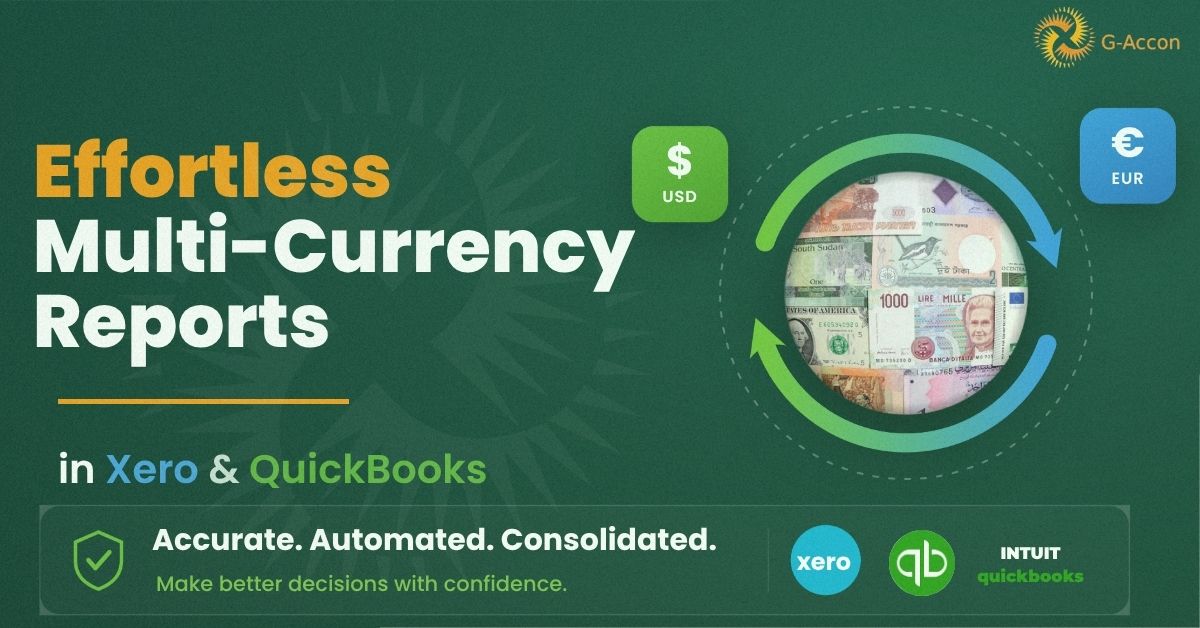
G-Accon has built a live currency exchange rate converter directly into its consolidated reports feature for Xero and QuickBooks users. This means the conversion happens automatically, inside the tool, using real-time or date-specific rates from a reliable exchange rate provider.
Here is what that gives you:
|
Combine data from multiple currencies No more switching between tabs or manually stitching together figures from different systems. G-Accon pulls it all together automatically. |
Automatic rate fetching Instead of hunting down exchange rates yourself, G-Accon fetches them automatically for all the currencies in your report — saving hours every month. |
|
Date-specific rates for historical reporting Need to report using the exchange rate from a specific past date? Just select it, and G-Accon retrieves the correct rate. No manual lookups, no spreadsheet gymnastics. |
Manual override when you need it Sometimes you have a contracted or fixed rate you need to use instead of the market rate. G-Accon lets you manually set custom rates whenever your situation calls for it. |
How to Generate a Multi-Currency Consolidated Report in 4 Steps
Let's say you need to generate a consolidated report in Euro, using the exchange rate from a specific date. Here is how simple it is with G-Accon:

Which Rate Option Should You Use?
G-Accon gives you three rate options, each suited to different reporting needs:
|
Use Latest Rate Best for ongoing management reports where you always want the most up-to-date rate. Every time you refresh the report, G-Accon pulls the latest available exchange rate automatically. |
Use Custom Rates Best for historical reporting or period-end close. Enter the exact date you need, and G-Accon retrieves the exchange rate from that date from the provider. |
Use Custom Rates for Periods Best for complex multi-period or multi-currency reports. G-Accon generates a separate tab showing rates for all currencies, which you can review and manually adjust before running the final report. |
Who Is This For?
G-Accon's multi-currency consolidated reports are built for:
| –Xero and QuickBooks users managing multiple entities or subsidiaries |
| –Finance teams responsible for international reporting |
| –Accountants and bookkeepers working with clients across different countries |
| –CFOs and finance directors who need a fast, reliable month-end close |
| –Businesses with foreign vendors, international payroll, or cross-border operations |
If you are currently spending hours every month manually converting currencies and reconciling figures across spreadsheets, this feature was built for you.
How G-Accon Fits Into Your Existing Setup
One of the biggest advantages of G-Accon is that it works directly inside Google Sheets and connects seamlessly with your existing Xero or QuickBooks account. There is no migration, no new system to learn, and no need to rip out your existing accounting setup.
Both platforms support multi-currency at the transaction level. You can read more in the official Xero Central help documentation and the QuickBooks support hub. G-Accon builds on top of that foundation, adding the consolidation and live-rate automation that the native accounting tools do not handle on their own. You get powerful multi-currency consolidation without an expensive ERP migration or a heavy IT project.
Ready to Simplify Your Multi-Currency Reporting?
G-Accon's live currency exchange rates for consolidated reports are now available to Xero and QuickBooks users. Stop spending hours on manual currency conversions and start generating accurate, multi-currency consolidated reports in minutes.
Frequently Asked Questions
Does G-Accon work with both Xero and QuickBooks?
Yes. G-Accon's consolidated reports with live currency exchange rates are available for both Xero and QuickBooks users.
Can I use a historical exchange rate for past reporting periods?
Absolutely. Using the "Use Custom Rates" option, you can select any specific date, and G-Accon will retrieve the exchange rate from that date.
What if I need to use a fixed or contracted exchange rate?
G-Accon allows you to manually set custom exchange rates at any time, giving you full control over the rates used in your report.
Do I need to install new software?
No. G-Accon works within Google Sheets and connects directly to your existing Xero or QuickBooks account. No migration or new system required.
How many currencies can I include in one consolidated report?
G-Accon supports multiple currencies in a single consolidated report, automatically fetching and applying rates for all of them.