If you look after the books for more than one company, you know the month-end routine. Log in to the first company. Run the report. Export it and paste it into a spreadsheet. Then do it all again for the next company, and fix the formula that broke because someone renamed an account.
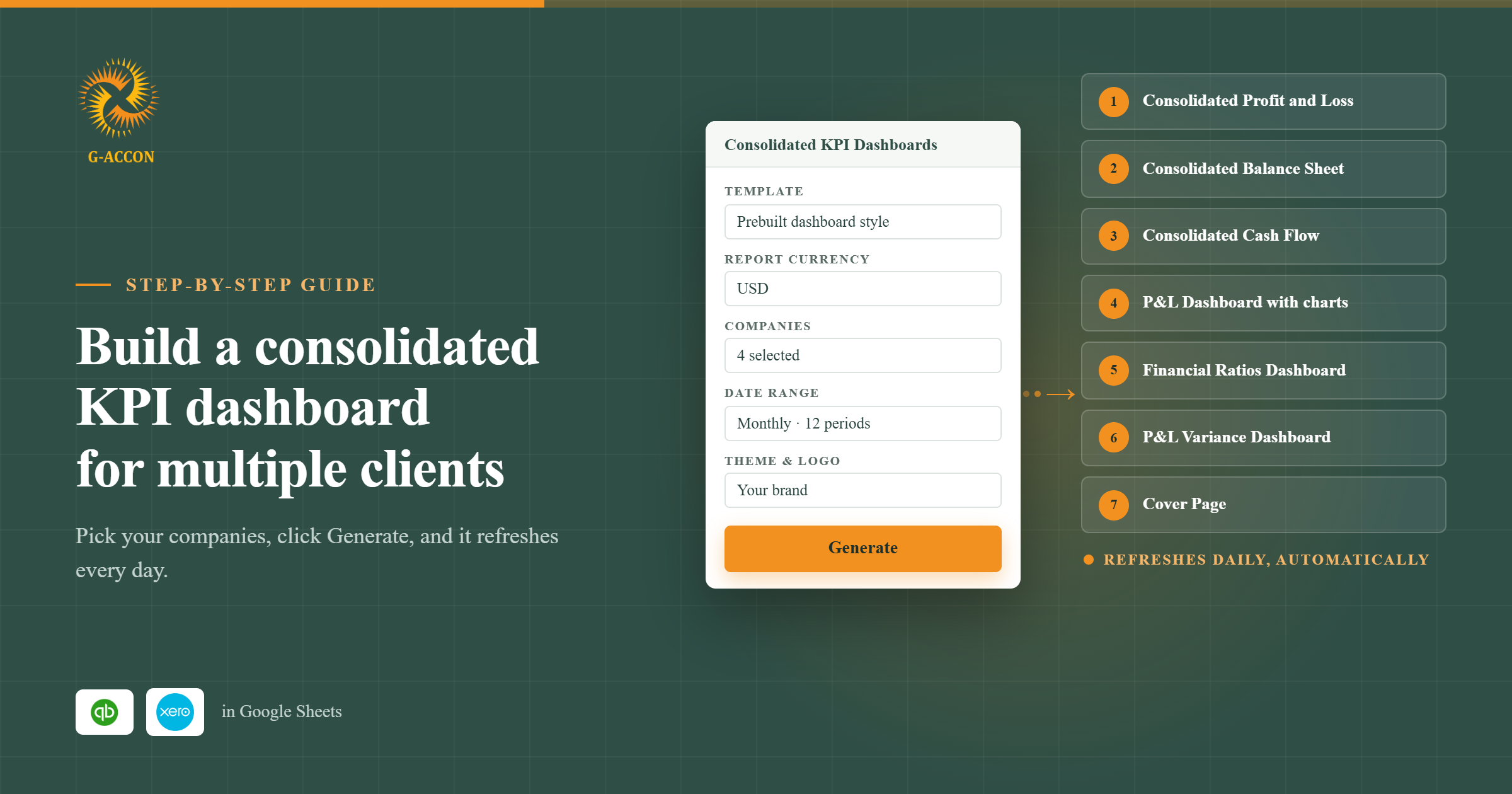
G-Accon's Consolidated KPI Dashboard takes that routine off your plate. You fill in one setup panel in Google Sheets and click Generate. G-Accon then builds the consolidated reports, the dashboards and a cover page for you. It even schedules a daily refresh on its own, so tomorrow's numbers show up without anyone opening the file.
It works in both G-Accon for QuickBooks and G-Accon for Xero. Below is the full process, in the same order G-Accon walks you through it.
Jump to a section
What the Consolidated KPI Dashboard Gives You
You end up with one Google Sheets workbook that pulls together the financials of every company you choose. QuickBooks users get a consolidated Profit and Loss, Balance Sheet and Cash Flow report. Xero users get the consolidated Profit and Loss and Balance Sheet.
| Included in your workbook | QuickBooks | Xero |
|---|---|---|
| Consolidated Profit and Loss | Yes | Yes |
| Consolidated Balance Sheet | Yes | Yes |
| Consolidated Cash Flow | Yes | No |
| KPI, Financial Ratios and P&L Variance dashboards | Yes | Yes |
| Cover page, custom theme and logo | Yes | Yes |
On top of those reports sit three dashboards. One tracks KPIs with charts, metrics and margins. Another covers financial ratios. The third shows P&L variances between your companies. A cover page links it all together, and you can brand the whole workbook with your own colors and logo.
Who it's for: Accounting firms, fractional CFOs and finance teams that manage several entities will get the most out of it. If you've ever built a consolidation by hand, you'll see why. Still comparing tools? Here's how G-Accon's consolidated reporting compares with Joiin.
Before You Start
Only one thing needs to be in place first. Your QuickBooks companies or Xero organizations have to be connected to G-Accon in Google Sheets. If they aren't yet, the QuickBooks integration and G-Accon for Xero pages explain how. Once that's done, you're ready.
How to Create Your Consolidated KPI Dashboard
The whole setup happens in a single panel. There are no tabs to plan, no formulas to write and no charts to build.
Step 1: Open Consolidated KPI Dashboards
In your Google Sheet, click:
Extensions → G-Accon for QuickBooks → Get Accounting Data/Reports → Consolidated KPI Dashboards
On Xero, the path is the same, except it starts with G-Accon for Xero.

Step 2: Choose a prebuilt template
The setup panel opens with a row of prebuilt dashboard styles. Each one already includes a cover page, dashboards and charts, so just pick the layout you like.

Step 3: Set the report currency
Choose the currency for your consolidated reports.
Step 4: Select your companies
Tick each company you want in the dashboard. You can pick several, and G-Accon rolls their numbers into one view. If your list is long, use the search box to find a company quickly.

Step 5: Pick a date range
Go with Monthly, Quarterly or Custom, then set the dates using the calendar.
Step 6: Decide how many periods to show
Set how many periods the dashboard should include, and how many should appear in the accounting reports. For a year of monthly trends, for example, you'd choose 12.
Step 7: Choose a theme
Pick a pre-designed theme from the drop-down menu. If none of them fit your brand, create a custom theme with your own colors and styling.

Step 8: Add your logo
Upload your company logo from your computer. It shows up on the dashboard, the reports and the cover page, which is handy if the file is going to clients or a board.
Step 9: Click Generate
Now click Generate and let G-Accon do the rest. Using your companies, date range, periods and theme, it creates:
- Consolidated Profit and Loss report
- Consolidated Balance Sheet report
- Consolidated Cash Flow report (QuickBooks only)
- Consolidated Profit and Loss Dashboard with charts and financial metrics
- Consolidated Financial Ratios Dashboard
- Consolidated Profit and Loss Variance Dashboard
- Cover Page
G-Accon also sets up the automatic refresh while it's at it. Out of the box, every report and dashboard updates once a day.

Finding Your Way Around the Finished Workbook
Start on the cover page. Every report and dashboard is linked from there, so one click takes you where you need to go.

The consolidated reports
The consolidated Profit and Loss puts the income and expenses of all your selected companies into one report. The Balance Sheet does the same for assets, liabilities and equity. QuickBooks users also get a consolidated Cash Flow report, built the same way.

The three dashboards


How the Automatic Refresh Works
New users are often surprised to learn there's nothing to schedule. G-Accon creates the refresh workflow as soon as it builds your dashboard, and that workflow runs every day.
You can still change it if you want to. Everything lives inside G-Accon automation.
In QuickBooks
Extensions → G-Accon for QuickBooks → Automation → Edit/Delete Workflow
In Xero
Extensions → G-Accon for Xero → Automation → Update/Modify/Delete Workflow
Click the blue KPI Reports link to open the workflow G-Accon made for your dashboard. From there, you can move the refresh to a different time. Don't want to wait for the next run? Click Test Execution, and the update starts right away.

Checking that refreshes ran
Open the Automatic Operations Events Log to see every automatic run. Each one is listed with its status, and errors are flagged there too, so you can catch a problem before anyone works from old numbers.

“
Key Takeaways
- Setup takes one panel: template, currency, companies, dates, periods, theme and logo. Then you click Generate.
- G-Accon builds the consolidated reports, all three dashboards and the cover page for you.
- A daily refresh is created automatically. You can change its time or run it on demand from the KPI Reports workflow.
- The Automatic Operations Events Log tells you whether each refresh worked.
Frequently Asked Questions
Do I need to build formulas, tabs or charts myself?
No. Fill in the setup panel, click Generate, and G-Accon builds the reports, dashboards, charts and cover page.
Does it work with both QuickBooks Online and Xero?
Yes, and the steps are the same. The one difference is the reports. QuickBooks users get consolidated Profit and Loss, Balance Sheet and Cash Flow. Xero users get Profit and Loss and Balance Sheet. Both versions include the KPI, Financial Ratios and P&L Variance dashboards.
How often does the data refresh?
Once a day by default. You can pick a different time in the KPI Reports workflow, or click Test Execution whenever you need fresh numbers.
What if my companies use different currencies?
You choose one report currency during setup. G-Accon's October 2026 release notes confirm that the dashboard applies currency conversion when your entities operate in different currencies.
Can I put my own branding on it?
Yes. Use a ready-made theme or design your own, then upload your logo. It appears on the dashboard, the reports and the cover page.
How can I tell if a refresh failed?
Check the Automatic Operations Events Log. It lists each workflow run with its status and shows any errors.