G-Accon's QuickBooks Budgeting Software
TL;DR
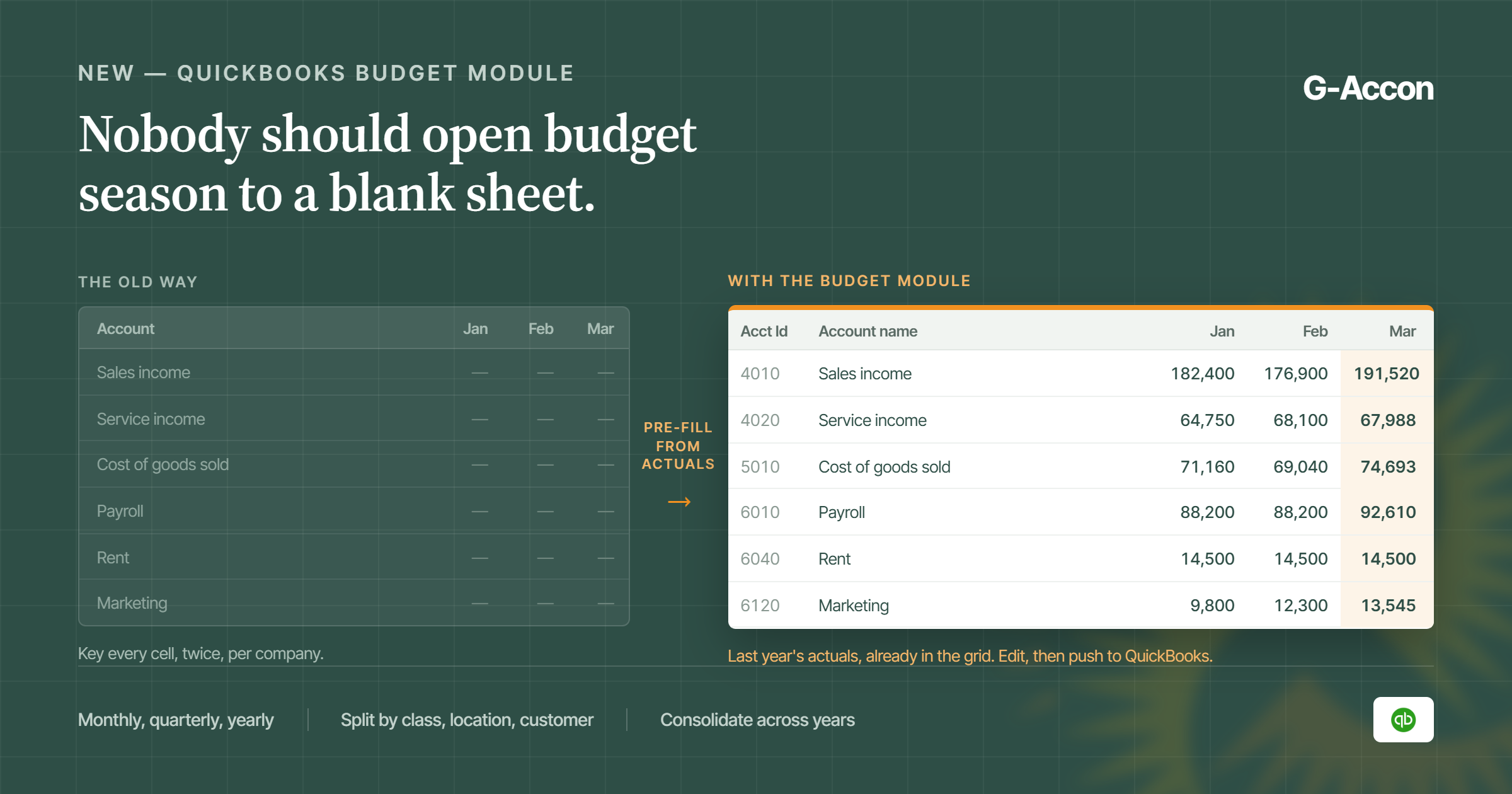
G-Accon's QuickBooks budgeting software, the new Budget Module, lets you build a QuickBooks budget inside Google Sheets and push it straight into QuickBooks. You can start from a template built on last year's actuals or an existing budget, so nobody opens a blank sheet.
As QuickBooks budgeting software, G-Accon also lets you download an existing budget back down, edit it, and re-upload it. Budgets can be subdivided by Class, Location, or Customer, and you can consolidate several budgets across years, classes, locations, and customers in one workbook.
Rather click than read? The whole workflow in this article is also published as an interactive Storylane demo. Same steps, same screens, at your own pace.
What Is G-Accon's QuickBooks Budgeting Software?
The Budget Module lets you build, edit, and consolidate QuickBooks budgets without leaving Google Sheets. It sits inside G-Accon for QuickBooks and was released in September 2026.
Before this, you had two options. Type the whole budget into the QuickBooks grid. Or build it in a spreadsheet and key it in again. Neither is fun when you run several companies, and the numbers change twice before anyone signs off.
This is aimed at accounting firms and finance teams who budget for more than one QuickBooks company. If you budget once a year for a single entity, the QuickBooks grid is probably enough. If you do it twelve times each autumn, read on.
What This QuickBooks Budgeting Software Does: Create, Modify, Upload, and Consolidate
The module covers the whole budget cycle, not just one step. Here is the full list:
- Build a new budget in Sheets and upload it to QuickBooks
- Generate a starting template from actuals or from a budget you already have
- Set budgets up as monthly, quarterly, or yearly
- Pull an existing QuickBooks budget into Sheets, change it, and send it back
- Subdivide a budget by Class, Location, or Customer
- Generate separate templates for chosen classes, locations, or customers
- Consolidate several budgets, including ones from different years, classes, locations, and customers
One thing it is not. This module manages a budget you have already agreed on. It does not forecast or run scenarios. That work lives in G-CashFlow.
Where it lives inside G-Accon for QuickBooks
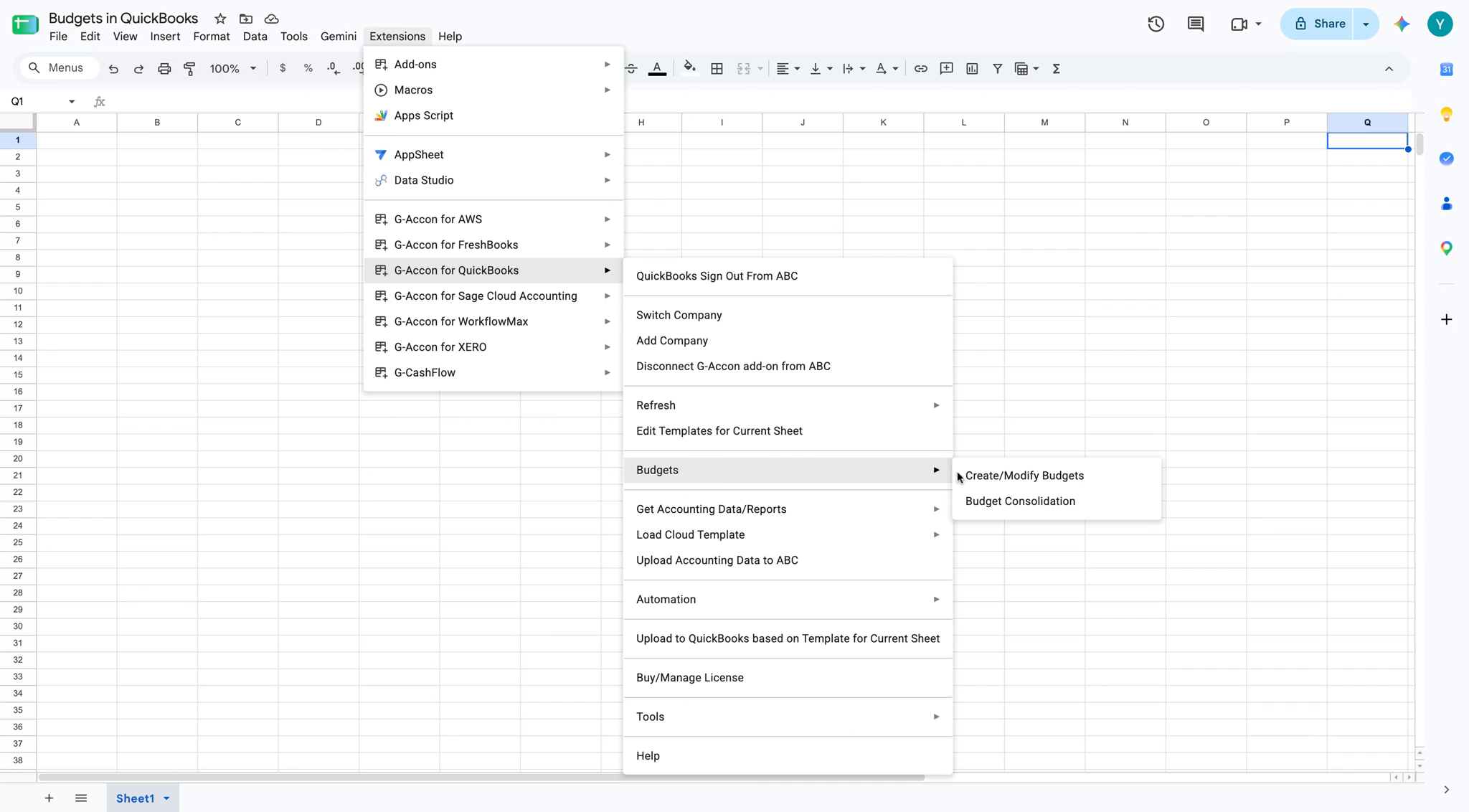
This QuickBooks budgeting software lives right inside your spreadsheet. Open your sheet and go to Extensions, then G-Accon for QuickBooks, then Budgets. You get two choices there: Create/Modify Budgets and Budget Consolidation. Almost everything in this article starts from the first one.
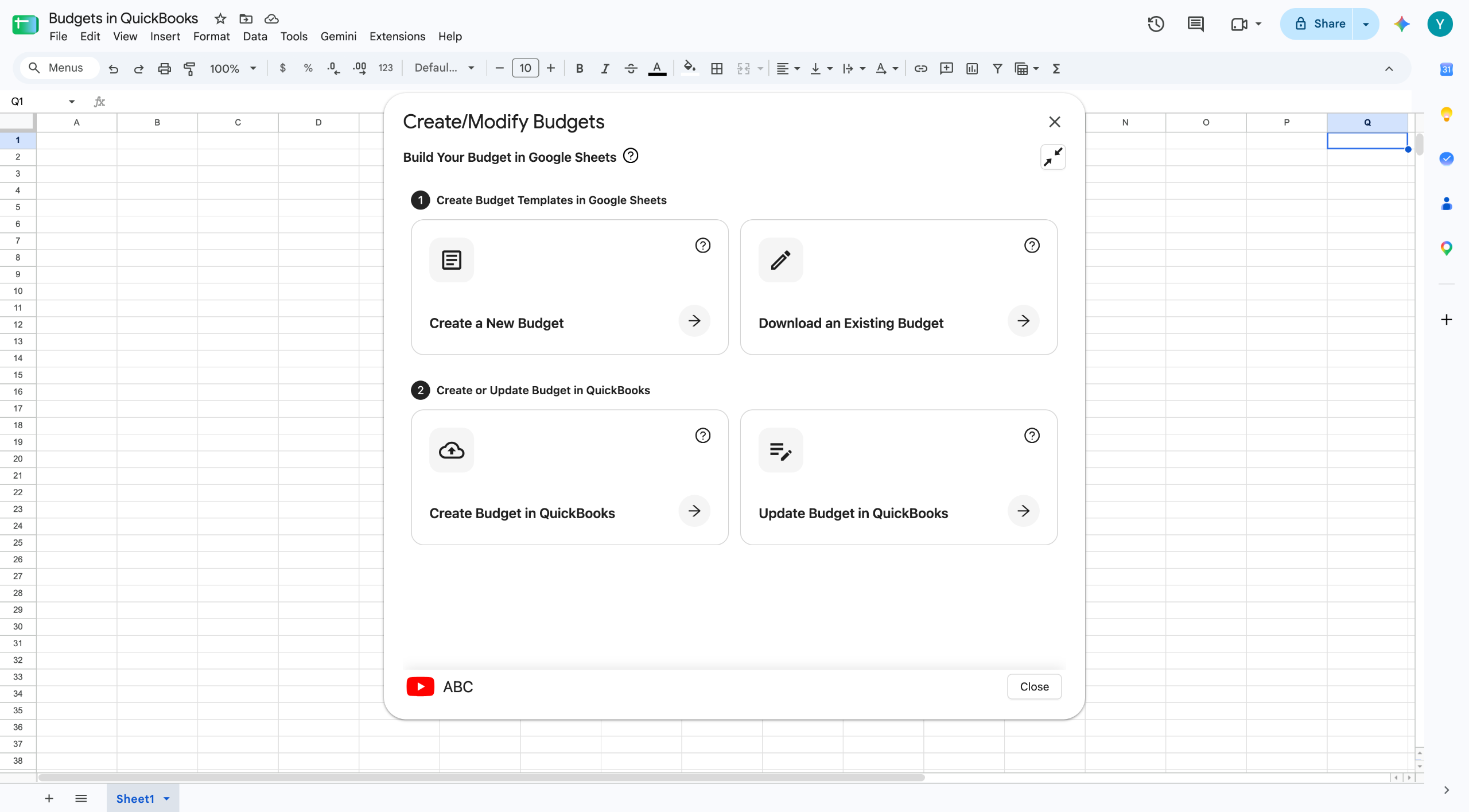
Create/Modify Budgets opens a panel with four options in two steps. Step one builds a template in Sheets. You start from scratch, or you download a budget that already exists. Step two sends it to QuickBooks, as a new budget or as an update.
How to Create a Budget With This QuickBooks Budgeting Software
Generate a template from actuals or an existing budget
Pick Create a New Budget, then fill in the setup screen. Give the budget a name, choose the year, and pick the interval. Then choose the format, Consolidated or Subdivided. Last, decide what to pre-fill it with.
Pre-fill is worth slowing down on. You get three choices. None gives you an empty grid with the right accounts and months. Actuals fills it with what really happened. Budgets fills it from a budget you already have.
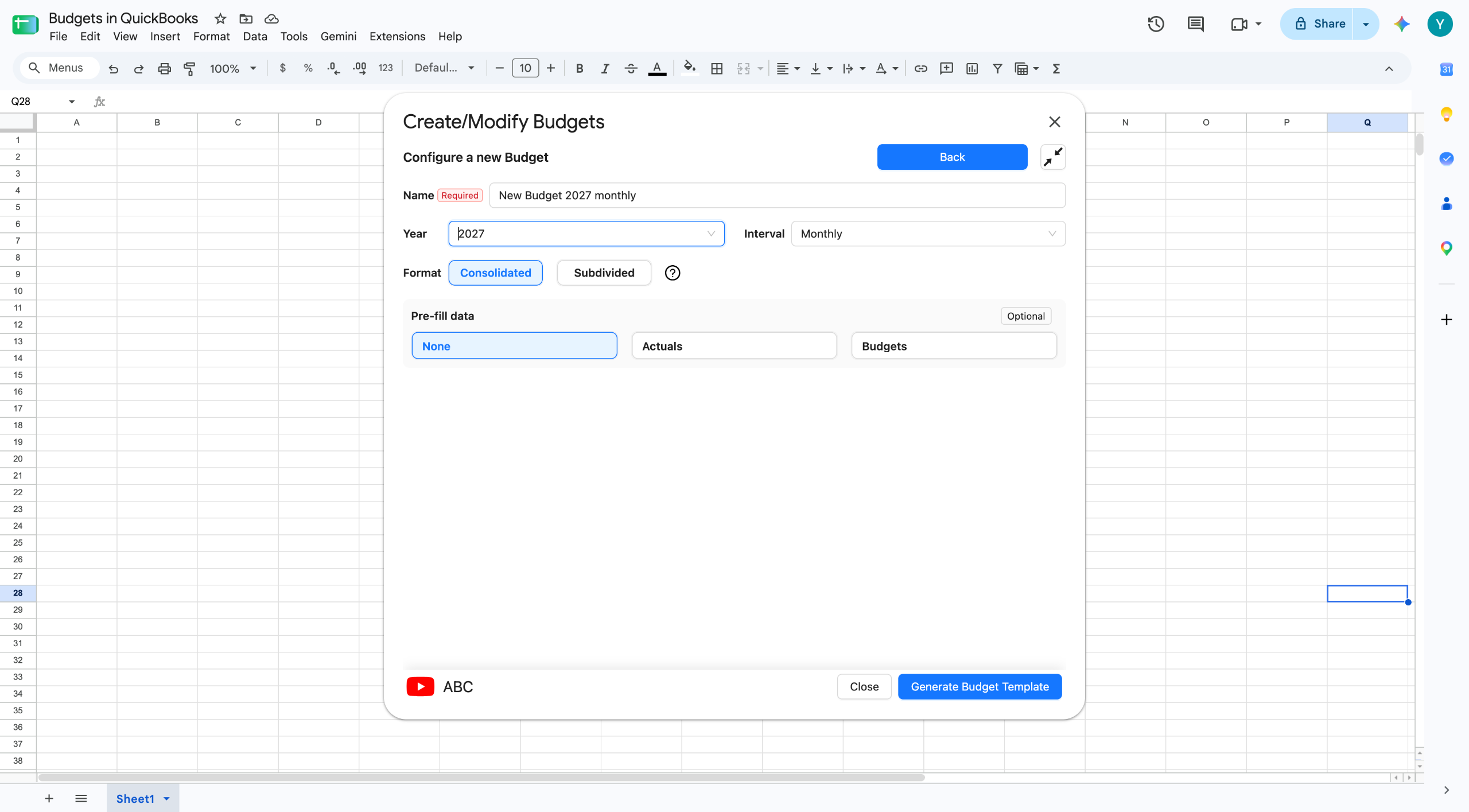
Most people plan next year from last year. Choose Budgets or Actuals, tick the source from the list, then click Generate Budget Template. G-Accon writes it onto its own tab in your workbook, already filled in.
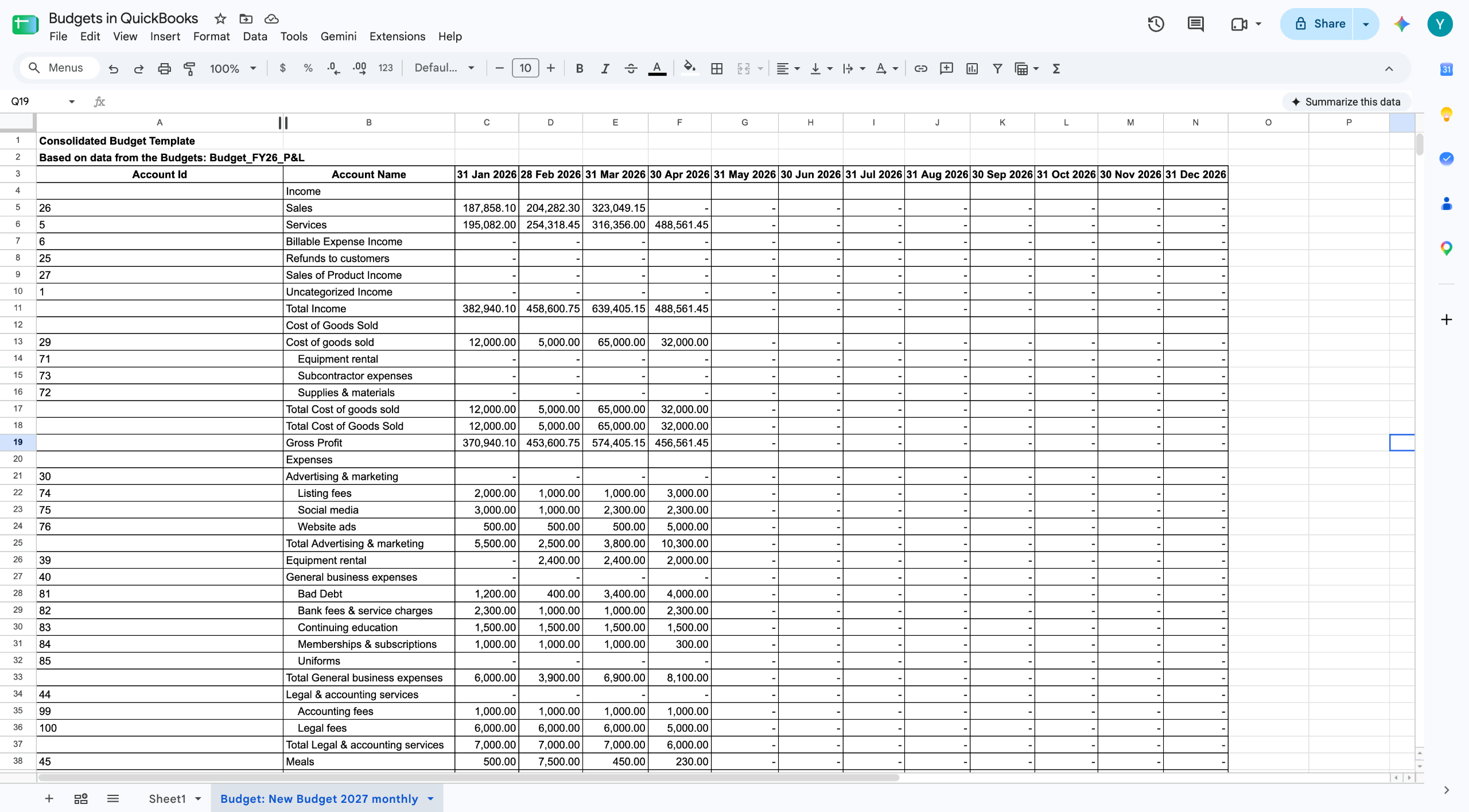
The template comes out with an Account Id column, an Account Name column, and one column per period. The account IDs matter. They are how G-Accon matches each row back to the right QuickBooks account on upload, so leave that column alone.
Everything else is just a spreadsheet. Type over the numbers. Use a formula. Add five percent across a row. Paste in figures your client sent you. Every cell is yours. That is the point of working in Sheets instead of a grid that takes one number at a time.
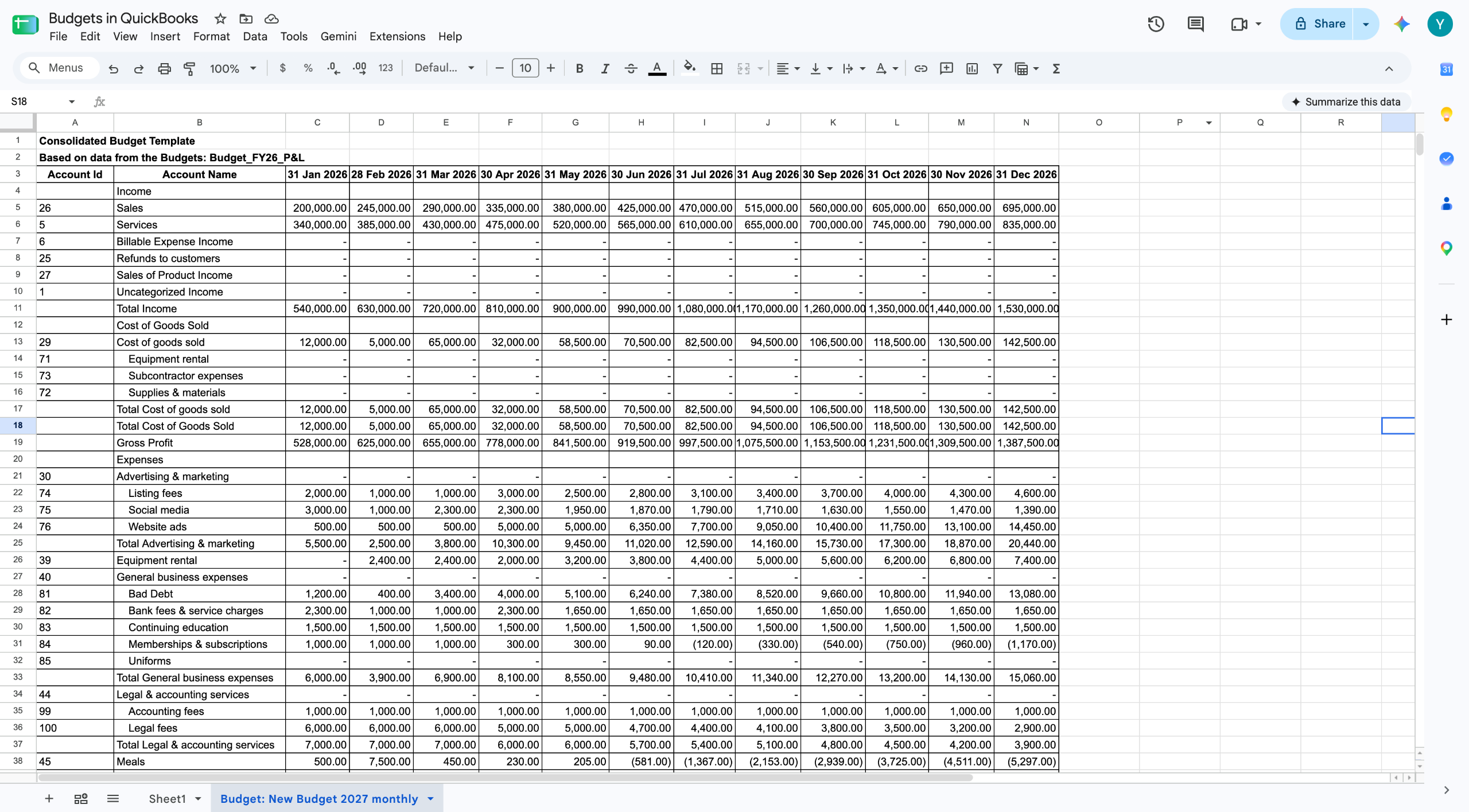
Set up monthly, quarterly, or yearly budgets
You set the interval on the same setup screen, before the template is built. Monthly gives you twelve columns. Quarterly gives you four. Yearly gives you one.
Pick based on how the budget gets used, not on how much typing you can face. If the client reviews the numbers every month, build it monthly. If it only exists for the bank once a year, yearly is fine. And since the template pre-fills from actuals, monthly costs you little extra anyway.
A quarterly budget works the same way. Choose Quarterly on the setup screen, enter the quarterly figures in the sheet, then upload it to QuickBooks. You can check it there once it lands.
Modifying and Uploading Budgets Back to QuickBooks
Edit an existing QuickBooks budget directly in Sheets
Use Download an Existing Budget to pull a budget out of QuickBooks and into your workbook. Pick it from the dropdown, then click Download Budget in Google Spreadsheet. There is a Hide Empty Rows toggle too. Turn it on if the chart of accounts is long and mostly unused.
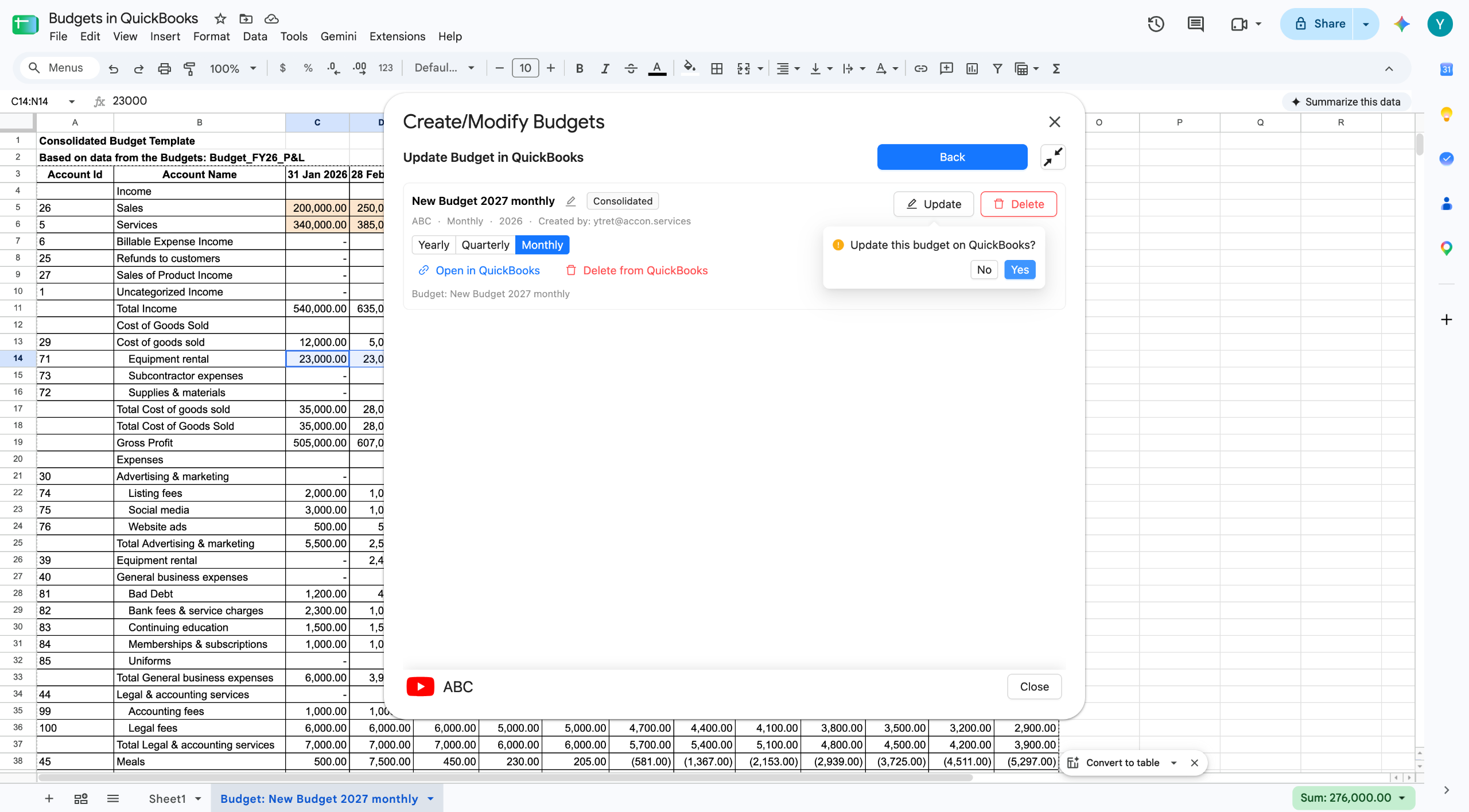
The budget lands on a new tab with every period filled in. This is where most of the time is saved. A mid-year revision normally means keying a whole column into QuickBooks again. Here you change the cells and move on.
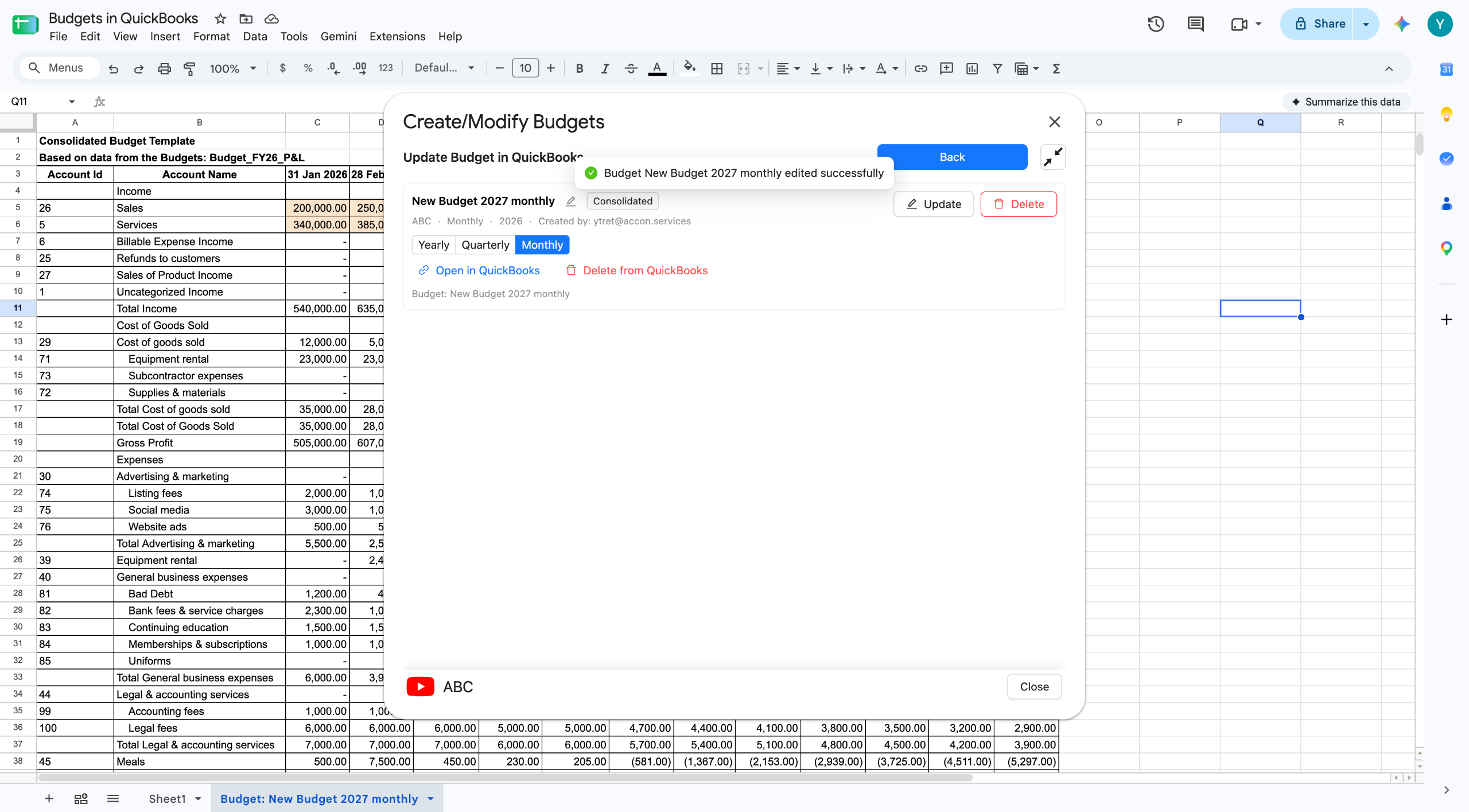
Upload and verify the updated figures in QuickBooks
A brand new budget goes up with Create Budget in QuickBooks. An existing one goes up with Update Budget in QuickBooks. Both sit in step two of the same panel.
For a new budget you get a list, with a pencil icon next to each name. Rename it there if you want, then click Create.
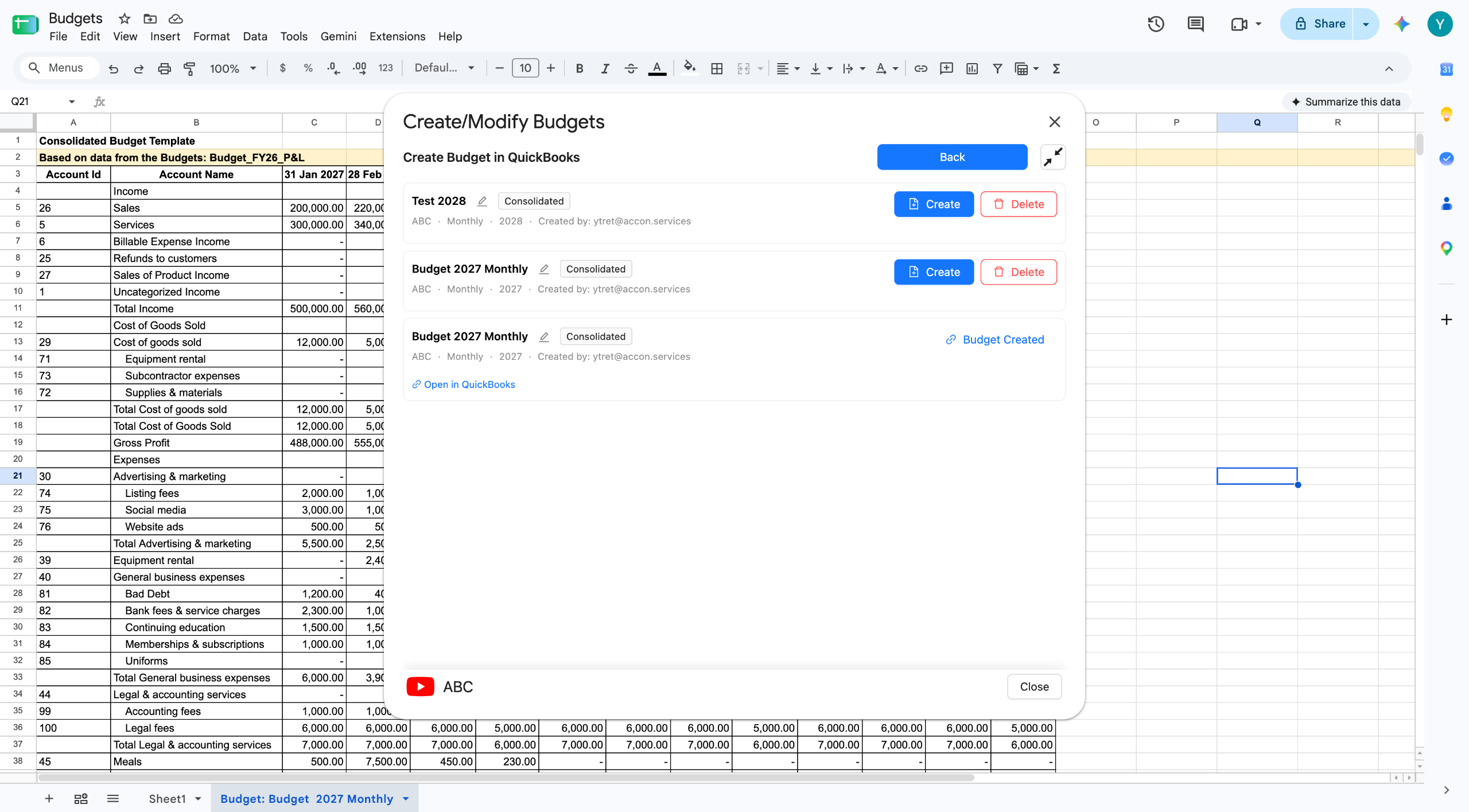
Once it uploads, the row says Budget Created and an Open in QuickBooks link appears. Click it. Check the numbers landed where you expected.
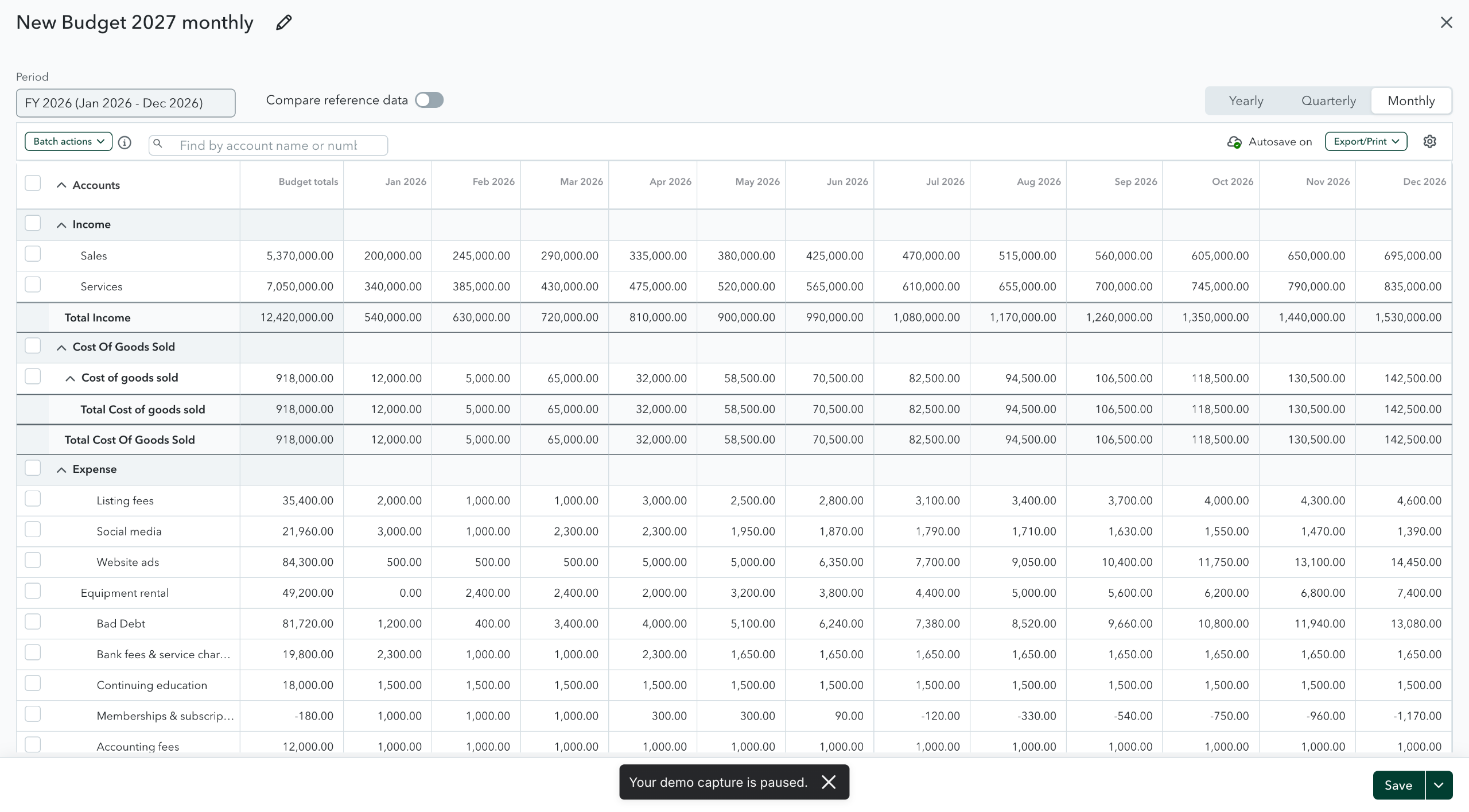
Updating works the same way. Select the budget, click Update, and confirm. That screen also has a Yearly, Quarterly, and Monthly toggle, so you control how the figures go up.
A confirmation appears when it is done. The Open in QuickBooks link lets you check the change right away. Always check. It only takes a moment, and it is the difference between a budget you trust and one you hope is right.
You can rename a budget before uploading it. That means you can keep versions side by side in QuickBooks. Upload the approved plan, then upload a revised copy under a clearer name. You can report against either one.
Want the detail on templates and field mapping? Our guide to bulk uploading budgets into QuickBooks covers that step properly. There is also a wiki page on creating a budget in Google Sheets.
Subdividing Budgets by Class, Location, or Customer
This QuickBooks budgeting software isn't limited to one flat number. Switch Format from Consolidated to Subdivided on the setup screen, then choose whether to split by Class, Location, or Customer. You also pick exactly which ones to include, rather than taking all of them.
Say you split by Customer. Tick the customers you want, then click Generate Budget Templates. G-Accon builds a separate template in Google Sheets for each customer you selected, not one sheet with everything crammed in. You fill in the figures for each one.
Uploading is the same as before. Open Create Budget in QuickBooks and click Create for the budget you want. Once it is done, you can open QuickBooks and check every customer budget landed.
Why subdivided budgets matter for multi-entity accounting
One company-wide number is not much use to a business with four sites. The manager of site three cannot act on a total that includes the other three. Subdivide by Location and each site gets its own targets. The group total still adds up.
The same goes for Class with service lines, and Customer with contract work. If you already split your profit and loss that way, budget the same way. Then your budget versus actual reporting lines up on its own. One person can also prepare the lot in one workbook, instead of merging four spreadsheets by hand.
One tip before you start. Whatever you subdivide by needs to exist in QuickBooks first. If the locations are not set up there, set them up before you build the template, not after.
Consolidating Multiple Budgets in One Workbook
Combine budgets across years, classes, locations, and customers
This QuickBooks budgeting software also brings multiple budgets together. Budget Consolidation is the second item on the Budgets menu. It brings several budgets together into one view. They do not have to match. You can combine budgets from different years, and budgets built by class, location, or customer.
The steps are short. Go to Budgets, then Budget Consolidation. Tick the budgets you want to combine. Click Consolidate. G-Accon builds the combined budget in Google Sheets, where you can report on it, chart it, or send it to a client.
Combining across years is the one people miss. Put this year's budget next to last year's and next year's draft. The trend does the arguing for you. That is hard to do when each budget sits on its own QuickBooks screen.
Use case: managing several QuickBooks clients from one workbook
Picture budget season at a firm with a dozen QuickBooks clients. The old routine is one spreadsheet per client, a lot of copy and paste, and a week of typing approved numbers back into each company file.
The Budget Module changes the shape of that. Build each client's template from their own actuals. Do the work in one workbook. Upload each budget to the right company. When a client changes their mind in March, download, edit, update. QuickBooks then runs budget versus actual reporting against whichever version you sent.
Getting Started
Where to find the Budget Module in G-Accon for QuickBooks
Setting up this QuickBooks budgeting software takes just a few minutes. Install G-Accon for QuickBooks, connect your company, then go to Extensions, G-Accon for QuickBooks, Budgets. If you already use G-Accon for reporting, it is in the same menu as everything else. There is nothing extra to install.
Plans, company limits, and user seats are on the G-Accon pricing page. Every plan starts with a 14-day free trial, and you do not need a card.
Try the interactive demo
Reading about a workflow only gets you so far. We built a short interactive demo of the whole thing, from opening the menu to checking the budget in QuickBooks. You click through at your own pace, and nothing touches your real data.
Prefer it full screen? Open the Budget Module demo in a new tab. It runs through the same steps covered above, from the Extensions menu to checking the finished budget in QuickBooks.
FAQ
Does the Budget Module work with QuickBooks budgets I already created?
Yes. As QuickBooks budgeting software, it works with budgets you already built — use Download an Existing Budget and pick it from the dropdown. It comes into Google Sheets with its figures intact. Edit it there, then send it back with Update Budget in QuickBooks. You can also use an old budget to pre-fill a new one. That is the usual way to roll a budget forward a year.
Can I upload budgets for multiple classes or locations at once?
This QuickBooks budgeting software handles granular formats. Yes. Set the format to Subdivided and choose Class, Location, or Customer. You can build templates for just the ones you select rather than all of them. Then upload the subdivided budget and check it in QuickBooks.
Build Your Next Budget With G-Accon's QuickBooks Budgeting Software
Build it from last year's actuals. Edit it like any spreadsheet. Push it into QuickBooks once it is signed off. Start your 14-day free trial, no card needed.