TL;DR
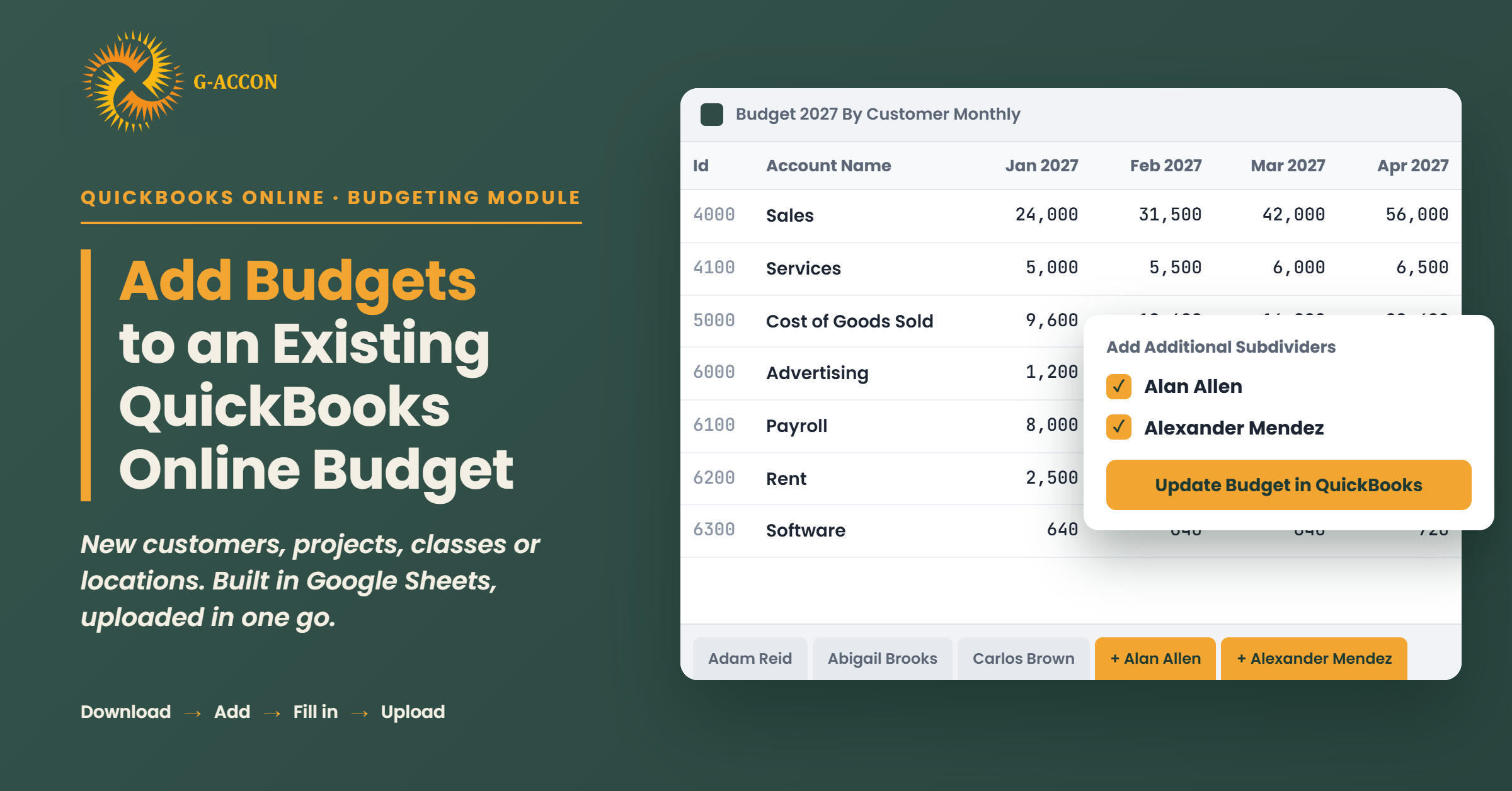
To add budgets to an existing QuickBooks Online budget, download it into Google Sheets with G-Accon's Budgeting Module and add the new customers, projects, classes or locations. Fill in the numbers, then upload it all back in one go. Each new budget can start blank, from your actual figures or from another budget.
Say you set up a QuickBooks Online budget in January and then signed a new client or opened a new location. Adding them later means going back in one screen at a time, and most teams end up retyping numbers they already have.
G-Accon's new Budgeting Module lets you add extra budgets to the one you already have, so you don't start from scratch. You download the budget into Google Sheets, add the new names and fill in the figures with your team. Then one update sends it all back to QuickBooks Online.
The demo below uses a budget called Budget 2027 By Customer Monthly, which is already split across five customers. You'll see two new customers get budgets of their own, and you can follow the same steps with your own company file.
Jump to a section
What you need before you start
You only need a few things in place, and most finance teams already have them.
- A Google Sheets file with the G-Accon for QuickBooks add-on installed and connected to your QuickBooks Online company
- An existing QuickBooks Online budget that's split by Customers/Projects, Classes or Locations (the demo uses one split by customer). If you haven't set one up yet, Intuit explains how to create budgets in QuickBooks Online.
- A list of the new customers, projects, classes or locations you want to budget for
- Your figures for the new budgets, or last year's actuals in QuickBooks if you'd like G-Accon to fill them in for you
Part 1: Download your existing QuickBooks Online budget
Start by pulling the budget you already have into Google Sheets, so G-Accon has something to build on. It only takes a few clicks, and it means your new budgets will match the year, interval and format of the old ones.
Step 1Open Create/Modify Budgets
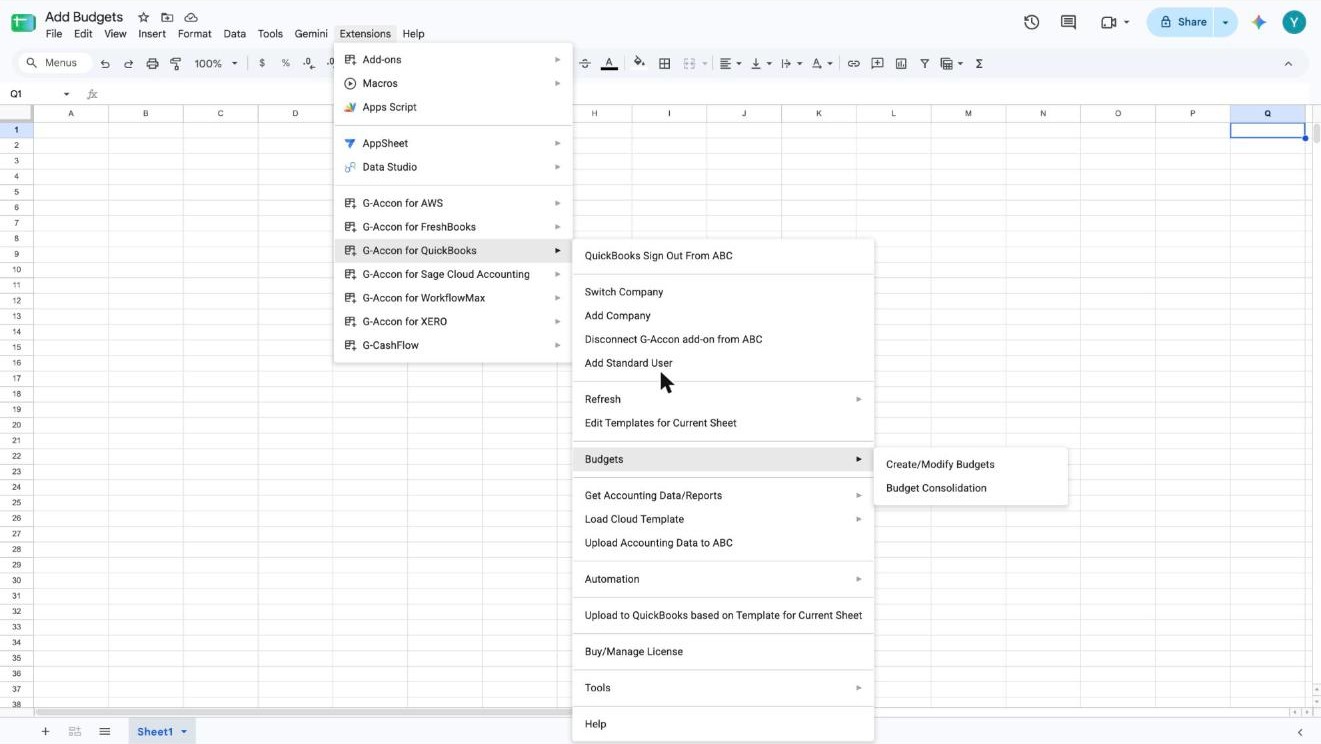
In your Google Sheet, go to Extensions → G-Accon for QuickBooks → Budgets → Create/Modify Budgets. You'll also see Budget Consolidation in that menu, but for this job you want Create/Modify Budgets.
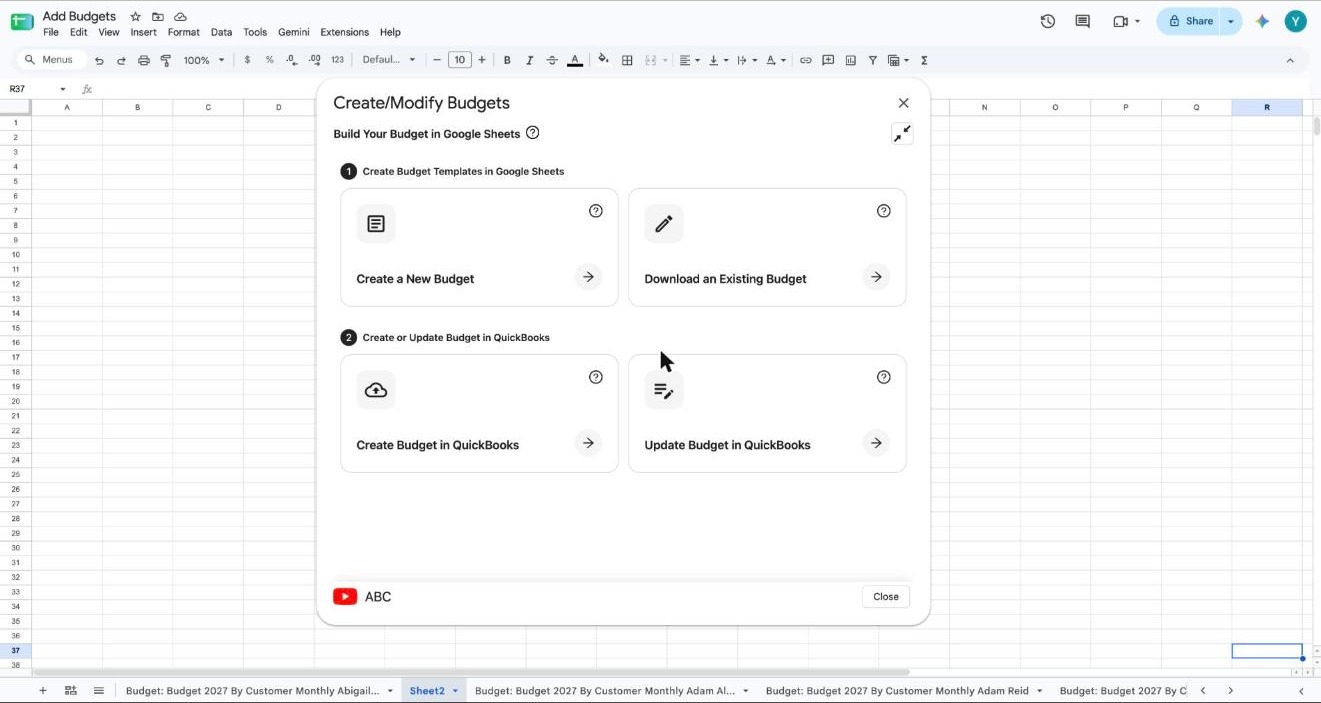
Step 2Choose Download an Existing Budget
The Create/Modify Budgets window opens in two sections. The top half builds templates in Google Sheets, and the bottom half sends budgets to QuickBooks. Since you're adding to a budget that already exists, click Download an Existing Budget.
Step 3Refresh the budget list
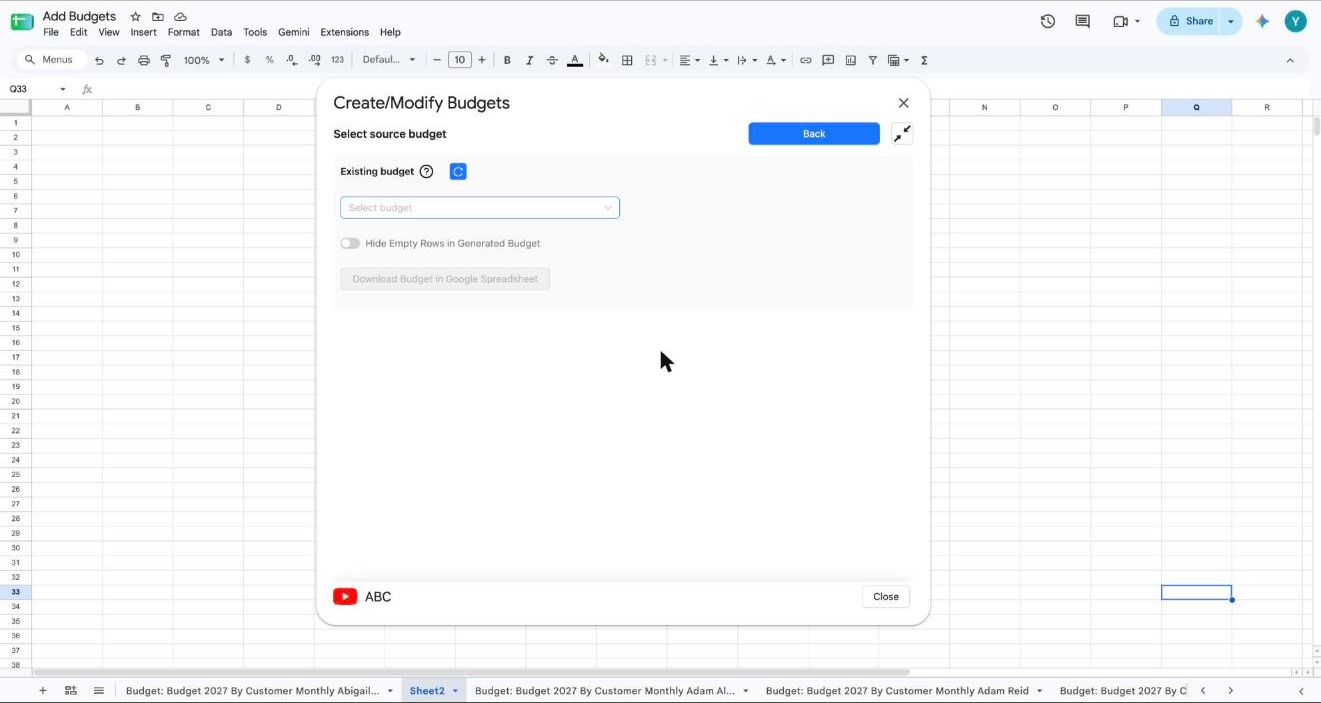
On the Select source budget screen, click the blue refresh button next to Existing budget. That pulls the latest budgets from QuickBooks Online, including any a teammate just added.
Step 4Pick the budget you want to add to
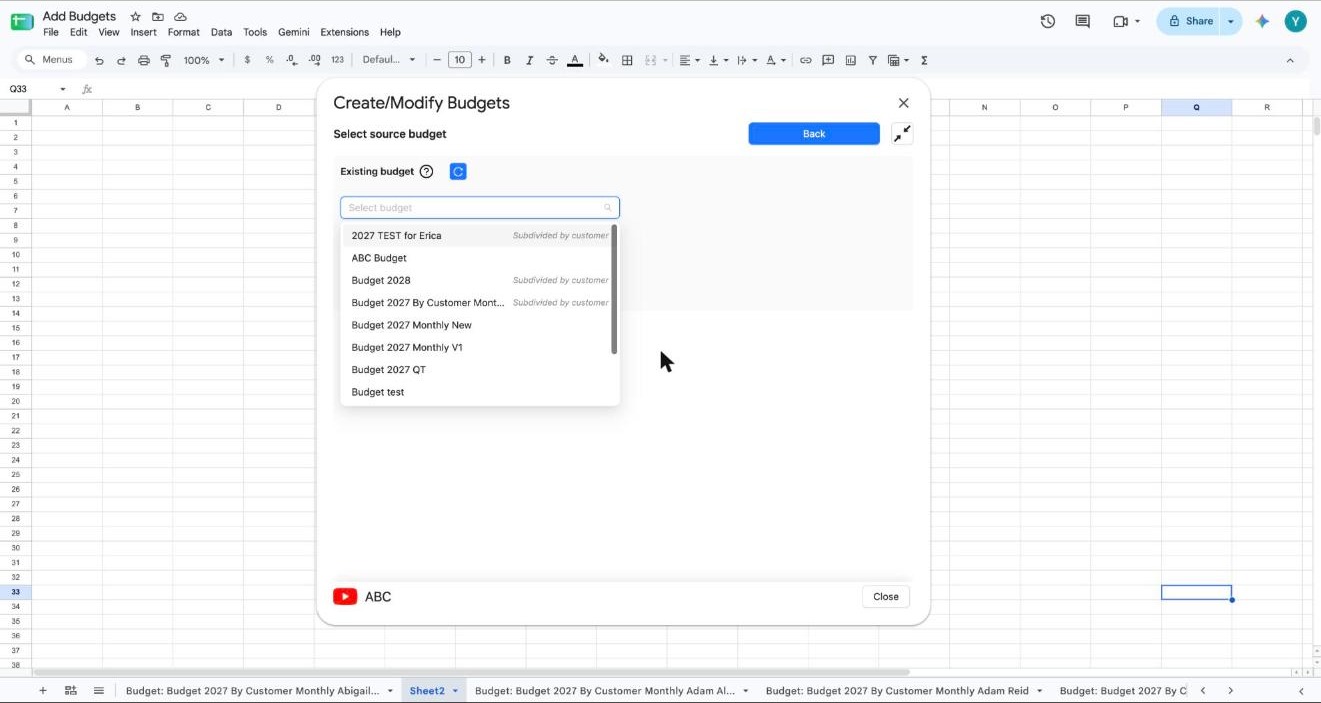
Open the Select budget dropdown and choose the QuickBooks Online budget you want to expand. Budgets that are already split carry a small grey label, such as Subdivided by customer, which makes them easy to spot. In the demo, the pick is Budget 2027 By Customer Monthly.
Step 5Check what's already there
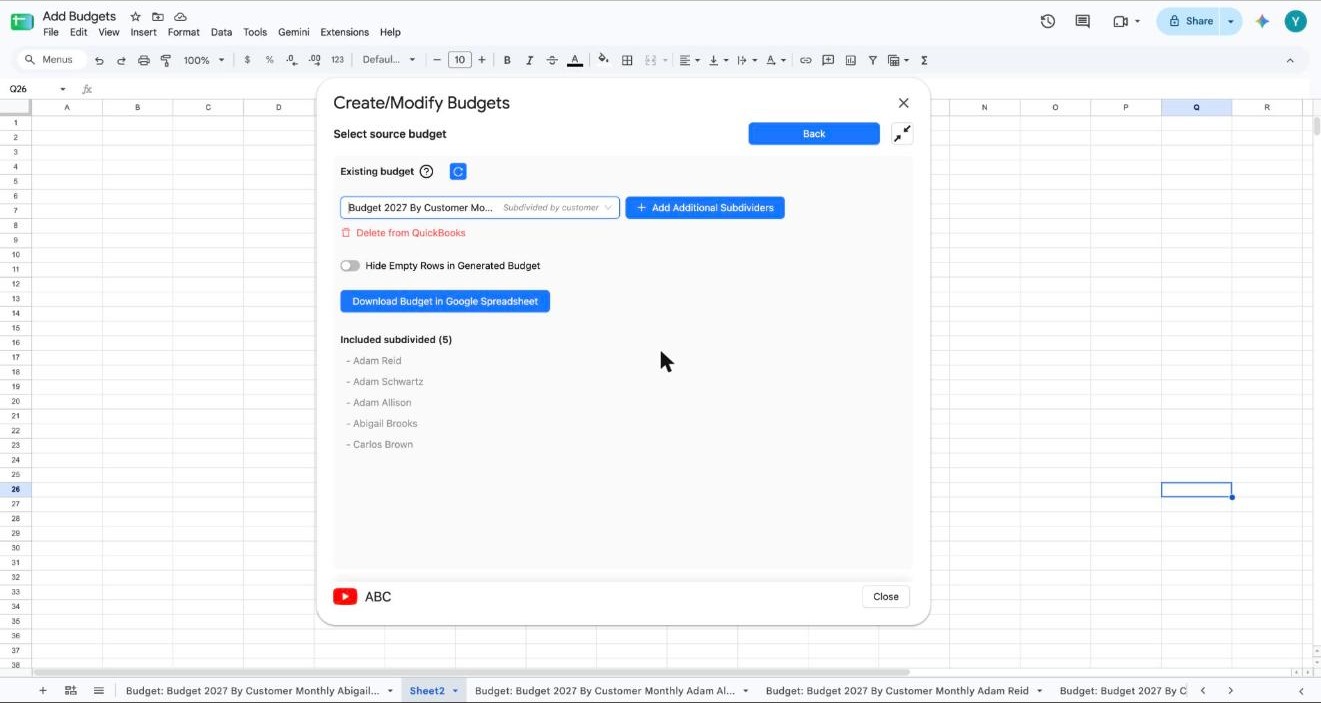
Once you pick a budget, G-Accon lists its current subdivisions under Included subdivided. The demo budget already covers five customers (Adam Reid, Adam Schwartz, Adam Allison, Abigail Brooks and Carlos Brown). To budget for anyone else, click Add Additional Subdividers.
Tip: Turn on Hide Empty Rows in Generated Budget if you'd rather not scroll past accounts that have no figures in them.
Part 2: Add your new customers, projects, classes or locations
This is where you tell G-Accon who or what needs a new budget. You'll also decide whether each new budget starts blank or comes pre-filled with numbers.
Step 6Find the customers or projects to add
The Add Additional Subdividers to Existing Budget screen locks the budget's name, year, interval and format, so new budgets match the old ones. Under Subdivide by, you'll see your full customer list. The customers who already have a budget are greyed out with a tick, and you can type in the Search box to find a name quickly.
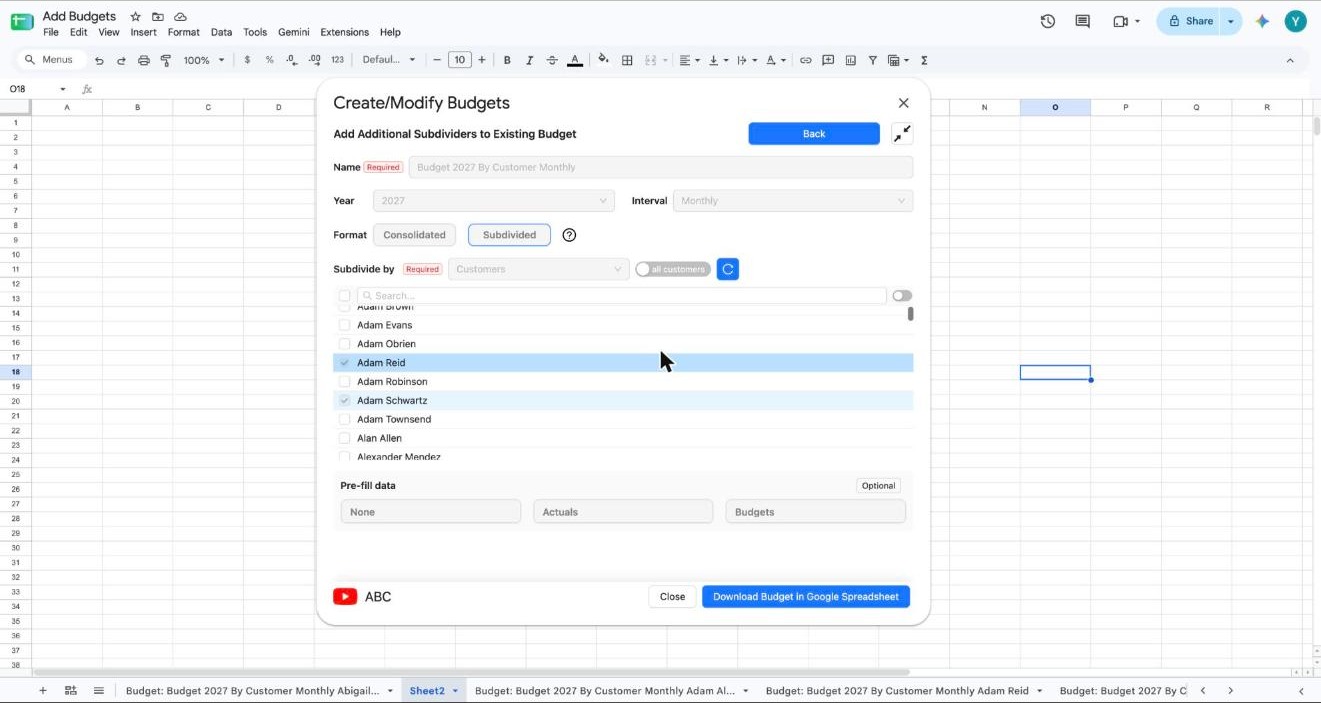
Step 7Tick the new names
Tick each customer or project that needs its own budget. In the demo, that's Alan Allen and Alexander Mendez. The button at the bottom keeps count as you go, so it now reads Download Budget in Google Spreadsheet + Add 2.
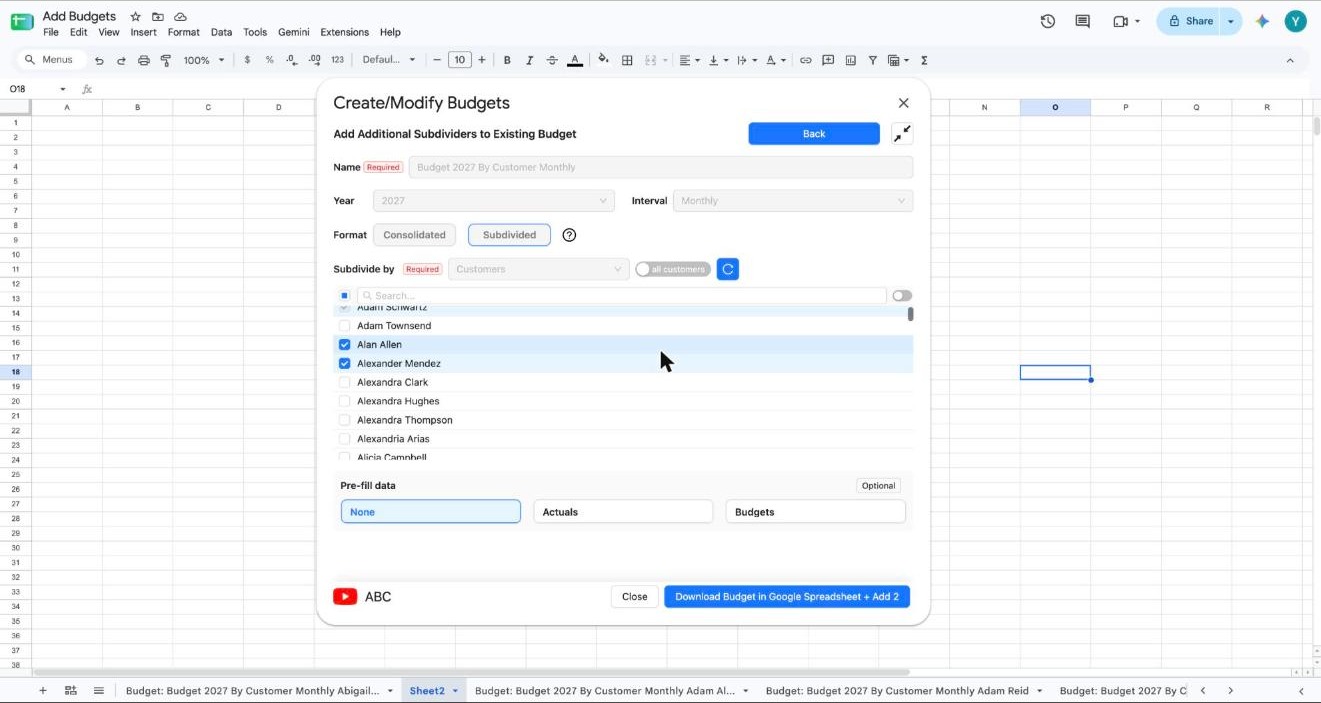
Step 8Choose how to fill the new budgets
Under Pre-fill data, choose how G-Accon should start each new budget:
- None gives you a blank template to fill in yourself
- Actuals brings in real figures from your QuickBooks books
- Budgets copies the numbers from a budget you already have
The demo picks Actuals. When you're ready, click Download Budget in Google Spreadsheet + Add 2.
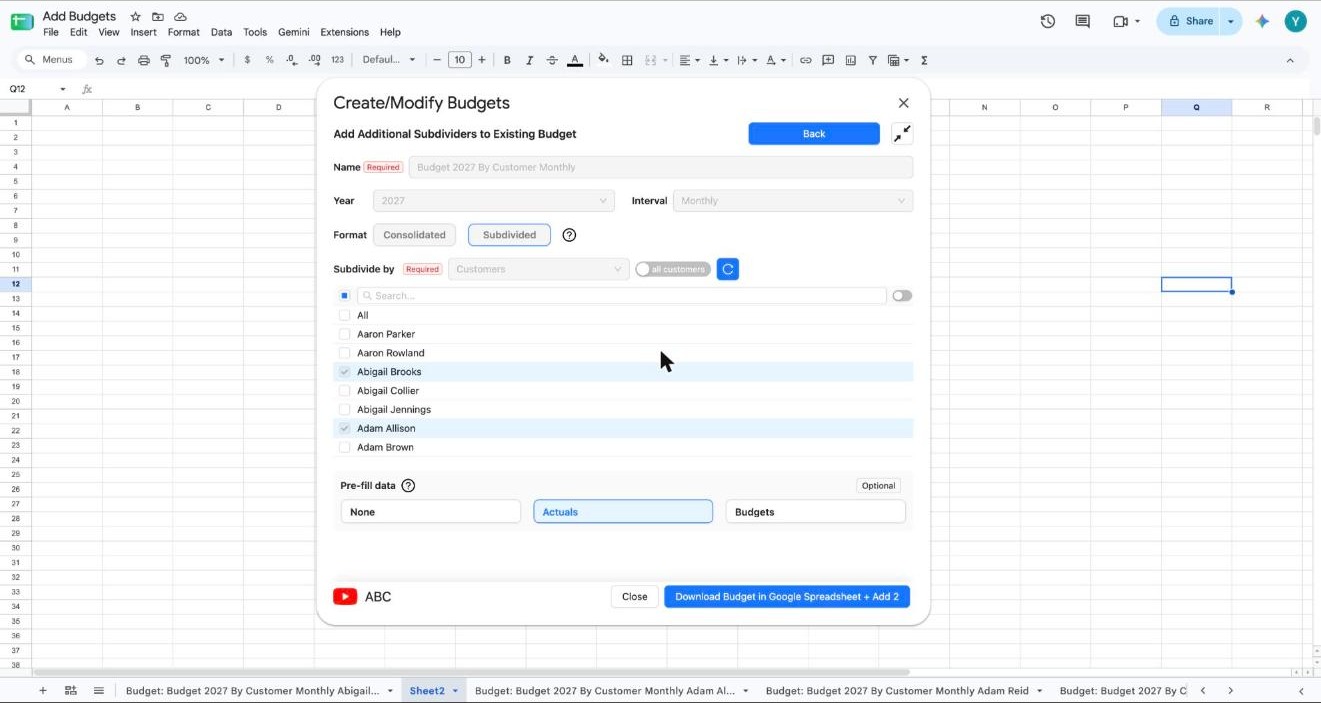
Step 9Set your actual data filters
If you pre-fill from actuals, G-Accon walks you through each new customer one at a time. On the Configure for screen, you can narrow the actual data by Classes, Locations or Customers and pick the Actual data year, which is 2026 (YTD) in the demo. Check your choices, change anything that looks off and click Next. The counter on the button, like Next (1/2), tells you how many customers are left.
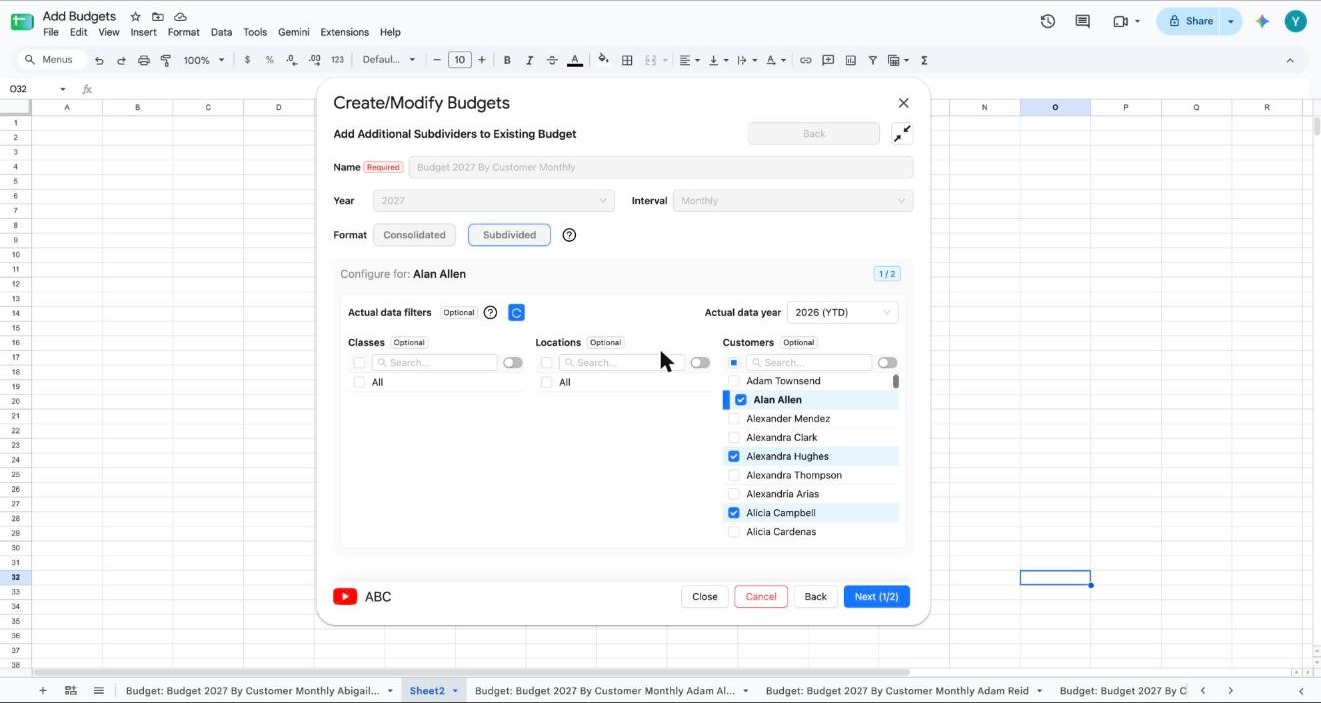
Step 10Let G-Accon build the templates
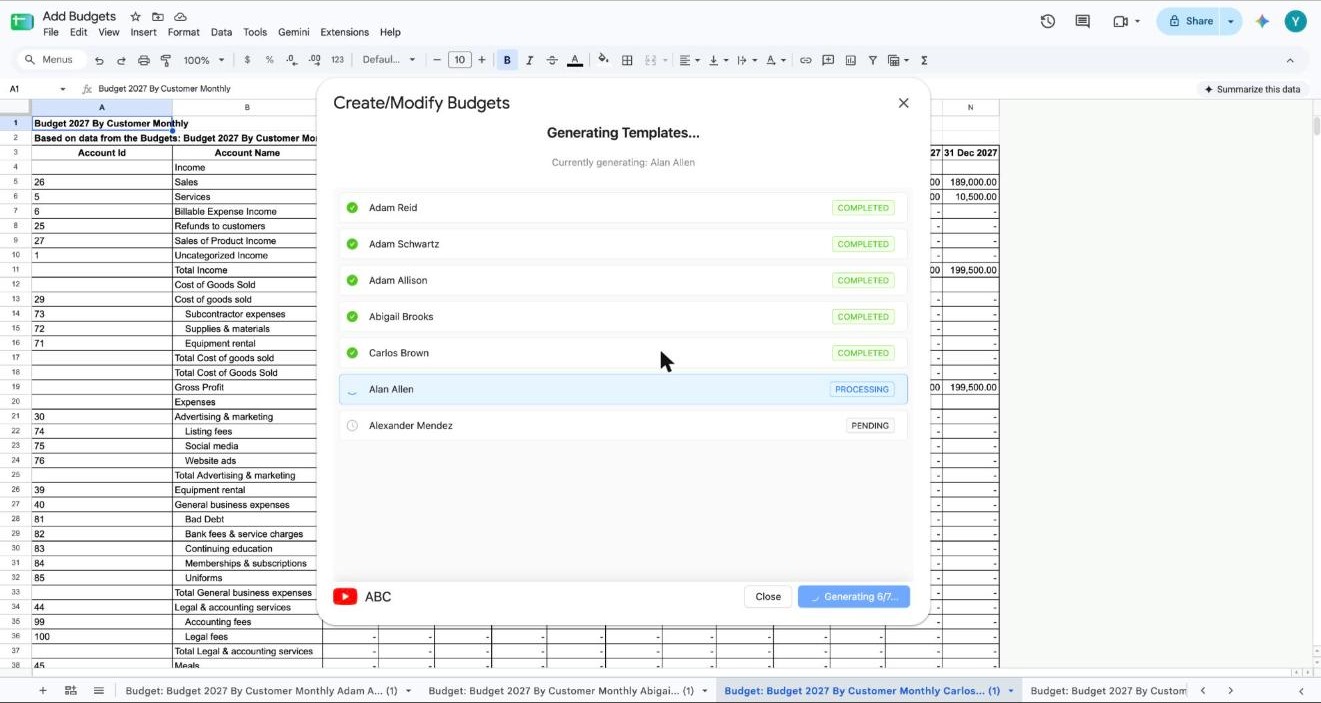
G-Accon now builds a template for every customer in the budget, old and new. Each one shows as Completed, Processing or Pending while it works. In the demo, it creates seven templates, five for the existing customers and two for the new ones.
Step 11Note the upload reminder
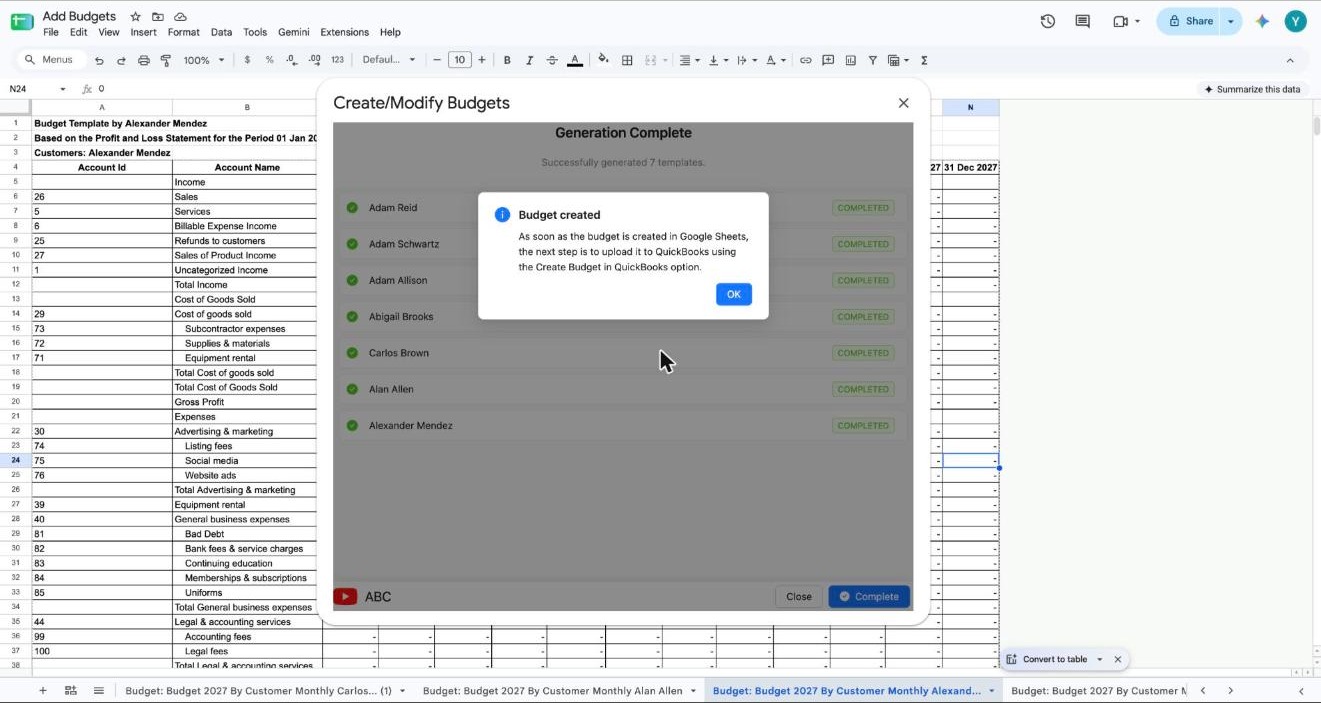
When it's done, a Budget created message pops up. It reminds you that the budget only lives in Google Sheets for now. Nothing changes in QuickBooks Online until you upload it. Click OK, then Complete.
Part 3: Fill in and review the budgets in Google Sheets
Each customer now has its own tab in your Google Sheet. You and your team can work on the numbers together before anything goes back to QuickBooks.
Step 12Enter your budget figures
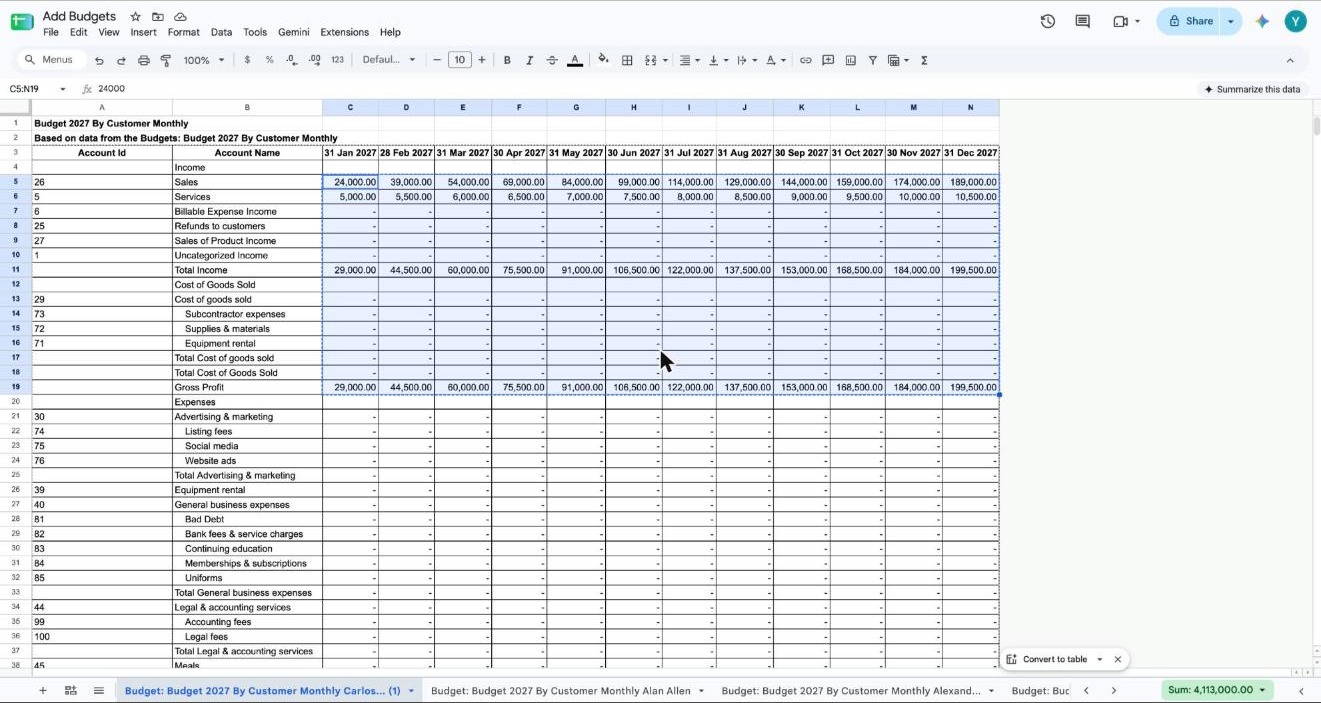
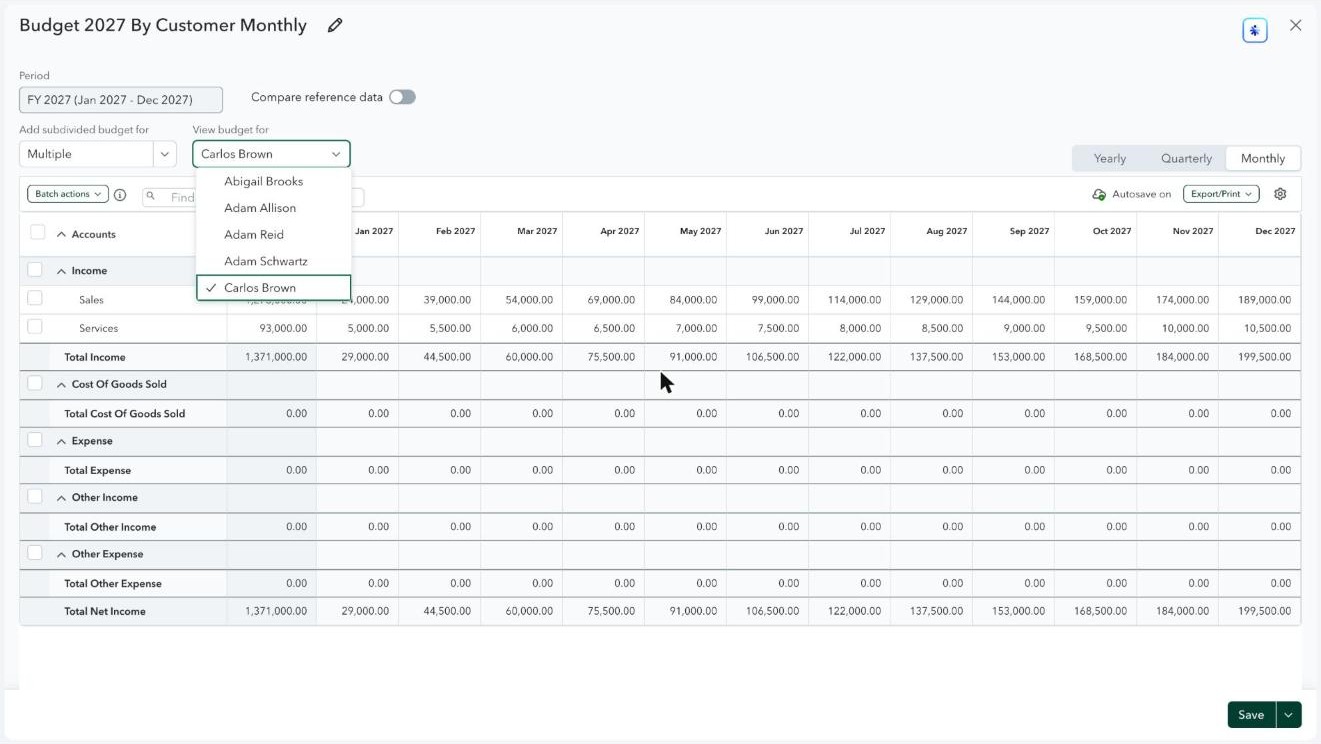
Open each tab and add your figures for revenue, cost of goods sold, expenses and any other accounts you track. Every tab lists the Account Id and Account Name down the side, with a column for each month across the top. In the demo, Carlos Brown's budget shows Sales growing from $24,000 in January 2027 to $189,000 in December, while Services climbs from $5,000 to $10,500.
Step 13Review every subdivided budget
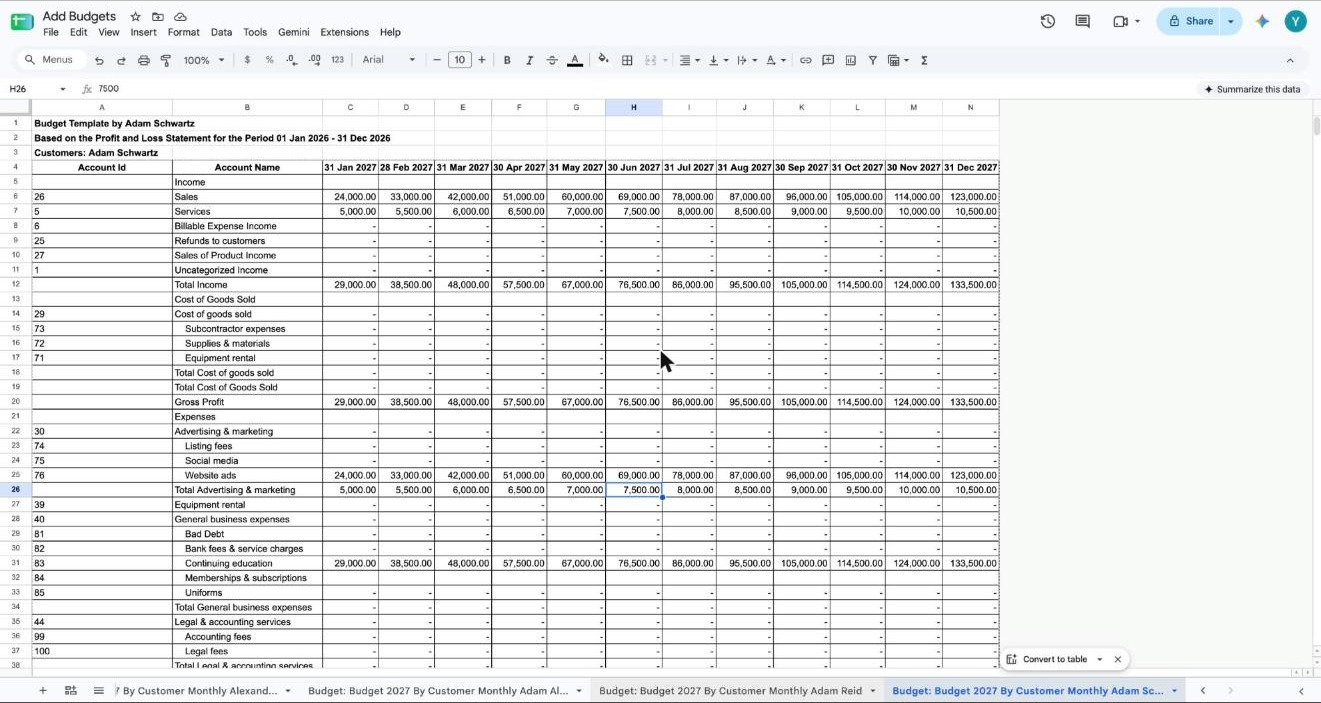
Before you upload, go through every subdivided tab, including the ones for customers who already had a budget. Templates built from actuals show where their numbers came from at the top, for example Based on the Profit and Loss Statement for the Period 01 Jan 2026 - 31 Dec 2026. It's all in one Google Sheet, so a colleague can double-check the figures too.
Part 4: Upload and check your QuickBooks Online budget
One update sends the whole budget, new subdivisions included, back to QuickBooks Online. After that, a quick look inside QuickBooks confirms everything landed where it should.
Step 14Update the budget in QuickBooks
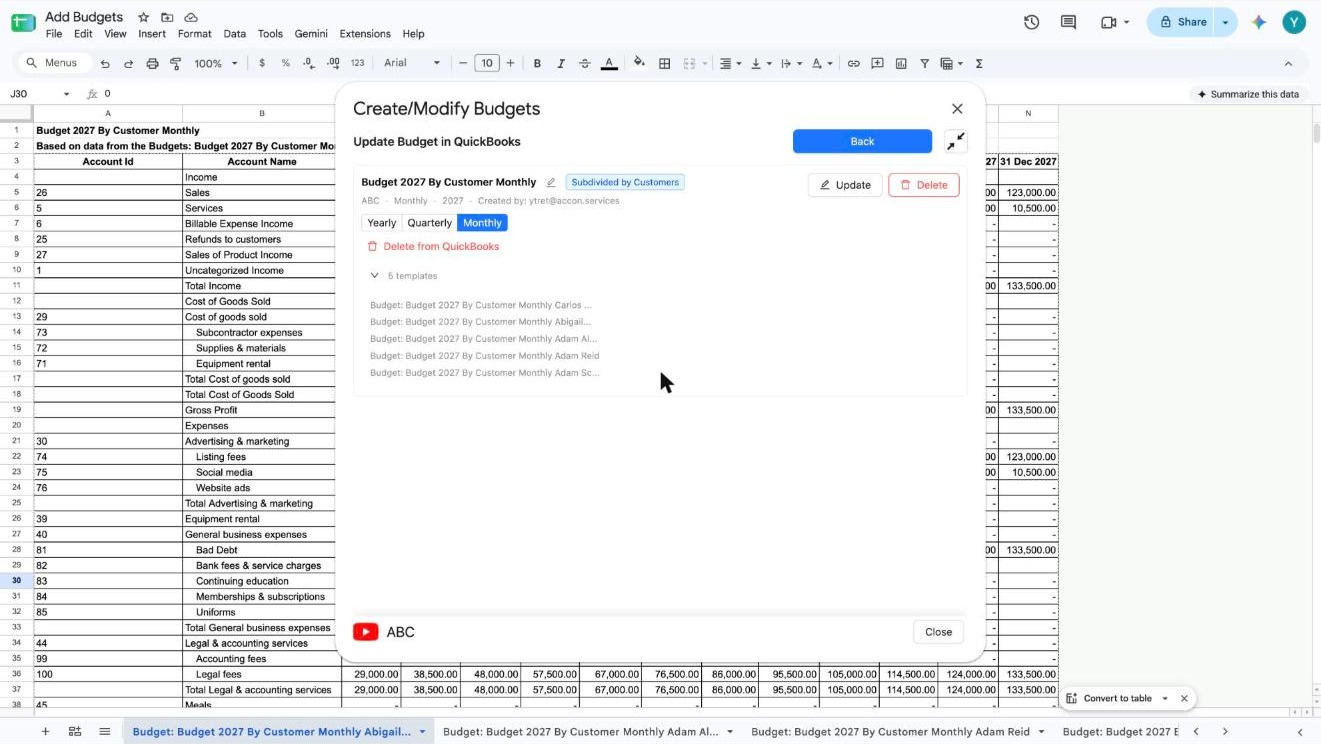
Go to Extensions → G-Accon for QuickBooks → Budgets → Create/Modify Budgets again, and this time pick Update Budget in QuickBooks. You'll see a card with your budget's name, interval, year and linked templates. Check the details, including the Yearly, Quarterly or Monthly setting, then click Update.
Heads-up: The same card has red Delete and Delete from QuickBooks buttons, so take a second to make sure you're clicking Update.
Step 15Open the budget in QuickBooks
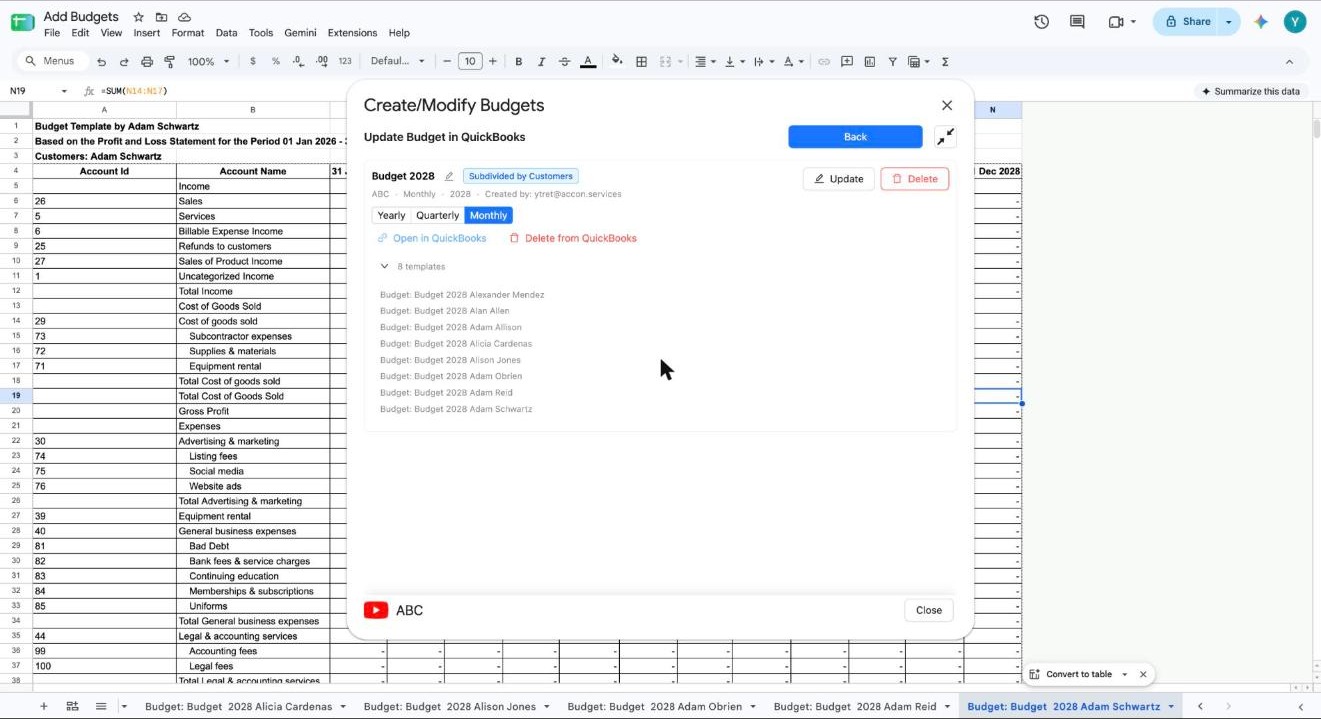
When the update finishes, the budget card shows an Open in QuickBooks link. Click it to jump straight to that budget inside QuickBooks Online.
Step 16Check each new budget in QuickBooks Online
The budget opens in QuickBooks Online's budget editor. Use the View budget for dropdown to switch between customers and make sure each one shows the figures you entered in Google Sheets. In the demo, Carlos Brown's budget shows Total Income of $1,371,000 for FY 2027, which matches the twelve monthly totals from the sheet.
Wrapping up
That's how you add budgets to an existing QuickBooks Online budget without starting over. You download the budget into Google Sheets, add the new names and choose how to fill them. Then you check the numbers with your team and upload it all in one go. Next time a client signs on halfway through the year, it's a few minutes of work instead of a full rebuild.
Want the bigger picture? Our page on G-Accon's QuickBooks budgeting software covers creating, uploading and consolidating budgets in Google Sheets.
Frequently asked questions
Can you add a new budget to an existing budget in QuickBooks Online?
Yes. With G-Accon's Budgeting Module, you download the existing budget into Google Sheets, click Add Additional Subdividers and choose the new customers, projects, classes or locations. G-Accon builds a template for each one, and you send the finished budget back with Update Budget in QuickBooks.
What can I subdivide a QuickBooks Online budget by?
You can subdivide by Customers/Projects, Classes or Locations. New budgets follow the same split as the budget you're adding to, so a budget divided by customer gets new customers added to it.
Do I have to start each new budget from scratch?
No. Under Pre-fill data, pick None for a blank template or Actuals to bring in real figures from QuickBooks. You can also pick Budgets to copy the numbers from another budget.
Will my changes show up in QuickBooks Online right away?
No. Anything you change in Google Sheets stays in the sheet until you go to Create/Modify Budgets and click Update Budget in QuickBooks. After the update, use the Open in QuickBooks link to check the result.
Can my team work on the budget together?
Yes. Each budget sits on its own tab in one Google Sheet. Share the file, and your team can check and edit the figures before you upload them.
Ready to build your budgets in Google Sheets?
See how the Budgeting Module works with your own QuickBooks Online data.