Generate Multi-Entity and Multi-Currency Consolidated Profit and Loss Report with Intercompany Eliminations from QuickBooks into Google Sheets. Automate your intercompany reporting with flexible configuration options and scheduled updates.
Customize your reports with themes, company colors, and white-label branding to create a polished, professional look.
SECTIONS IN THIS ARTICLE
✅ Generating the P&L with Intercompany Eliminations
✅ Design a Report Template
✅ Schedule Automatic Refresh
✅ Modify an Existing Template
✅ Watch G-Accon YouTube Videos
Generating the P&L with Intercompany Eliminations
To pull your Consolidated P&L with Intercompany Eliminations data into Google Sheets, follow these steps:
- Open your Google Sheet and go to Extensions in the menu.
- Select G-Accon for QuickBooks.
- Click Get Accounting Data / Reports.
- Choose Consolidated Reports.
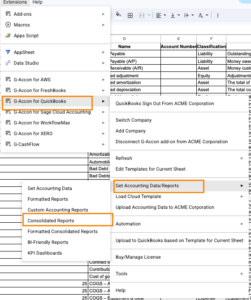
- Select at least two QuickBooks Organizations/Entities.
- Choose Profit and Loss Intercompany Eliminations from the report dropdown.
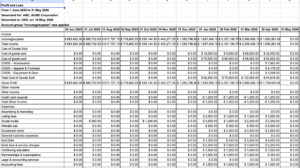
How to Create a Template for the Report
Once you select Profit and Loss Intercompany Eliminations from the Consolidated Reports dropdown, the Get Report from QuickBooks - Create a Template window opens.
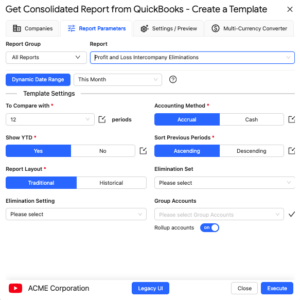 Here you configure all report parameters before executing.
SELECT PARAMETERS
The Profit and Loss with Intercompany Eliminations report supports three date range modes:
Dynamic Date Range
Report data is calculated based on pre-populated relative periods such as This Month, This Quarter, This Year, Last Month, and more. Ideal for recurring reports that always reflect the current period without manual date adjustments.

Static Date Range
Define a fixed start and end date for the report. The date range remains unchanged each time the report is refreshed, making it suitable for historical snapshots or period-end reporting.

Custom Date Range
Reference cells in your Google Sheet to drive the report dates dynamically. This is useful when date inputs are controlled by a dashboard or input sheet, allowing multiple reports to be updated by changing a single cell value.

REQUIRED ATTRIBUTES
The following parameters must be configured before executing the report:
Compare To (required) — select the number of previous periods to include as comparison columns alongside the current period.
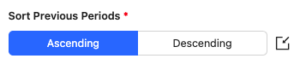
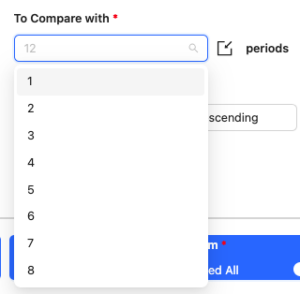 Sort Previous Periods — control whether comparison periods are displayed in Ascending or Descending order.
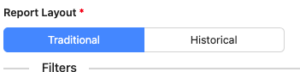
 Report Layout — choose either Traditional or Historical layout.
 Elimination Set — an Elimination Set must be created under G-Accon for QuickBooks → Tools → Intercompany Eliminations before it can be used when generating consolidated reports.
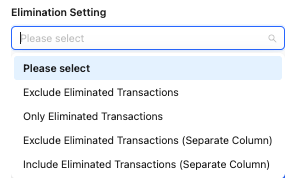 Elimination Settings — choose how eliminated transactions are handled in the report:
- Exclude Eliminated Transactions — removes transactions identified in the Elimination Set from the dataset.
- Only Eliminated Transactions — includes only transactions that have been eliminated as defined in the Elimination Set.
- Exclude Eliminated Transactions (Separate Column) — excludes eliminated transactions and presents them in a separate column for clarity or further analysis.
- Include Eliminated Transactions (Separate Column) — includes eliminated transactions and also presents them in a separate column.
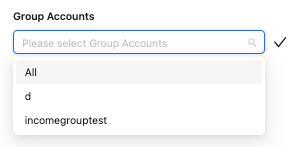
Group Accounts — should be created under G-Accon for QuickBooks → Tools → Group Accounts
 Rollup Accounts — enabled or disabled it if you want to have a tree like structure that can be collapse in your report.

SETTINGS / PREVIEW
The Settings/Preview tab gives you fine-grained control over how report data is presented in your Google Sheet. All settings are optional and can be combined to suit your reporting workflow:
- Create a New Google Sheet — generate the report in a new tab or worksheet.
- Display Report Title — include the report name as a header row in the spreadsheet.
- Retrieve Headers — display column titles above your data.
- Display Only Account Codes — show account codes in place of full account names.
- Freeze Data Table Header — lock the header row so it remains visible when scrolling through large datasets.
- Create a Data Table Around Pulled Data — wrap the output in a structured Google Sheets table for easier filtering and sorting.
- Keep Original Formatting — preserve the formatting applied in QuickBooks rather than using G-Accon's default style.
- Remove Empty Dividing Rows — strip out blank rows that QuickBooks uses as section separators, giving a cleaner output.
- Display Fully Qualified Names — show complete account or item names including parent hierarchy.
- Only Data Rows — exclude subtotal and summary rows, returning only raw line-item data.
- Only Report Summaries — show only subtotal and summary rows, hiding individual line items.
- Create Deep Links to QuickBooks — add clickable links in the sheet that open the corresponding transaction or account directly in QuickBooks.
- Highlight Every Other Row — apply alternating row shading to improve readability across wide reports.
- Append to the Previous Template — add new data below an existing report rather than overwriting it.
- Add Company Name Column — prepend a column with the company name, useful for multi-entity reporting.
- Group Rows by Account — organize rows by grouping accounts that share the same account number or name.
You can also specify a Start Cell (for example, A1) to control exactly where in the sheet the report is placed, and assign a Template Name to identify the report when managing multiple templates in the same spreadsheet.
MULTI-CURRENCY CONVERTER
If you need to generate your P&L with Intercompany Eliminations report in a currency other than your QuickBooks base currency, the Multi-Currency Converter tab lets you select a target currency and choose how exchange rates are applied.
Three options are available:
Use Latest Rates
Select your target currency (e.g. EUR) and choose Use Latest Rates. Each time the report is refreshed, G-Accon will automatically fetch the most current exchange rate from its provider and apply it to all values in the report. No manual rate input is required.
Use Custom Rates
Choose Use Custom Rates to manually specify an exchange rate for a particular date. You can either enter the rate directly in the converter panel, or create a dedicated tab in your Google Sheet containing custom rates — useful when you need to lock in a specific rate for audit or compliance purposes.
Use Custom Rates for Periods
For reports spanning multiple periods, Use Custom Rates for Periods lets you assign a different exchange rate to each period in the report. This is essential for accurate multi-period comparisons where exchange rates fluctuated significantly. Rates can be entered in the converter panel or managed in a dedicated Google Sheet tab.
Once your currency settings are configured, click Execute to generate the report. The converted figures will appear directly in your Google Sheet in the selected currency.
How to Schedule Automatic Data Refresh
G-Accon's Automation feature lets you schedule your P&L with Intercompany Eliminations report to refresh automatically — no manual intervention