Explore step-by-step guides, troubleshooting tips, and best practices to make the most of G-Accon. Whether you're setting up integrations, automating reports, or optimizing workflows, our help center has everything you need to succeed.
Wiki Menu
Transaction Drilldown
How to view Transaction Details by using Transaction Drill Down feature
To efficiently generate, for instance, a Profit and Loss (P&L) report in G-Accon with the deep link consider these streamlined steps:
Access G-Accon in Google Sheets: In Google Sheets, navigate to Extensions -> G-Accon for QuickBooks.
Select Profit And Loss Report: Choose "Get Accounting Data/Reports", "Custom Accounting Reports" or "Formatted Reports" and then "Profit And Loss."
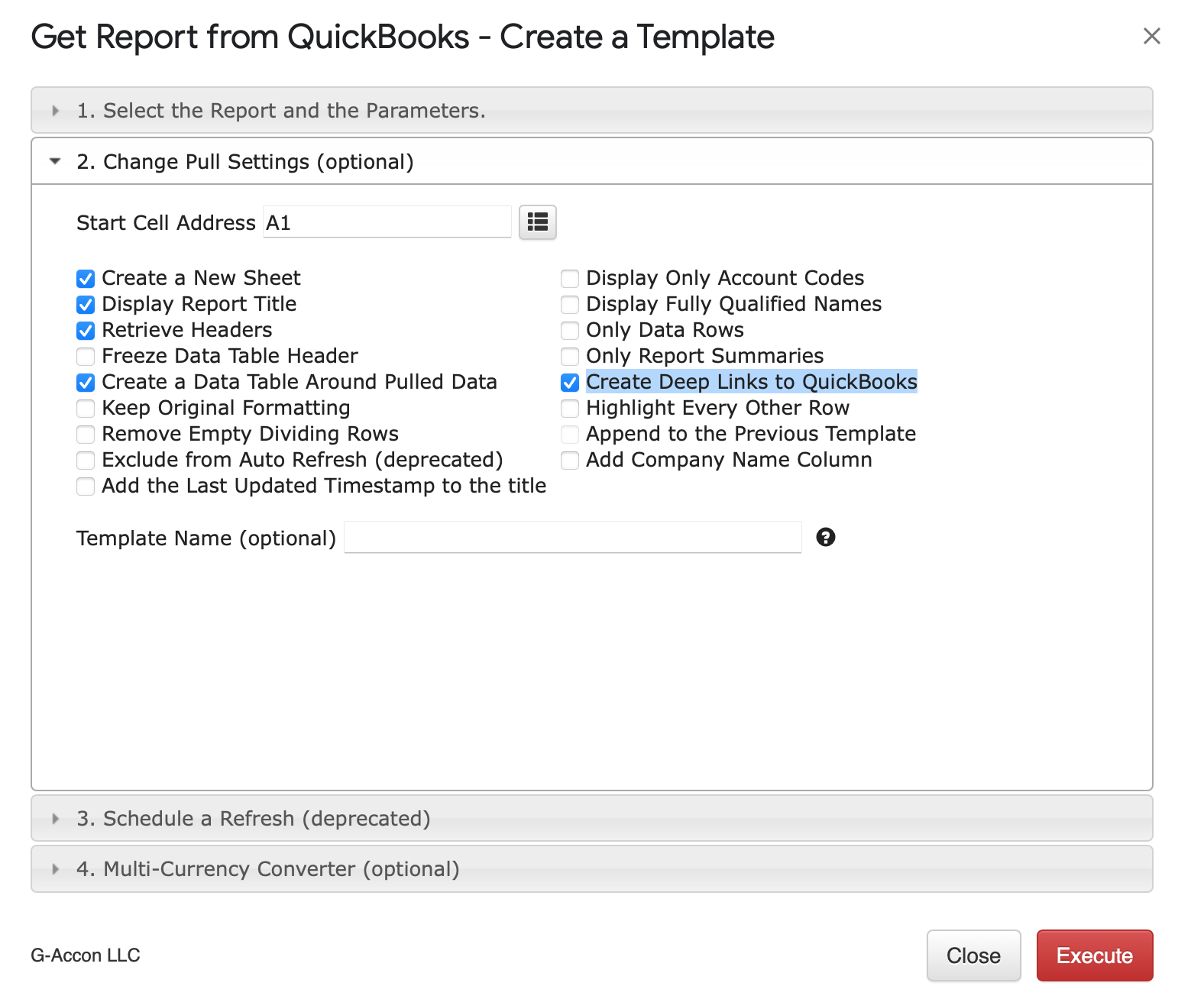
Configure Report Parameters: Tailor the P&L report by setting parameters, which include specifying the report's time period, selecting relevant accounts (e.g., revenue and expenses), and applying filters or criteria as needed. Select the "Create Deep Links to QuickBooks" in the "Change Pull Settings" option.
Optional Customization: Customize the report layout and formatting to match your preferences. This can involve adjusting columns, applying formatting styles, or modifying calculations.
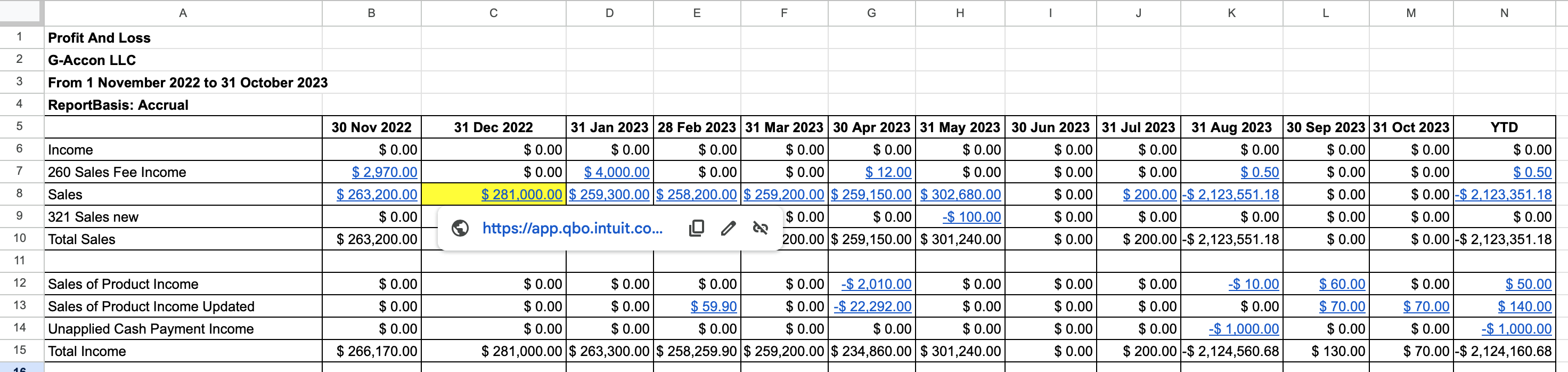
Generate the Report: Once the report's parameters and report layout are set, initiate the report generation. G-Accon will retrieve the necessary financial data from the connected source and populate it into the google sheets.
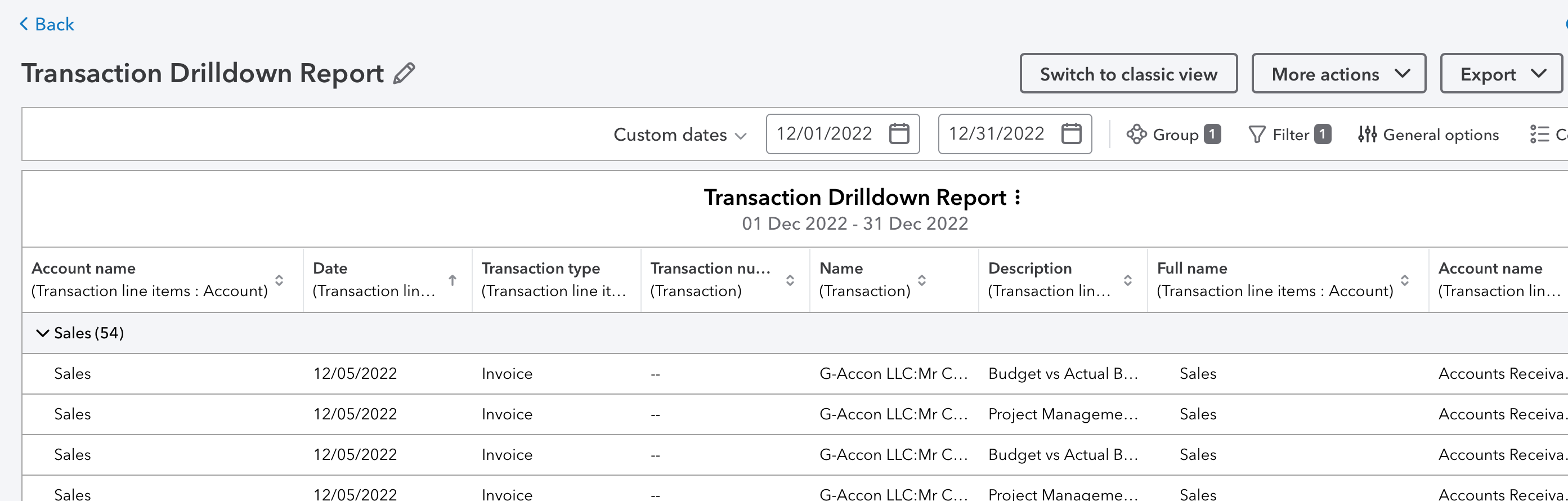
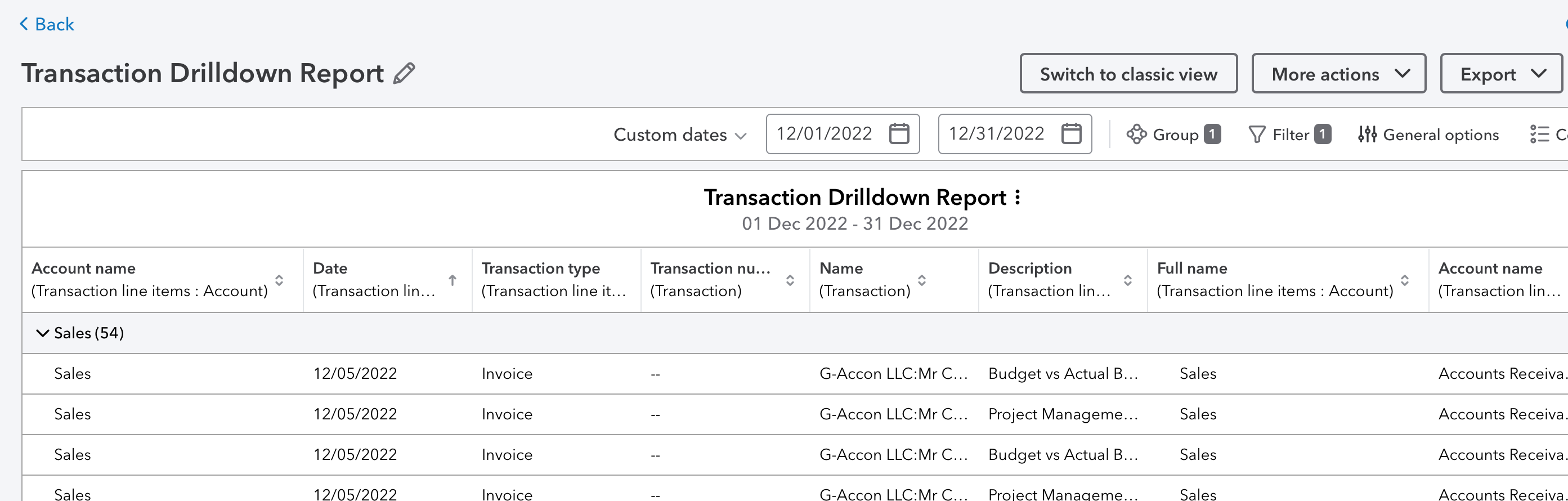
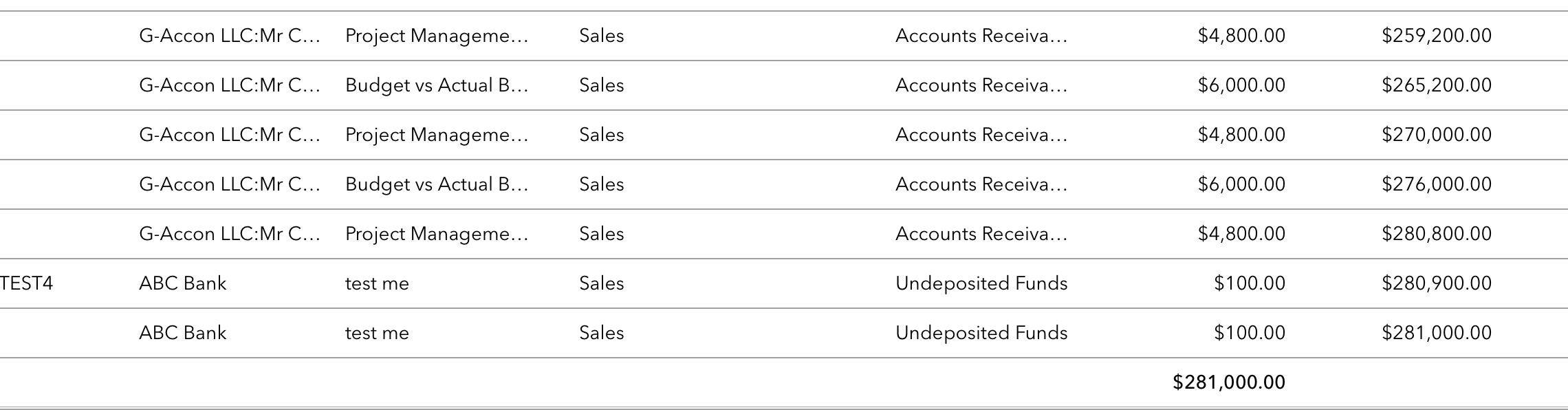
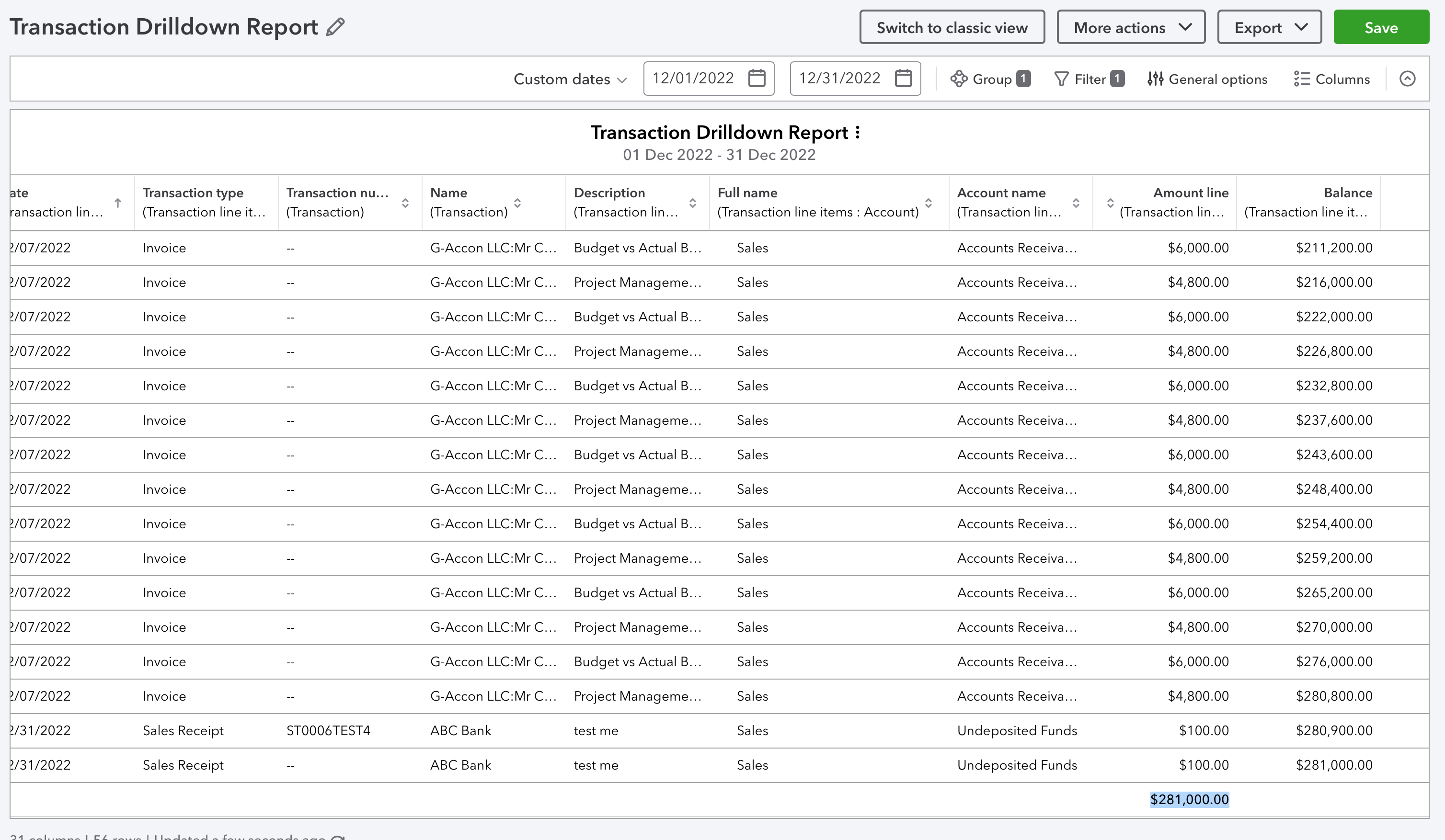
Generate a Transaction drill-down report: Click the deep link in your report to automatically generate a Transaction drill-down report in QuickBooks.
How to view Transaction Details by using Transaction Drill Down report from google sheets
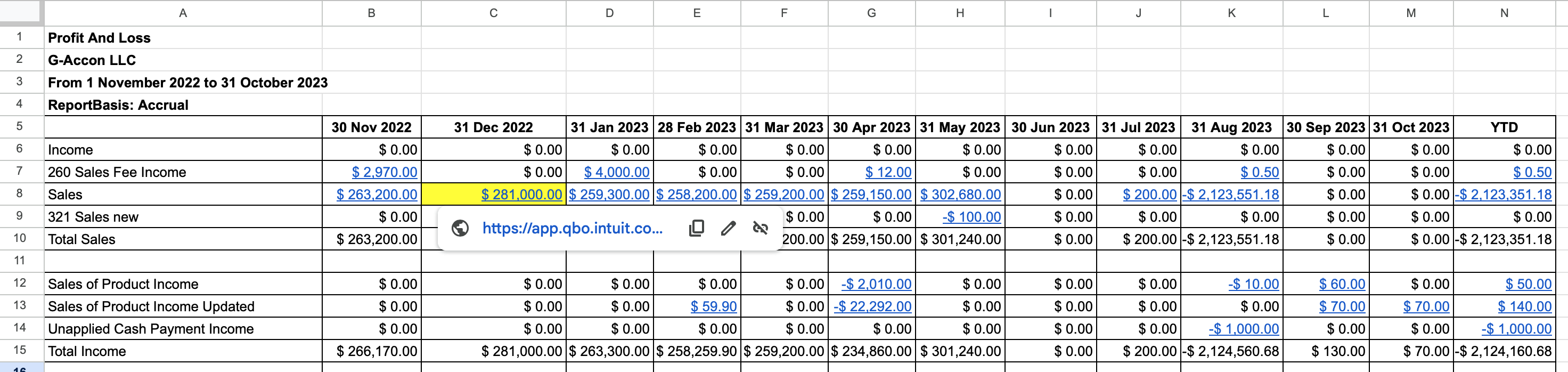
Once a report with a deep link is generated, you can simply click on the link, and it will automatically generate a Transaction drill-down report in QuickBooks.
To provide the best experiences, we use technologies like cookies to store and/or access device information. Consenting to these technologies will allow us to process data such as browsing behavior or unique IDs on this site. Not consenting or withdrawing consent, may adversely affect certain features and functions.
Functional
Always active
The technical storage or access is strictly necessary for the legitimate purpose of enabling the use of a specific service explicitly requested by the subscriber or user, or for the sole purpose of carrying out the transmission of a communication over an electronic communications network.
Preferences
The technical storage or access is necessary for the legitimate purpose of storing preferences that are not requested by the subscriber or user.
Statistics
The technical storage or access that is used exclusively for statistical purposes.The technical storage or access that is used exclusively for anonymous statistical purposes. Without a subpoena, voluntary compliance on the part of your Internet Service Provider, or additional records from a third party, information stored or retrieved for this purpose alone cannot usually be used to identify you.
Marketing
The technical storage or access is required to create user profiles to send advertising, or to track the user on a website or across several websites for similar marketing purposes.