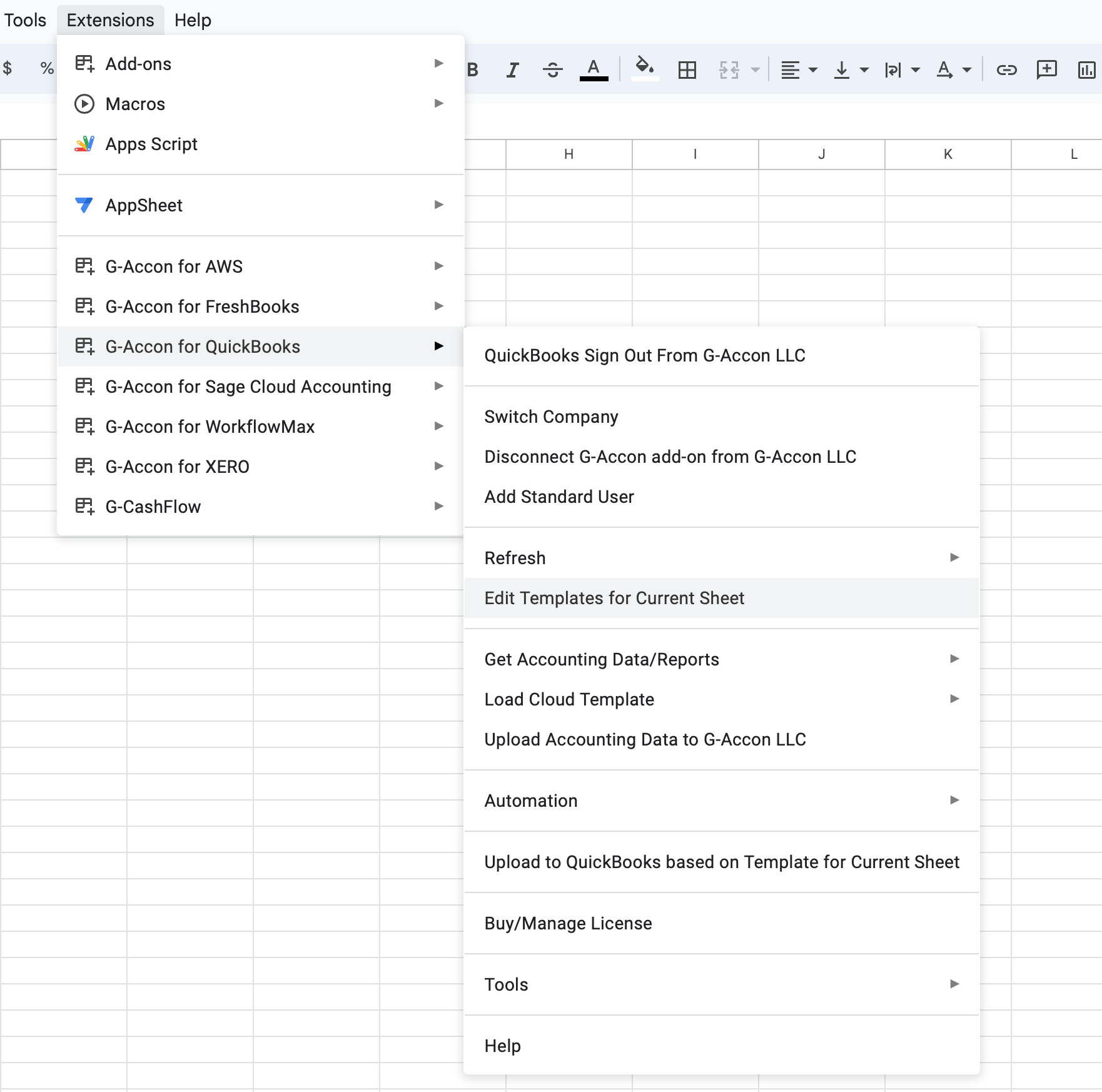
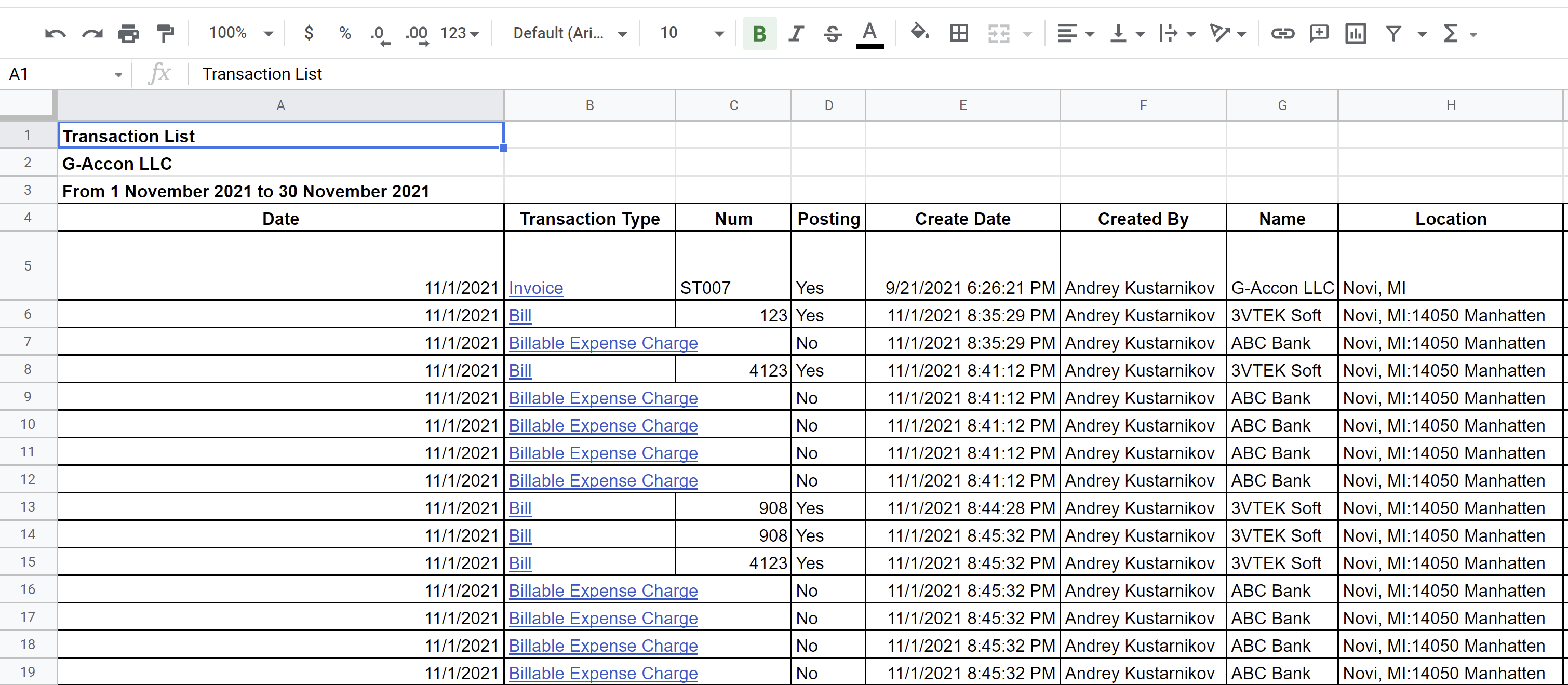
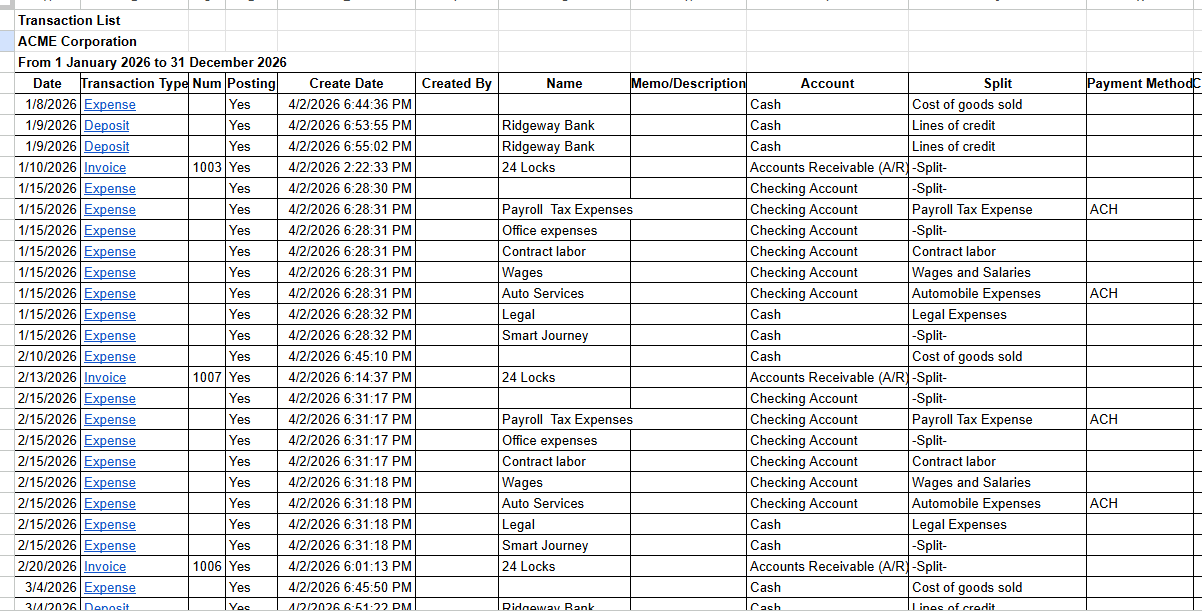
Export your Transaction List report from QuickBooks directly into Google Sheets, with flexible configuration options and automated updates.
Customize your reports with themes, company colors, and white-label branding to create a polished, professional look.
✅ Design a Report Template
✅ Schedule Automatic Refresh
✅ Modify an Existing Template
✅ Watch G-Accon YouTube Videos
Generating Transaction List Report:
Select the Transaction List option from the drop-down menu. G-Accon for QuickBooks provides the ability to set up the Date Range for your data manually or you can refresh your data dynamically.
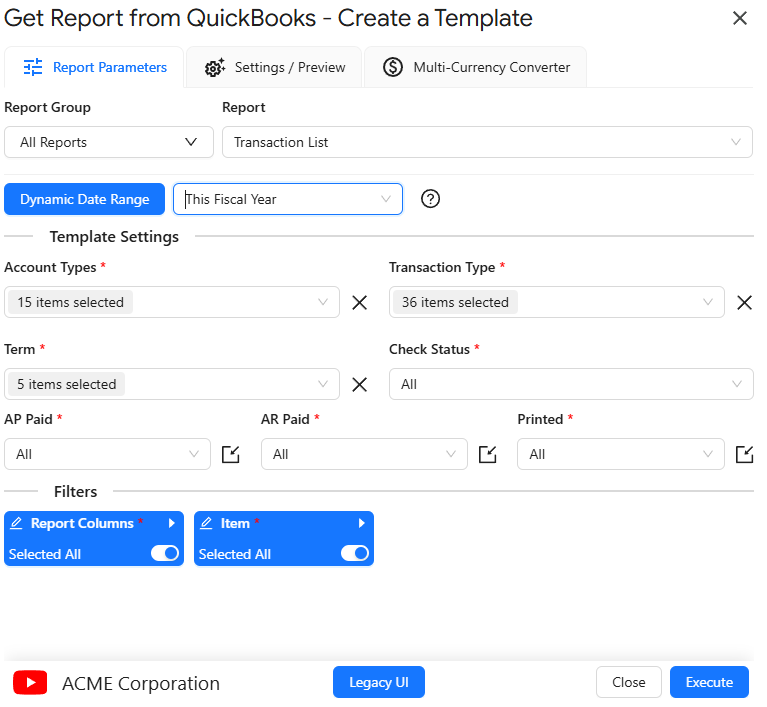
There are required and optional attributes for the Transaction List report.
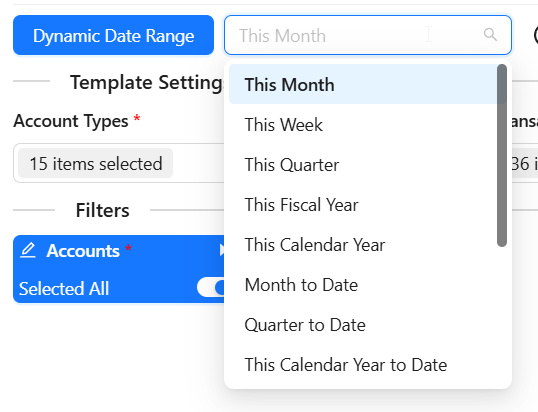
Dynamic Date Range: The report data will be calculated based on pre-populated values like This Month, This Quarter, This Year, Last Month, etc.
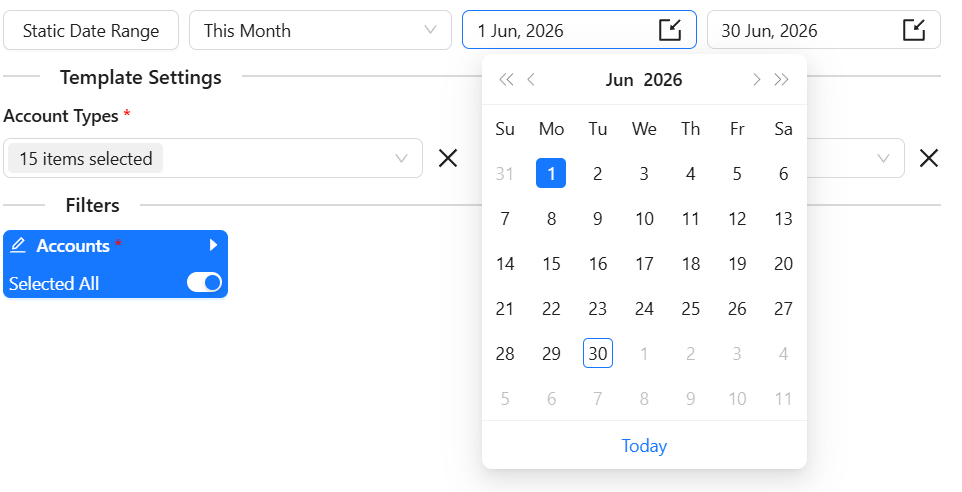
Static Date Range: Define specific start and end dates.
Custom Date Range: Utilize cell references in your Google Sheet to set custom dates.

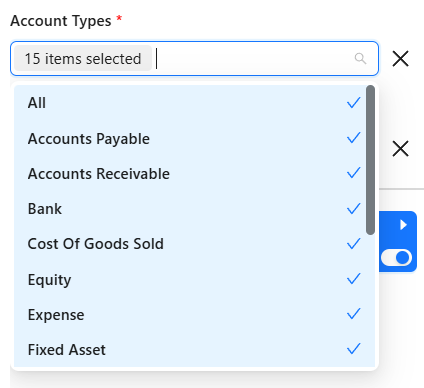
Account Types — select the account types to include in the report.
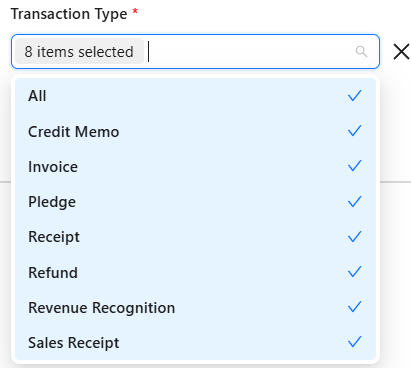
Transaction Types — choose the transaction types to filter the report data.
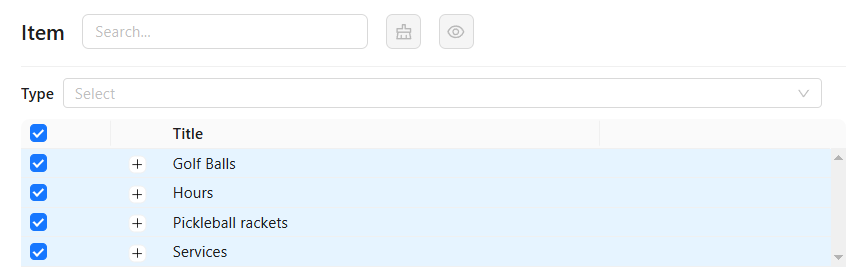
Items — specify the item or items to include in the report output.
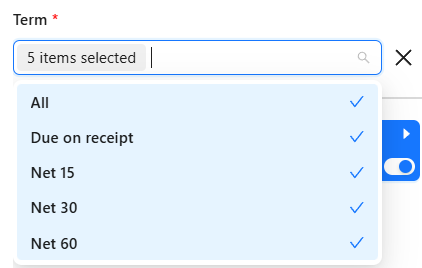
Terms — define the payment terms associated with your report.
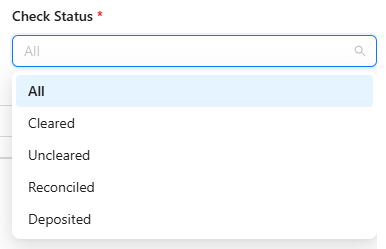
Check Status — filter the report by the status of checks.
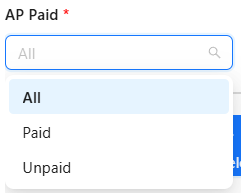
AP Paid — filter transactions by Accounts Payable paid status.
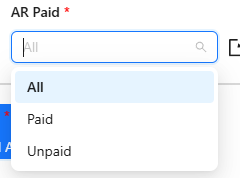
AR Paid — filter transactions by Accounts Receivable paid status.
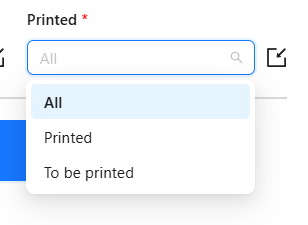
Printed — filter the report to include only printed or unprinted transactions.
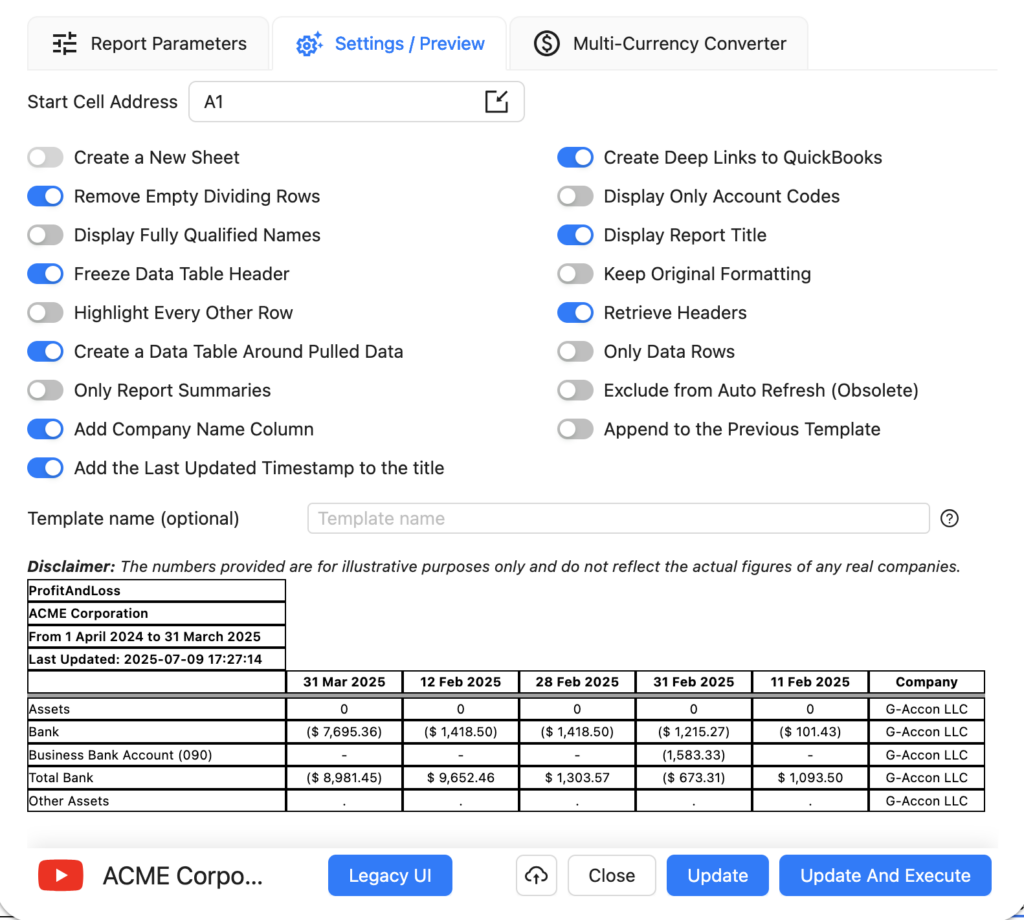
The Settings/Preview tab gives you fine-grained control over how report data is presented in your Google Sheet. All settings are optional and can be combined to suit your reporting workflow:
You can also specify a Start Cell (e.g. A1) to control exactly where in the sheet the report is placed, and assign a Template Name (e.g. Template Name #1) to identify the report when managing multiple templates in the same spreadsheet.
If you need to generate your Profit & Loss report in a currency other than your QuickBooks base currency, the Multi-Currency Converter tab lets you select a target currency and choose how exchange rates are applied.
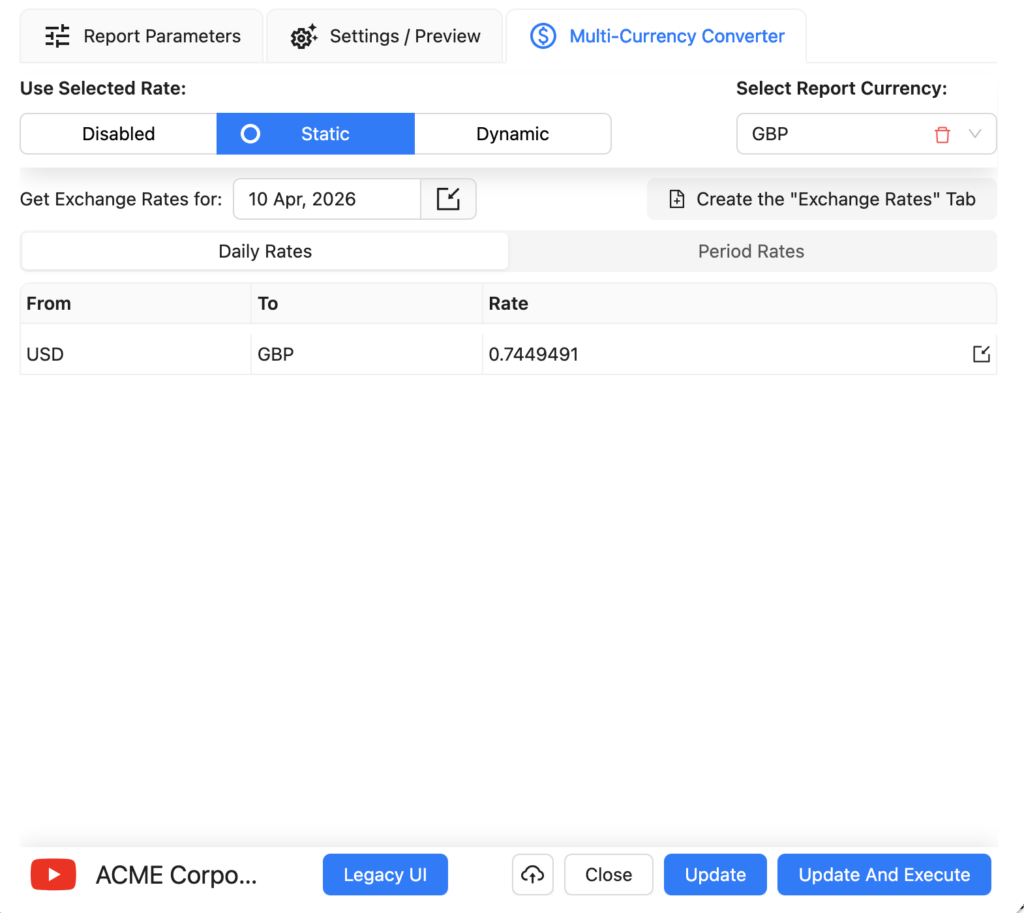
Three options are available:
Select your target currency (e.g. EUR) and choose Use Latest Rates. Each time the report is refreshed, G-Accon will automatically fetch the most current exchange rate from its provider and apply it to all values in the report. No manual rate input is required.
Choose Use Custom Rates to manually specify an exchange rate for a particular date. You can either enter the rate directly in the converter panel, or create a dedicated tab in your Google Sheet containing custom rates — useful when you need to lock in a specific rate for audit or compliance purposes.
For reports spanning multiple periods, Use Custom Rates for Periods lets you assign a different exchange rate to each period in the report. This is essential for accurate multi-period comparisons where exchange rates fluctuated significantly — for example, in monthly or quarterly P&L reports covering a full financial year. Rates can be entered in the converter panel or managed in a dedicated Google Sheet tab.
Once your currency settings are configured, click Execute to generate the report. The converted figures will appear directly in your Google Sheet in the selected currency.
G-Accon's Automation feature lets you schedule your Profit & Loss report to refresh automatically — no manual intervention needed. You can also configure notifications to alert team members, clients, or stakeholders when a refresh completes.
To set up an automated refresh:
For full details on workflow configuration, refer to the Create Workflow documentation.
If you need to change the parameters of an existing report — for example to adjust the date range, add a comparison period, or change filters — you can edit the template directly without needing to rebuild it from scratch. You also do not need to be signed in to your QuickBooks organisation to modify or refresh a template.