Change Template(s) Ownership is a G-Accon feature that lets you reassign access to all of your templates from one Google account to another in a single action, rather than updating sharing settings on each template one by one.
This comes in handy in a few common situations: when the person who originally set up the G-Accon templates leaves the company, when they're away on vacation or medical leave and someone else needs full access in the meantime, or simply when ownership responsibilities shift as roles change within your team.
Once ownership is reassigned, the new Google account gets full access to every template, saved report, and process that was previously tied to the old owner — so your reporting continues without interruption, and nobody has to rebuild templates or re-grant access one at a time.
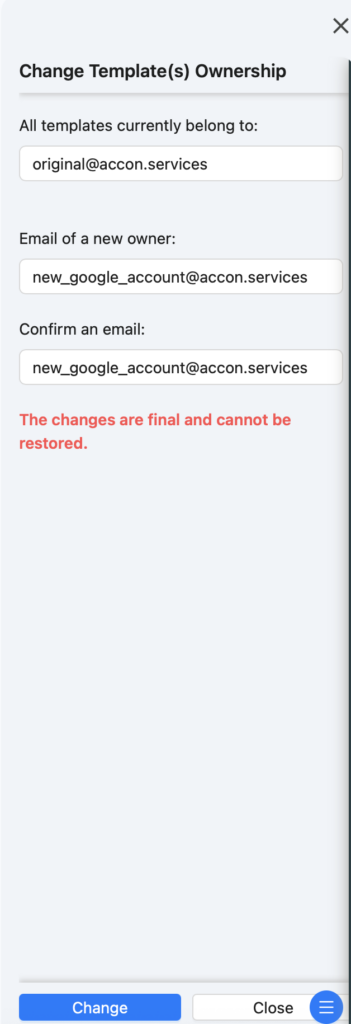
Select Extensions -> G-Accon for QuickBooks/G-Accon for Xero -> Tools--> Change Template(s) Ownership.
You need to enter new google account and confirm it. New google account can not be an alias. As a result all templates will be assigned to a new owner.
The next step is either update the customer details through the Customer Portal or create a new subscription for a new user.
How to update the customer details through the Customer Portal?
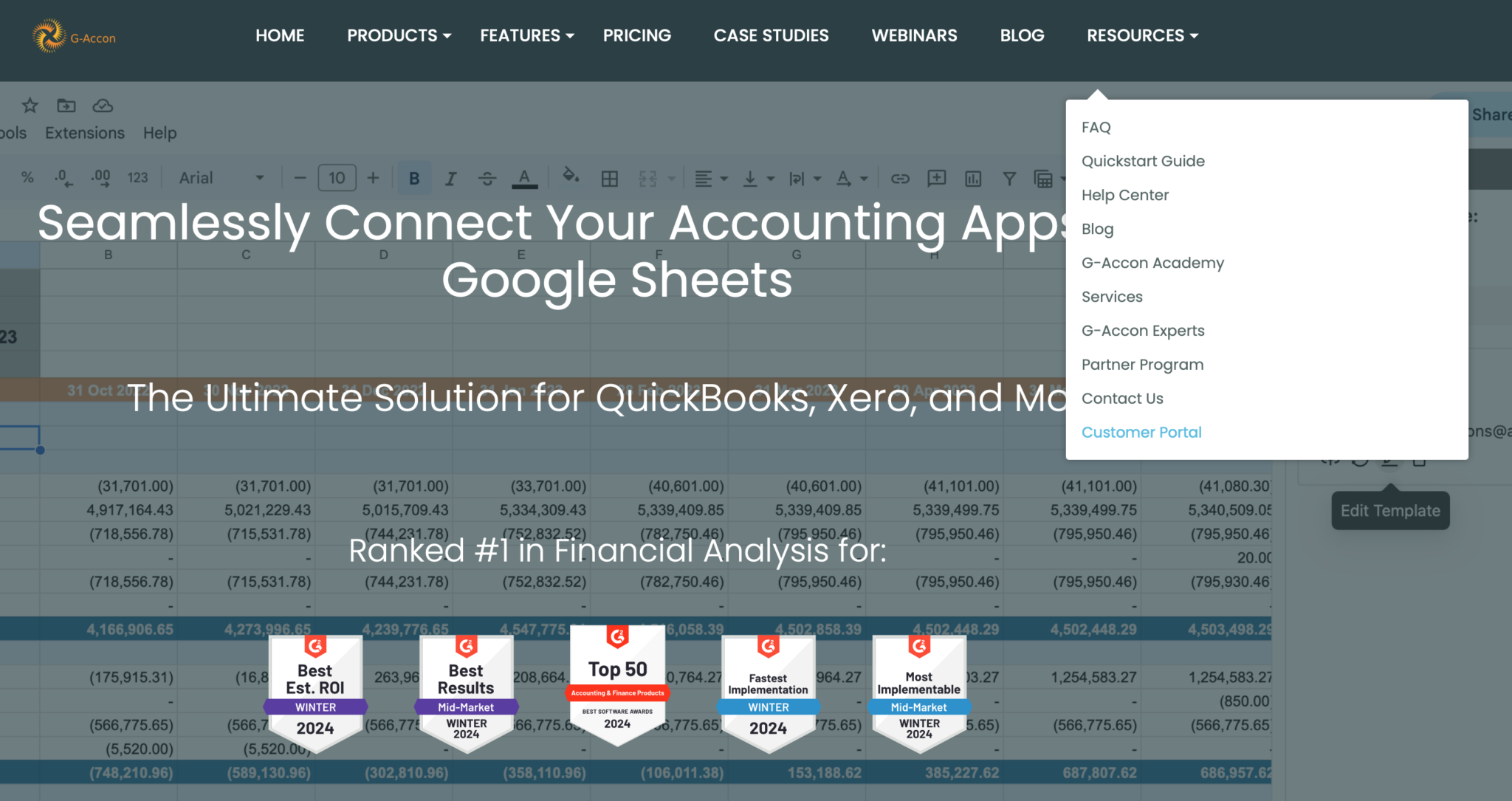
You need to open G-Accon website at www.accon.services and select "Resources" menu option and then "Customer Portal":
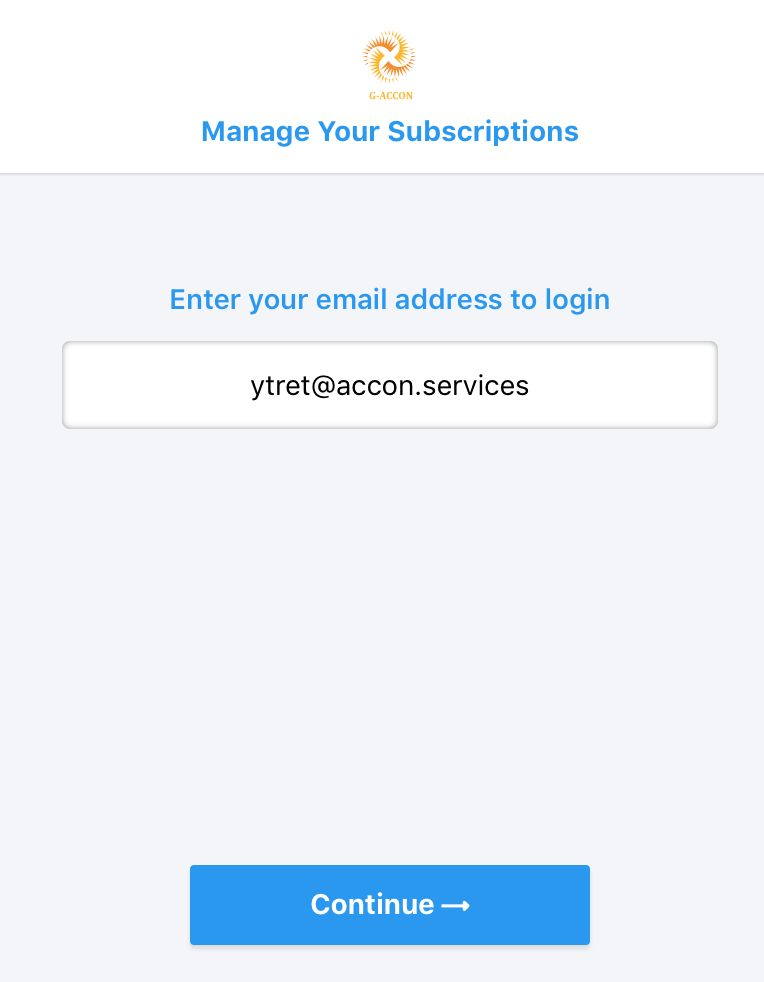
Then you need to click on the "Continue-->" button.
Select the account:
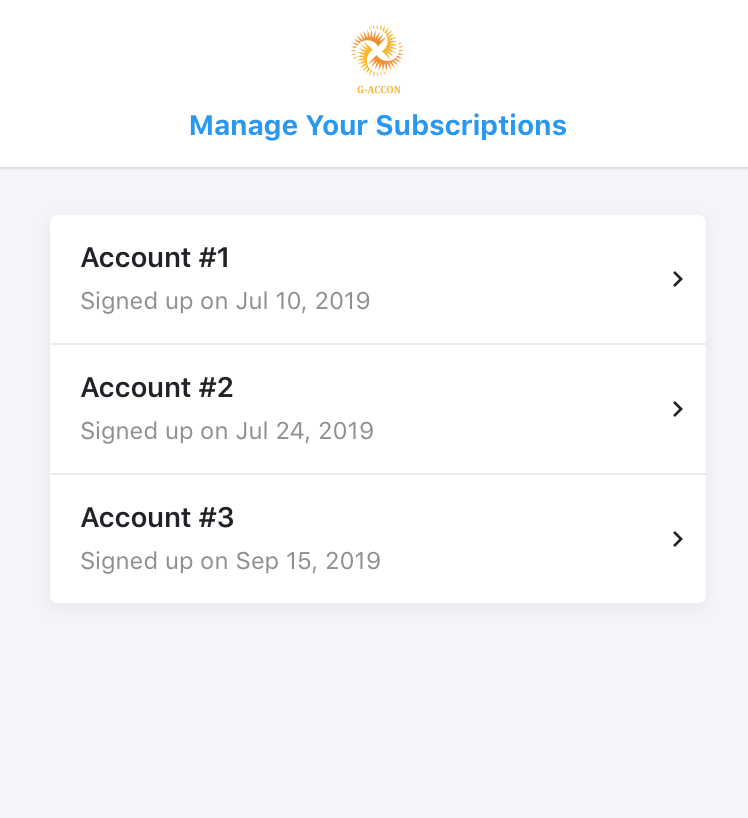
and go to the "Account Information":
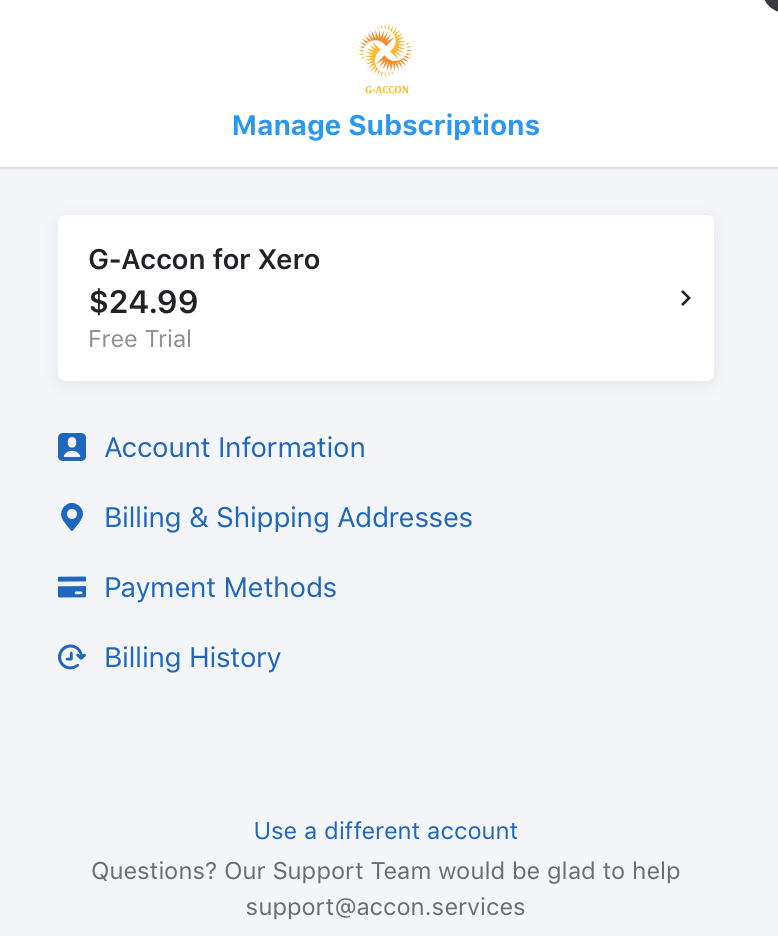
Select your email address from the Account Details screen:
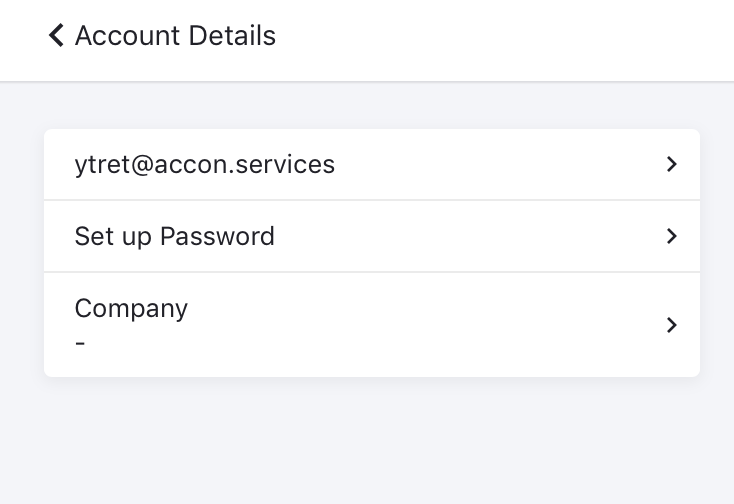
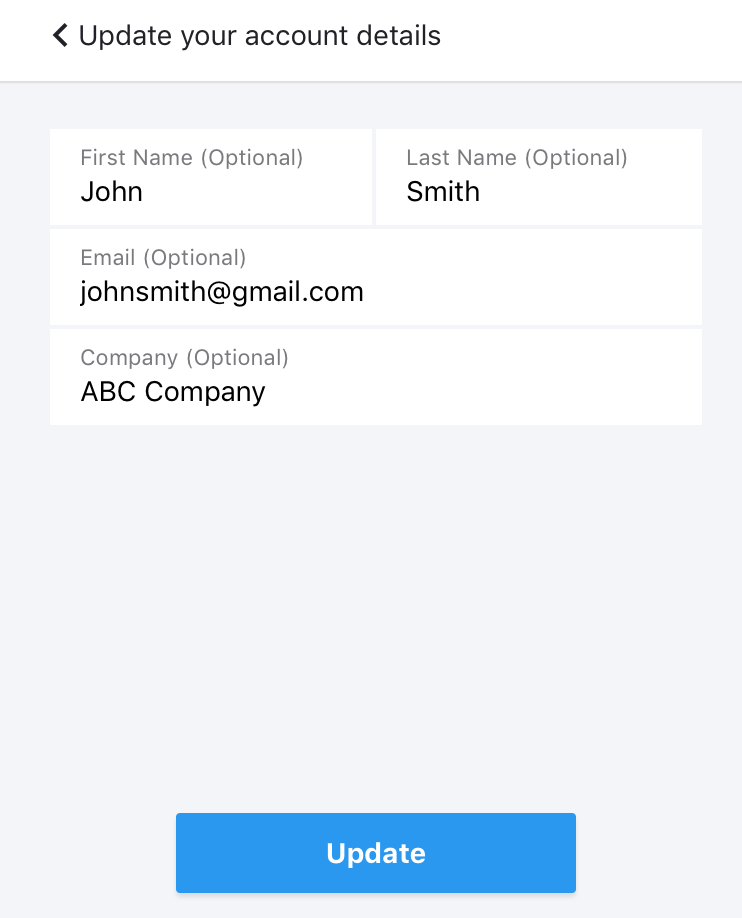
Update the record with the new information such as First and Last Name, email address and Company name.
Next step will be to open Google Spreadsheet and login into G-Accon using new email address. You should be able to see all templates and all processes copied from the previous owner.