How to set up and modify Business, Group, and Domain Licenses
This guide walks you through choosing the right G-Accon license, purchasing and reviewing your subscription, and managing organizations, users, plans, and billing — all from the Buy/Manage License module inside Google Sheets.
G-Accon offers three license families — Single User, Group, and Domain — across four plans: Business, Accountant, Advisor, and Enterprise. A domain license is tied to a specific email domain (for example abc@accon.services rather than abc@gmail.com) and is sometimes called a volume license.
Accountant and Advisor plans may include an organization domain (e.g. @accon.services) alongside individual emails like abc@gmail.com. On the Enterprise plan, only users within the configured company domain can be added, and each user is granted Full Access by default.
To purchase, view, or modify your license — including connected organizations and subscribers — open the Buy/Manage License module from inside Google Sheets:
The Overview tab shows the Google account on your subscription, the license type, the number of days until renewal, and your connected organizations. From here you can also update your Google account and request a secure payment-method link.
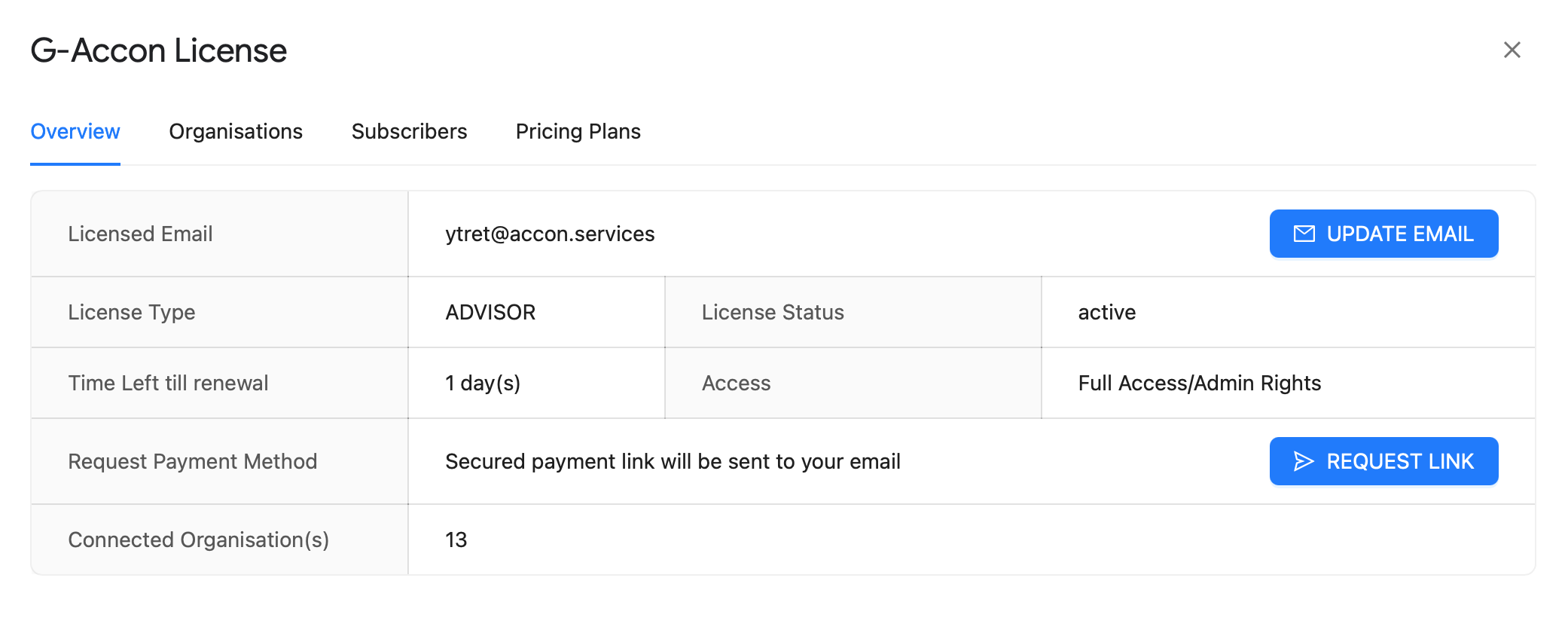
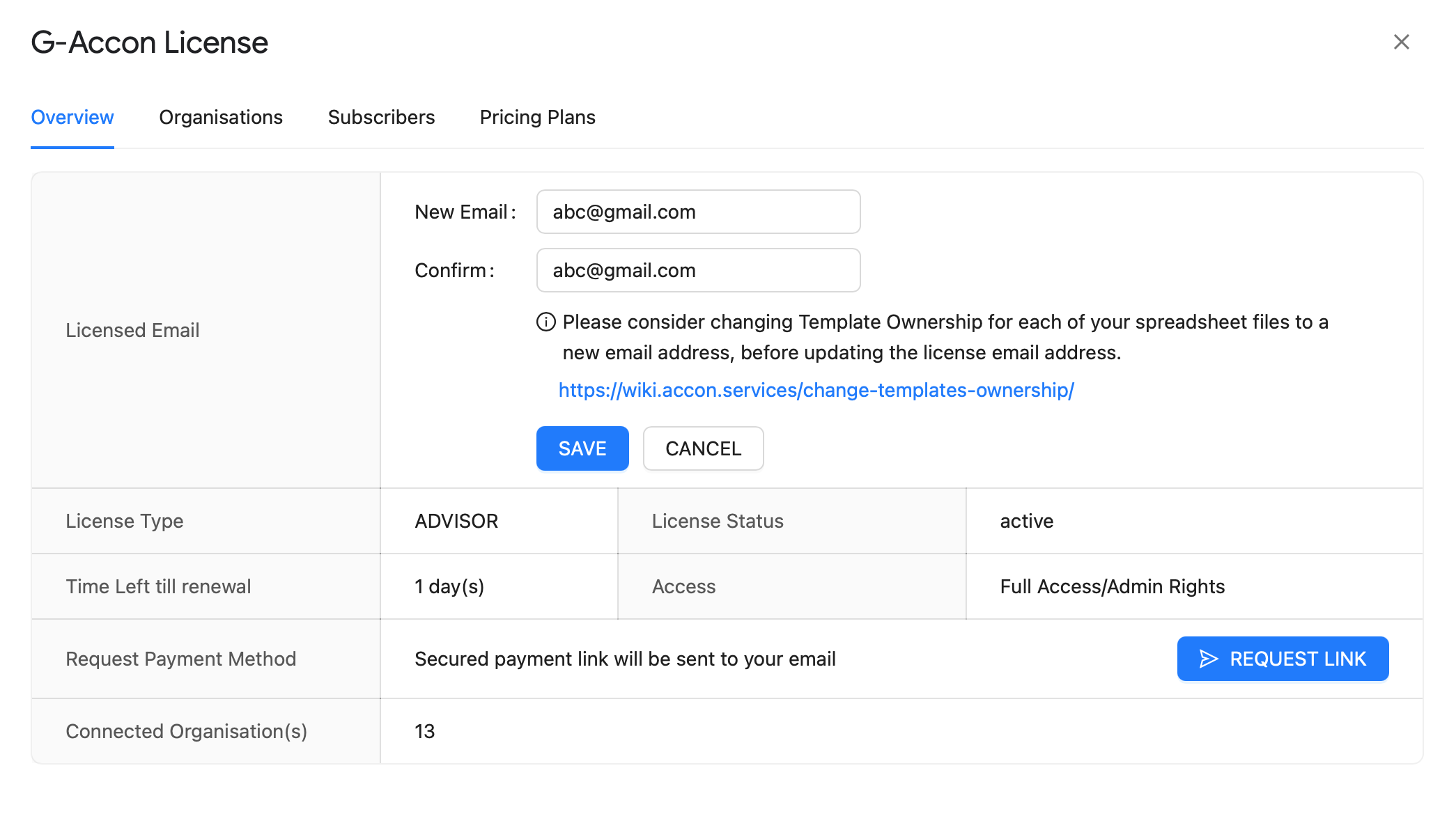
Click Update Email to change the Google account tied to your license. Important: before updating, transfer ownership of the templates in each of your Google files if you want to keep and reuse your existing reports.
Use Request Link under Request Payment Method to receive a secure link for updating your payment details. We accept credit card, PayPal, and ACH.
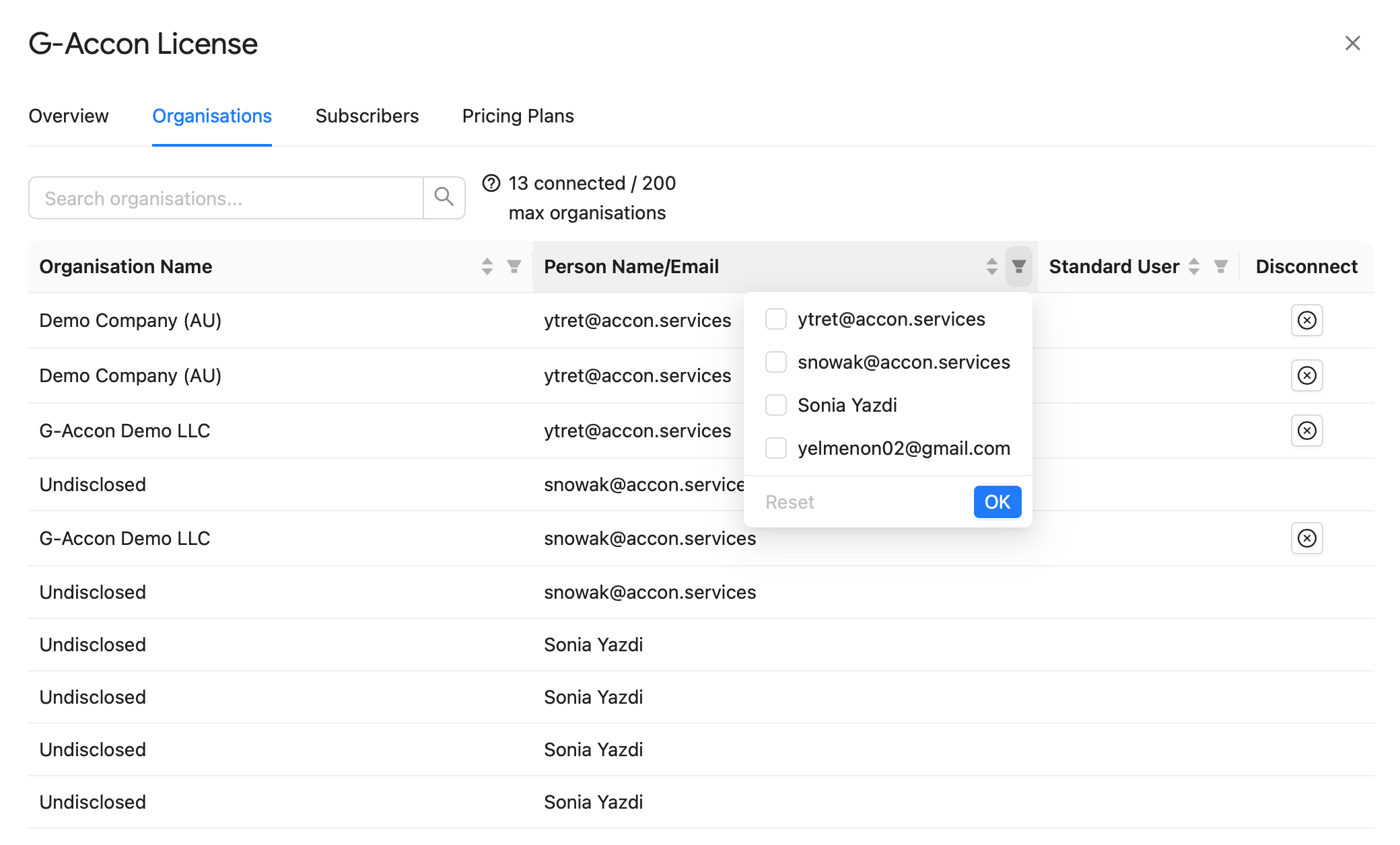
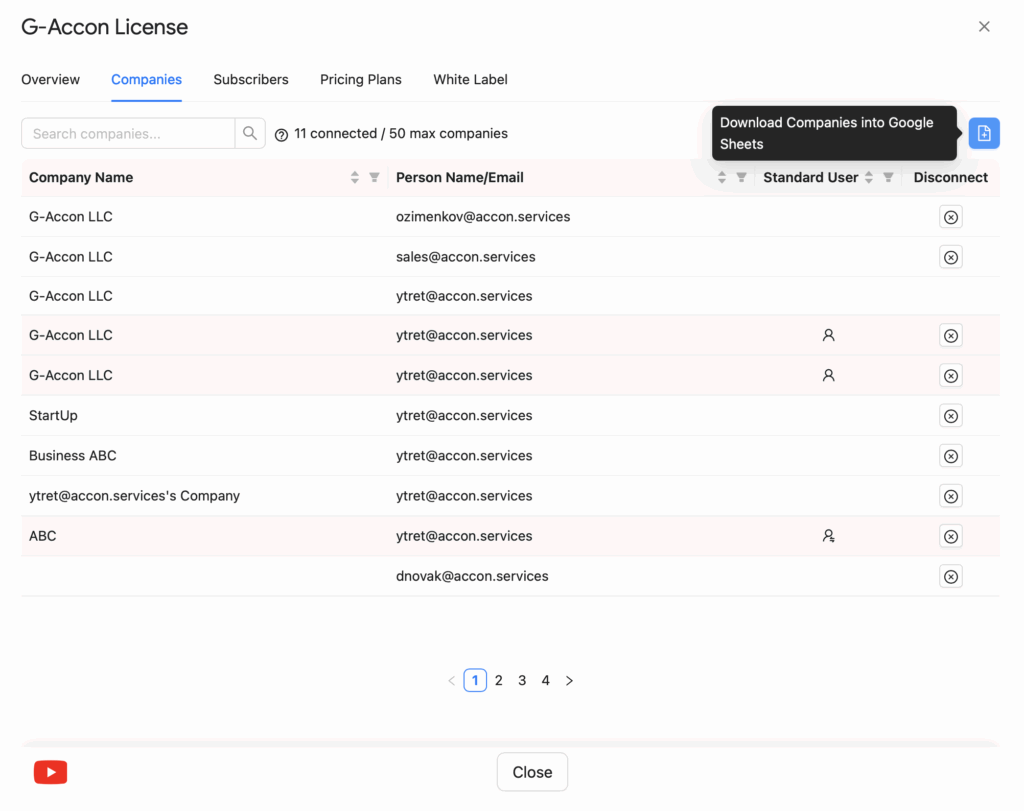
The Organizations tab shows how many organizations are currently connected under your license and the maximum allowed by your plan. You can filter the list by organization name, Google account, or privilege level.
Account administrators can disconnect any organization that's no longer needed directly from this screen.
The Subscribers tab is where you view, modify, and remove users on your license.
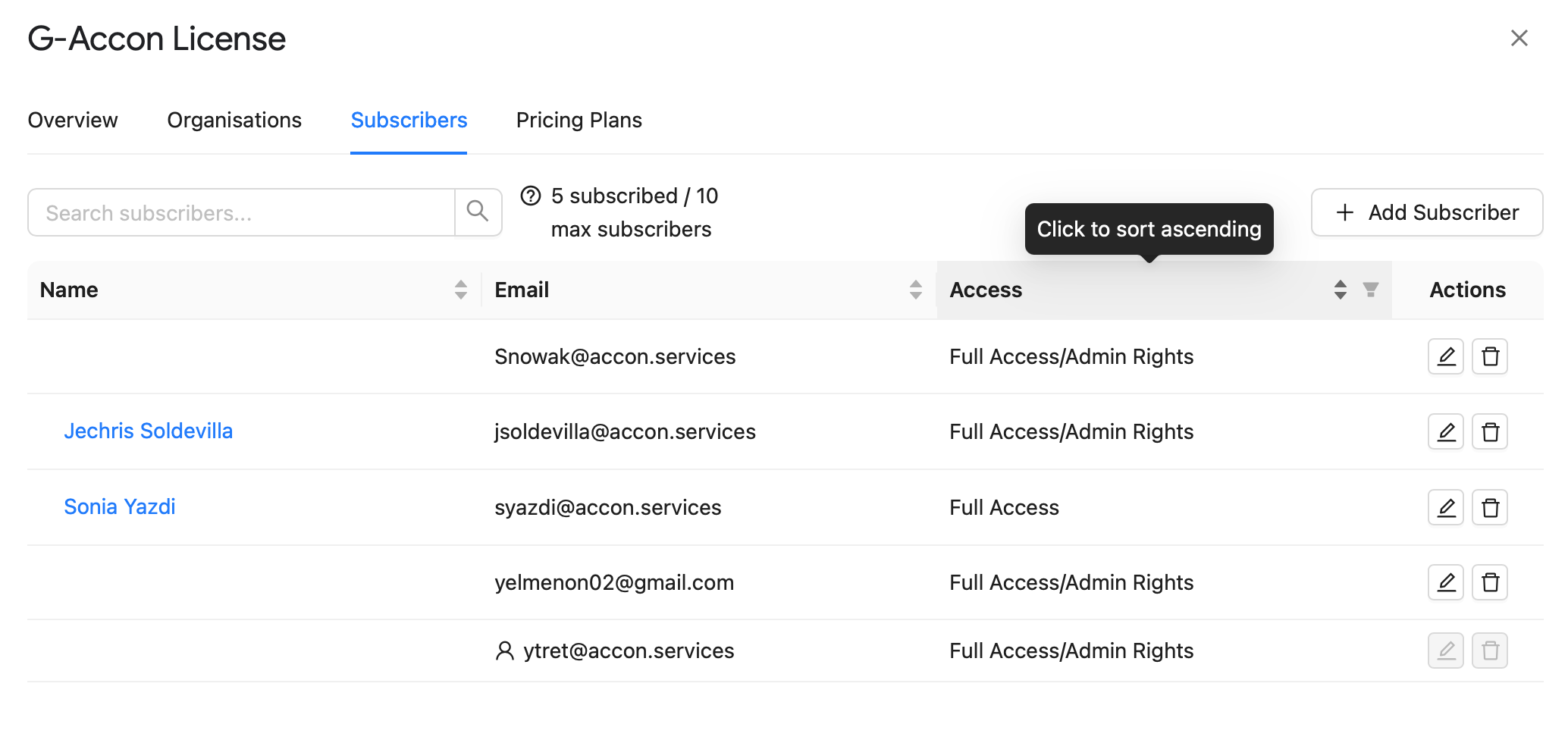
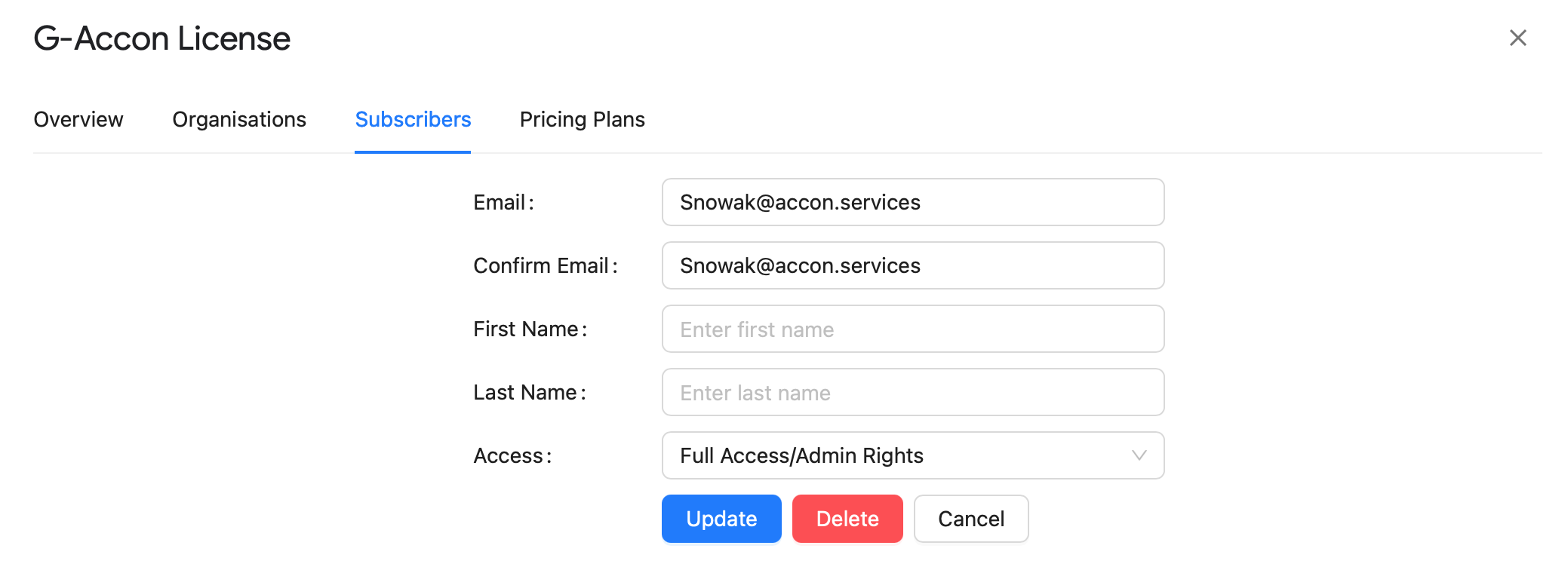
Click the first icon next to the subscriber, update the fields you need, and click Update to save your changes.
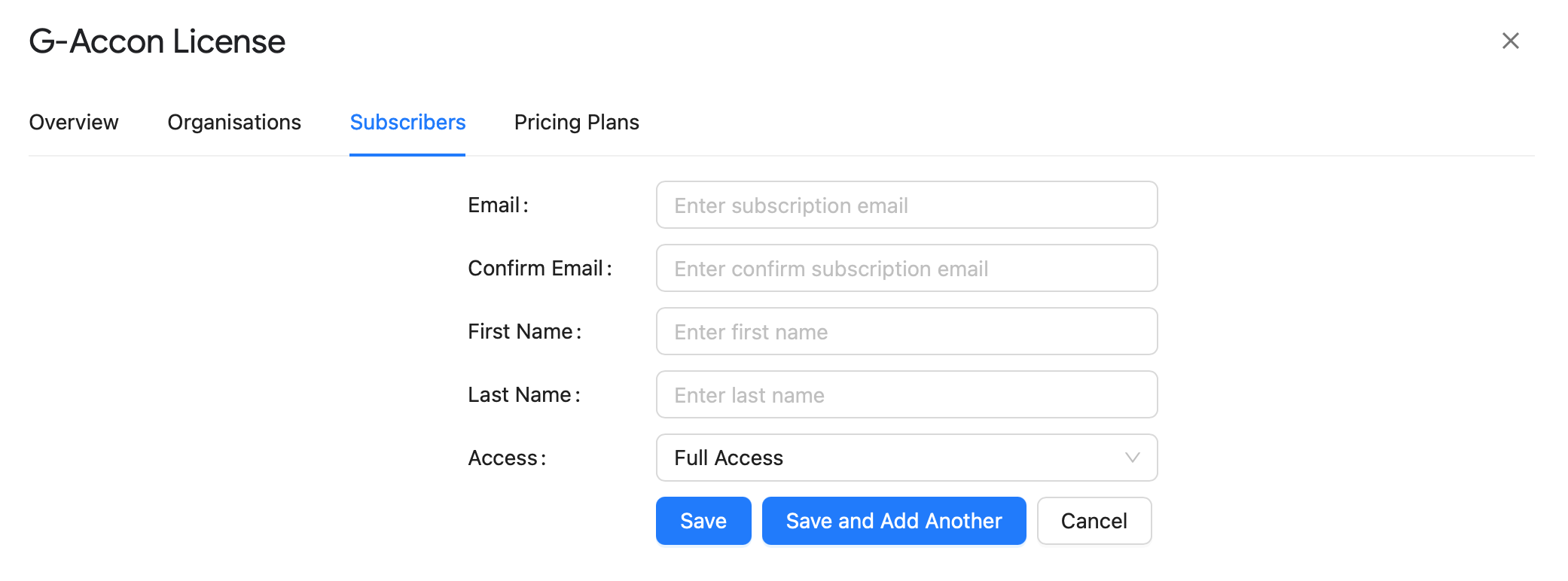
Click Add Subscriber, enter and confirm the email, provide the first and last name, and pick the access level. Once saved, a new user profile is created and the user receives an email with installation instructions.
The Pricing Plans tab lets you review your current plan, switch plans, toggle between annual and monthly billing, and add or remove subscribers or organizations on your license.
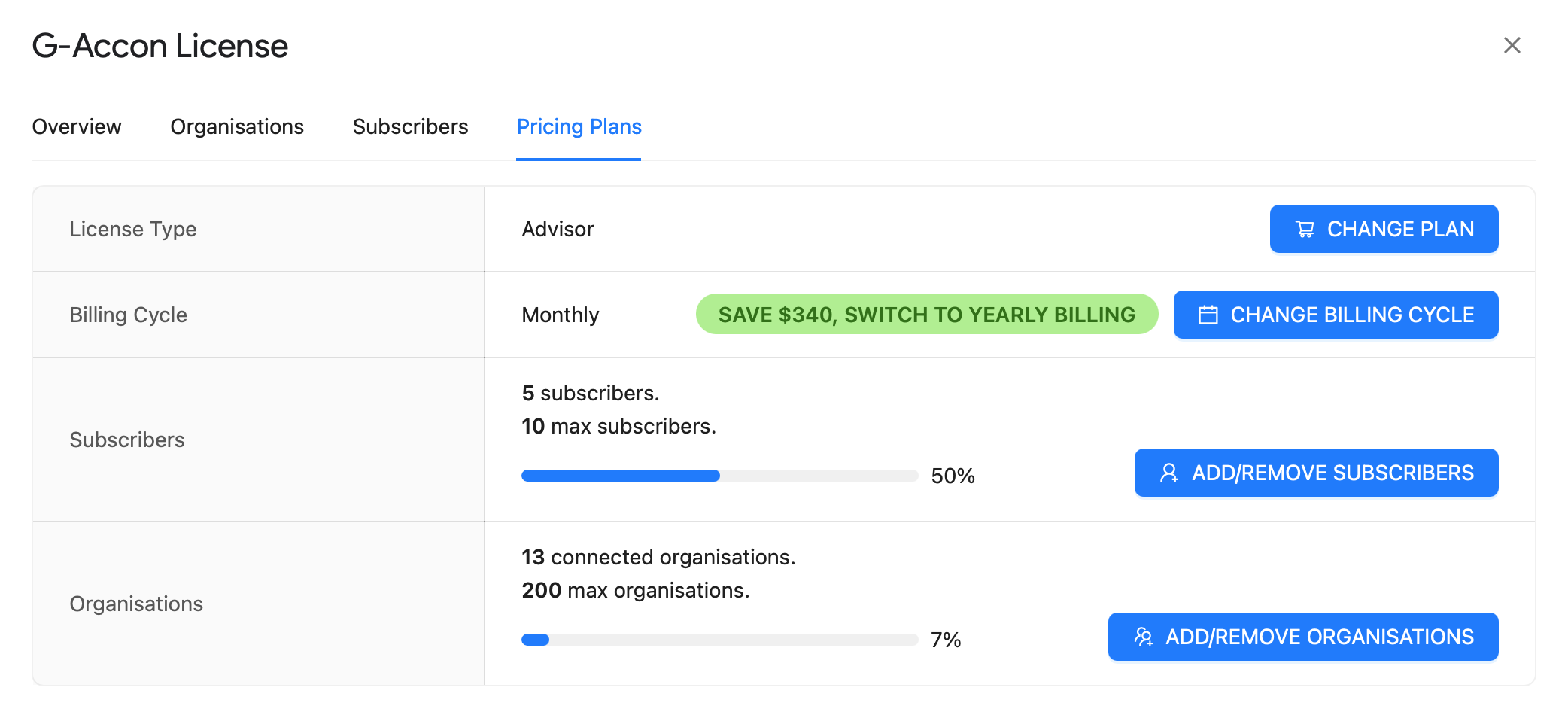
Click Change Plan, select the plan you want, and complete the transaction.
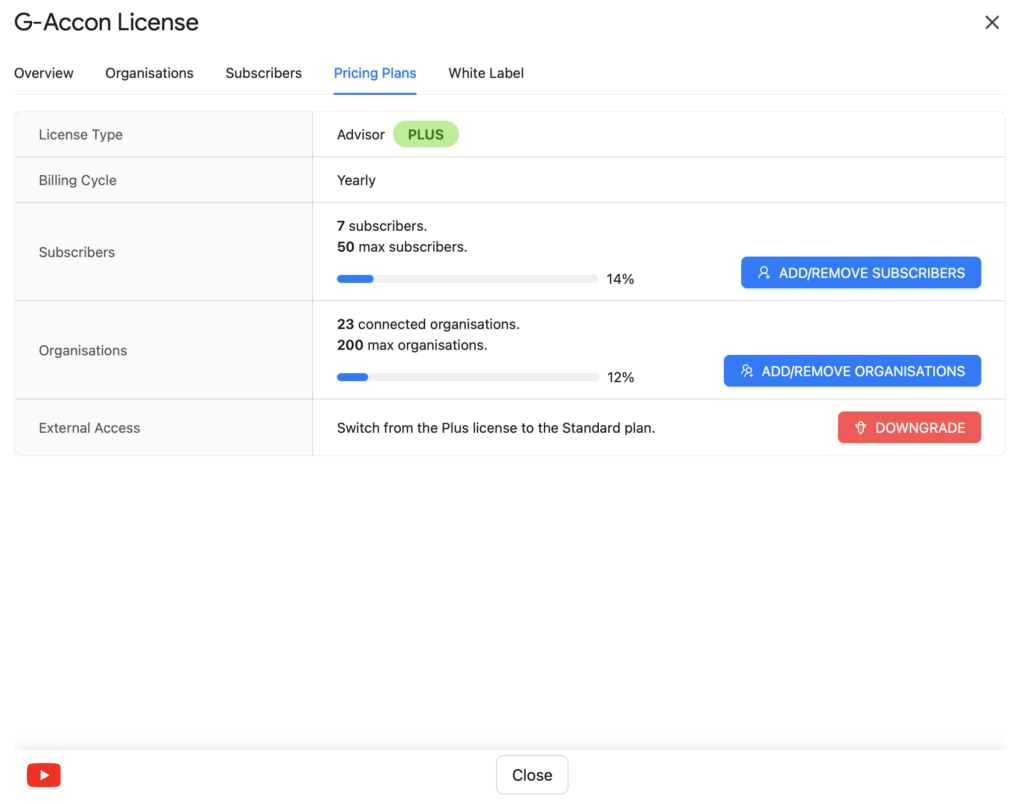
Click Change Billing Cycle, pick annual or monthly, and confirm.
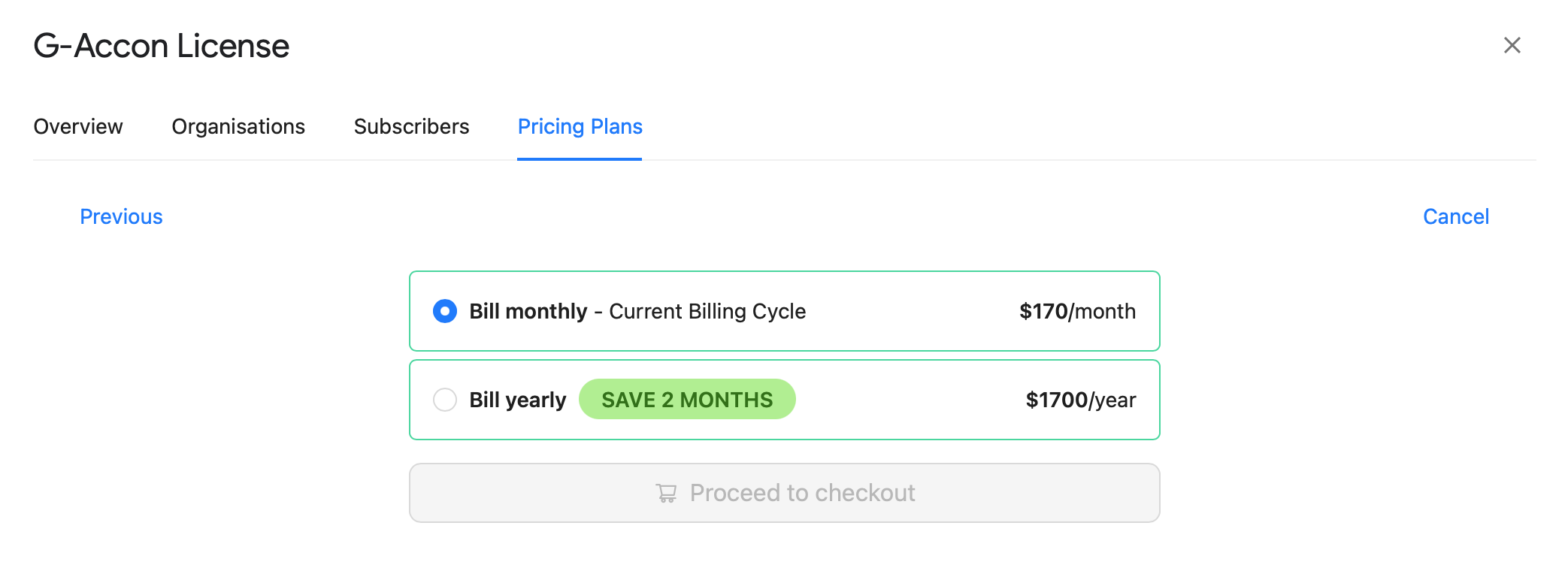
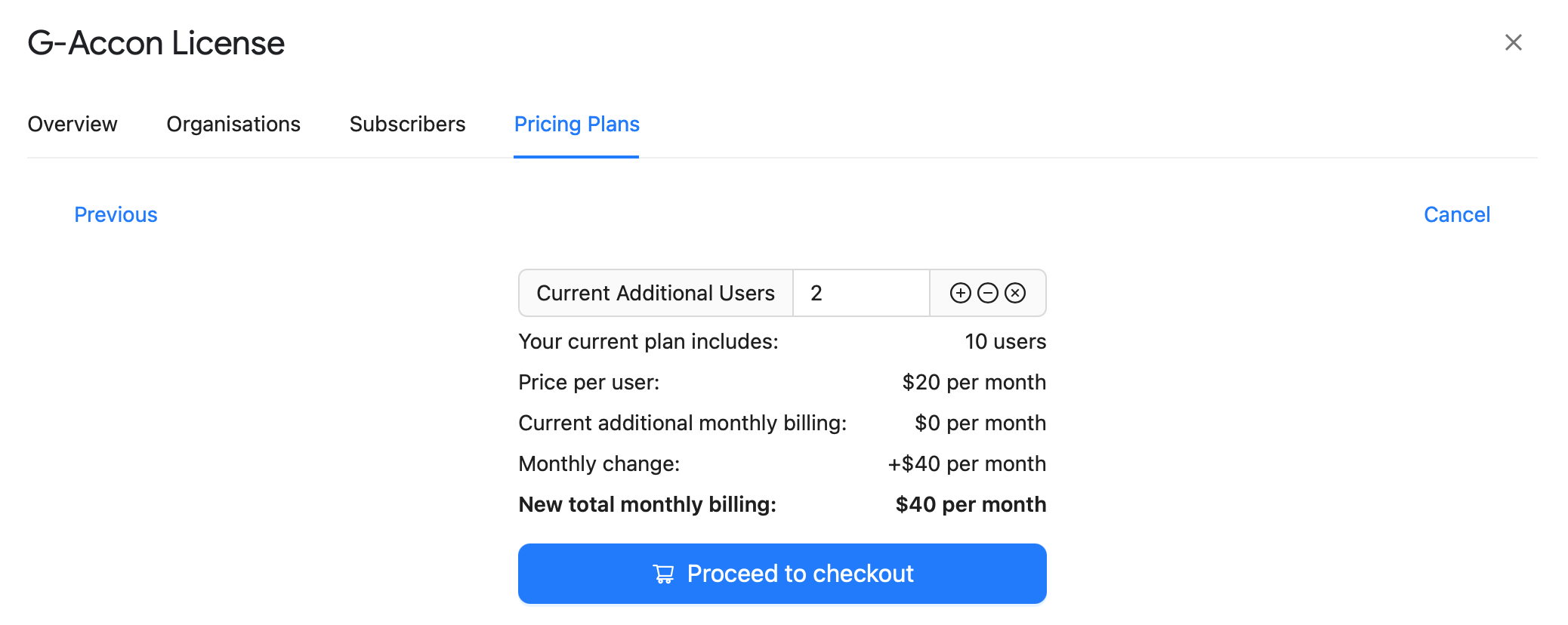
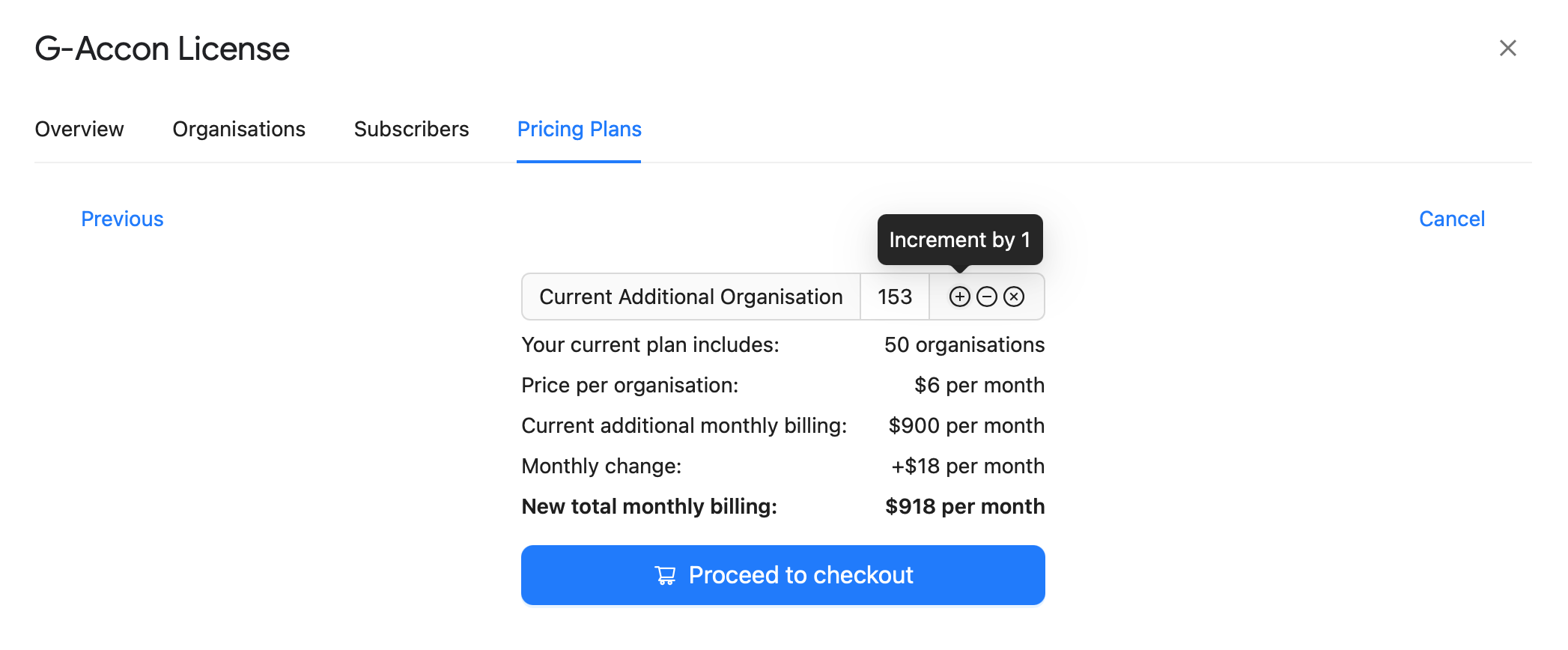
Use Add/Remove Subscriber or Add/Remove Organization to adjust the seats and organizations included on your license.
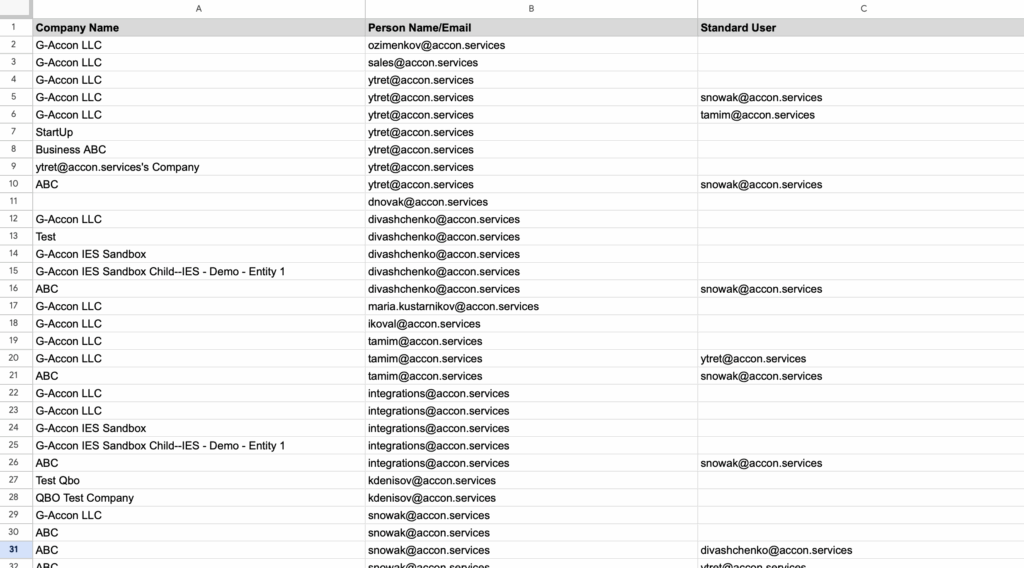
You can export the complete list of connected organizations and subscribers directly from the Buy/Manage License module.
 Interactive walkthrough — set up Domain & Group licenses
 YouTube video — set up and modify Individual, Group, and Domain licenses