Explore step-by-step guides, troubleshooting tips, and best practices to make the most of G-Accon. Whether you're setting up integrations, automating reports, or optimizing workflows, our help center has everything you need to succeed.
Wiki Menu
Balance Sheet By Company with Intercompany Eliminations
Generate Multi-Entity and Multi-CurrencyBalance Sheet By Company with Intercompany Eliminations with Intercompany Eliminations from QuickBooks into Google Sheets
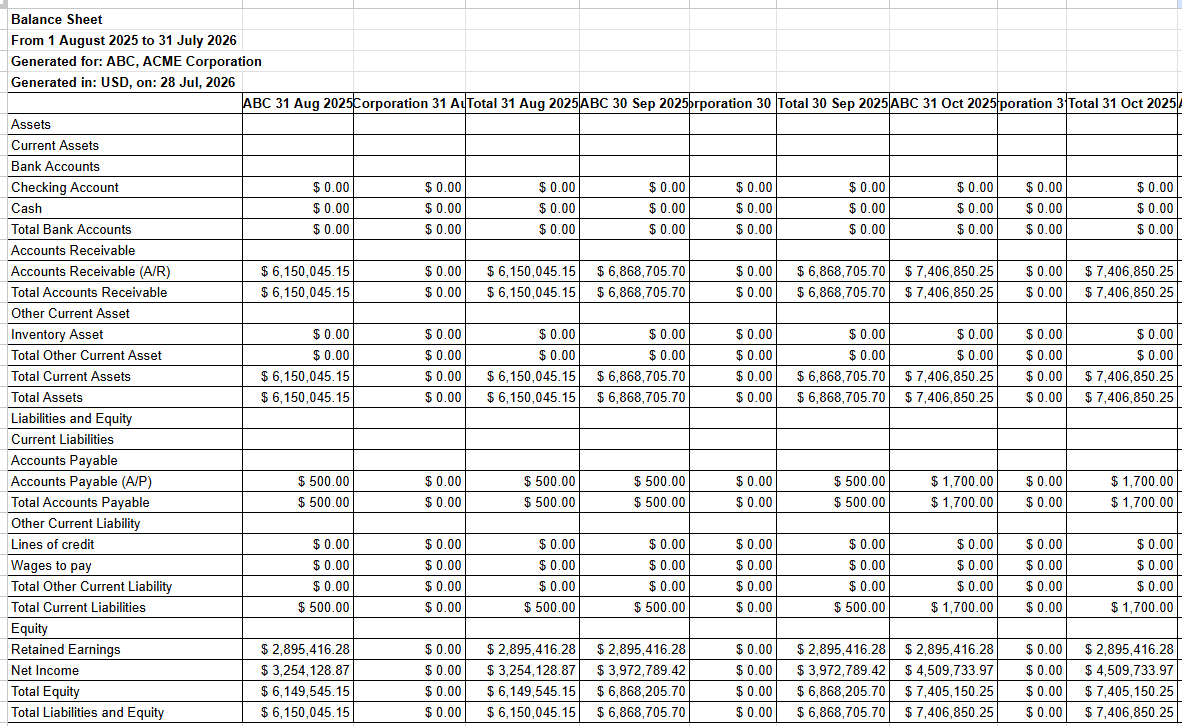
Balance Sheet By Company with Intercompany Eliminations report with Intercompany Eliminations in Google Sheets
How to design a template for the report?
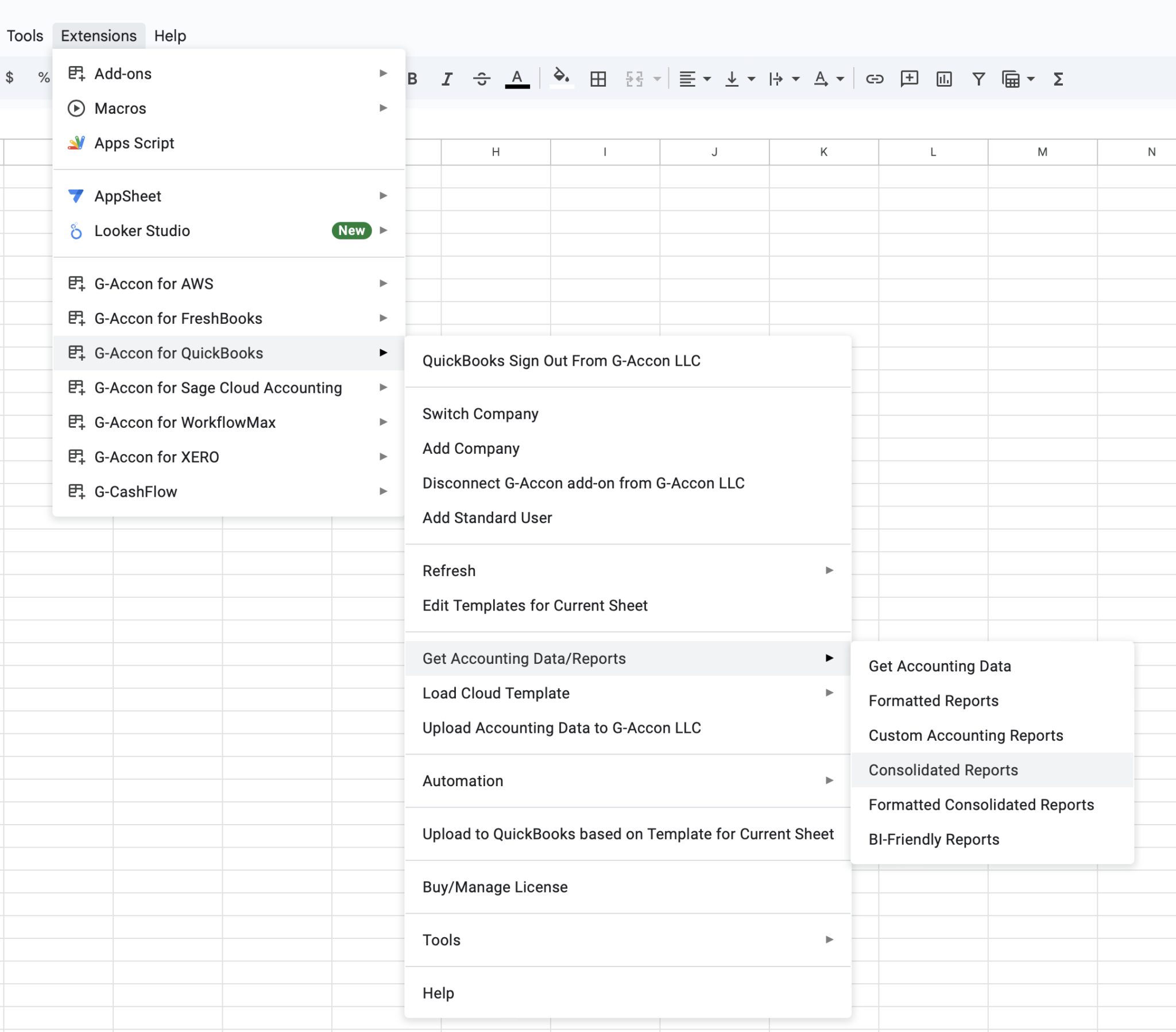
Select "Consolidated Reports"
Consolidated Reports menu option
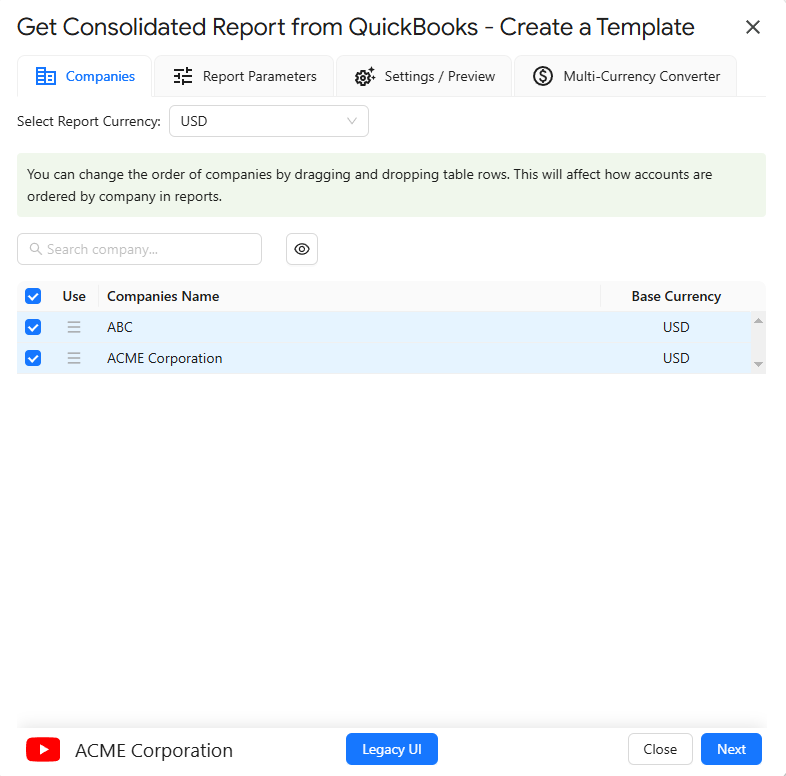
Select the required QuickBooks Organizations/Entities
Select at least two organizations
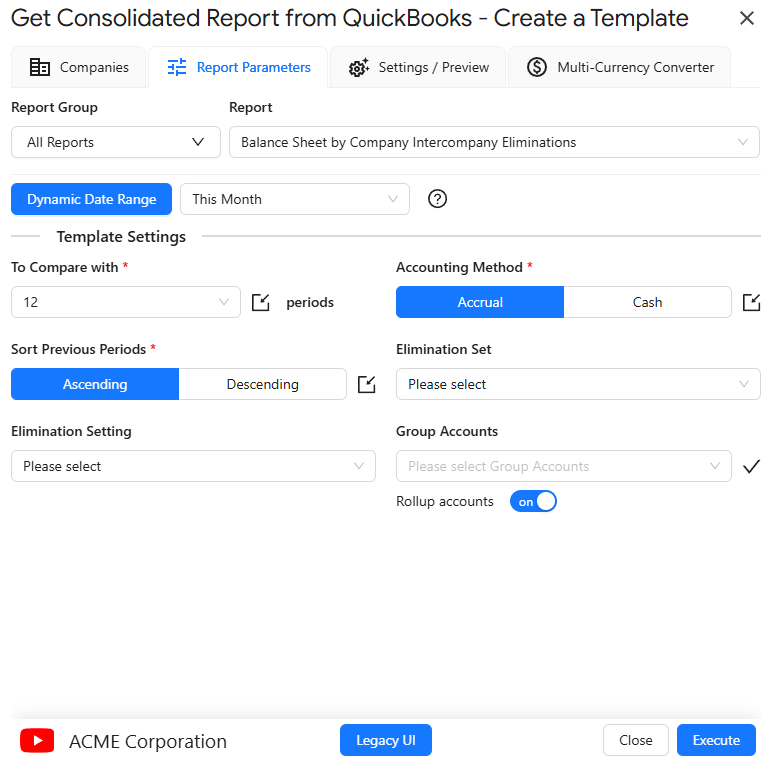
Choose "Balance Sheet By Company with Intercompany Eliminations" report from dropdown box.
SELECT PARAMETERS
There are required and optional attributes for the Balance Sheet By Company with Intercompany Eliminations report.
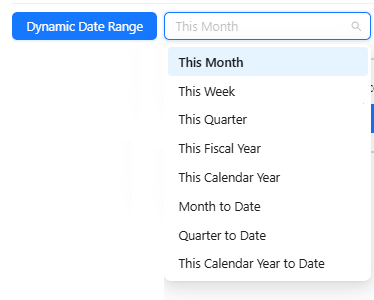
Dynamic Date Range: The report data will be calculated based on pre-populated values like This Month, This Quarter, This Year, Last Month, etc.
Static Date Range: Define specific start and end dates.
Custom Date Range: Utilize cell references in your Google Sheet to set custom dates.
REQUIRED ATTRIBUTES
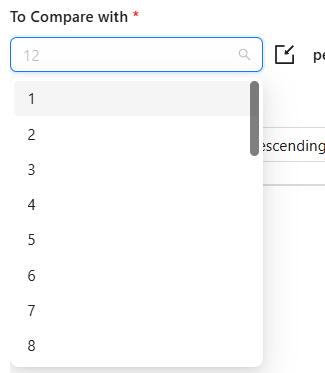
Compare To (required)
To Compare with (###) previous periods — specify the number of prior periods to include as comparison columns.
Sort Previous Periods — choose how to sort prior period data in the report.
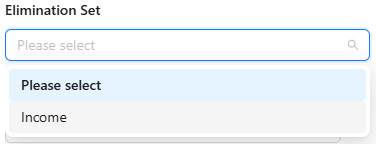
Elimination Set
An Elimination Set needs to be created under G-Accon for QuickBooks in the Tools → Intercompany Eliminations section in order to be used when generating consolidated reports.
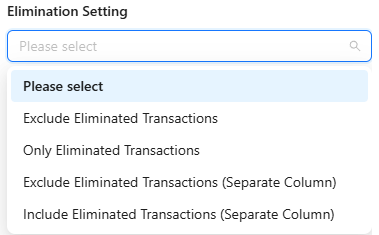
Elimination Settings
The Elimination Settings options are:
Exclude Eliminated Transactions: This option excludes transactions that have been eliminated from the dataset and identify in the Elimination Set
Only Eliminated Transactions: This option includes only transactions that have been eliminated from the dataset and define in the Elimination Set
Exclude Eliminated Transactions (Separate Column): This setting excludes transactions that have been eliminated from the dataset, define in the Elimination Set, and presents them in a separate column for clarity or further analysis.
Include Eliminated Transactions (Separate Column): This setting includes transactions that have been eliminated from the dataset, define in the Elimination Set, and presents them in a separate column for clarity or further analysis.
SETTINGS / PREVIEW
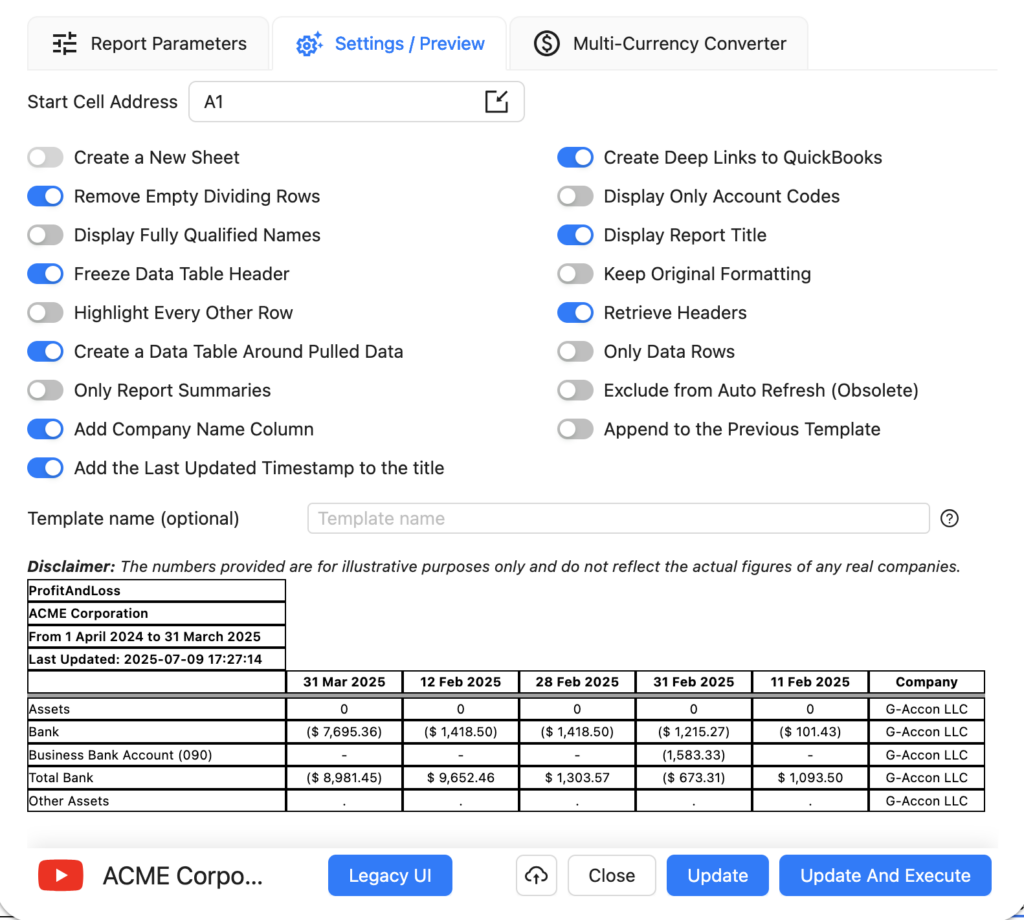
The Settings/Preview tab gives you fine-grained control over how report data is presented in your Google Sheet. All settings are optional and can be combined to suit your reporting workflow:
Create a New Google Sheet — output the report into a new tab rather than the current sheet.
Display Report Title — include the report name as a header row in the spreadsheet.
Retrieve Headers — display column titles above your data.
Display Only Account Codes — show account codes in place of full account names.
Freeze Data Table Header — lock the header row so it remains visible when scrolling through large datasets.
Create a Data Table Around Pulled Data — wrap the output in a structured Google Sheets table for easier filtering and sorting.
Keep Original Formatting — preserve the formatting applied in QuickBooks rather than using G-Accon's default style.
Remove Empty Dividing Rows — strip out blank rows that QuickBooks uses as section separators, giving a cleaner output.
Display Fully Qualified Names — show complete account or item names including parent hierarchy.
Only Data Rows — exclude subtotal and summary rows, returning only raw line-item data.
Only Report Summaries — show only subtotal and summary rows, hiding individual line items.
Create Deep Links to QuickBooks — add clickable links in the sheet that open the corresponding transaction or account directly in QuickBooks.
Highlight Every Other Row — apply alternating row shading to improve readability across wide reports.
Append to the Previous Template — add new data below an existing report rather than overwriting it.
Add Company Name Column — prepend a column with the company name, useful for multi-entity reporting.
You can also specify a Start Cell (e.g. A1) to control exactly where in the sheet the report is placed, and assign a Template Name (e.g. Template Name #1) to identify the report when managing multiple templates in the same spreadsheet.
Settings/Preview — optional formatting and output controls
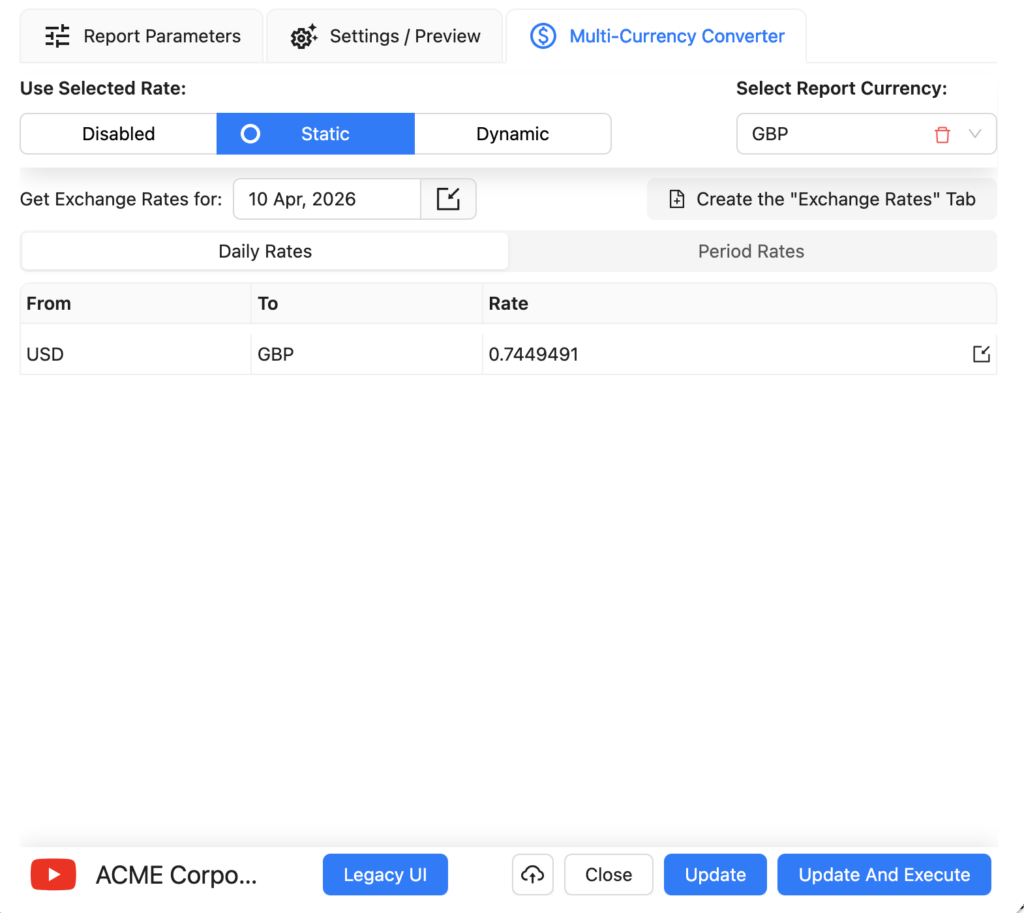
MULTI-CURRENCY CONVERTER
If you need to generate your Consolidated Balance Sheet by Company with Intercompany Eliminations report in a currency other than your QuickBooks base currency, the Multi-Currency Converter tab lets you select a target currency and choose how exchange rates are applied.
Three options are available:
Use Latest Rates
Select your target currency (e.g. EUR) and choose Use Latest Rates. Each time the report is refreshed, G-Accon will automatically fetch the most current exchange rate from its provider and apply it to all values in the report. No manual rate input is required.
Use Custom Rates
Choose Use Custom Rates to manually specify an exchange rate for a particular date. You can either enter the rate directly in the converter panel, or create a dedicated tab in your Google Sheet containing custom rates — useful when you need to lock in a specific rate for audit or compliance purposes.
Use Custom Rates for Periods
For reports spanning multiple periods, Use Custom Rates for Periods lets you assign a different exchange rate to each period in the report. This is essential for accurate multi-period comparisons where exchange rates fluctuated significantly — for example, in monthly or quarterly P&L reports covering a full financial year. Rates can be entered in the converter panel or managed in a dedicated Google Sheet tab.
Once your currency settings are configured, click Execute to generate the report. The converted figures will appear directly in your Google Sheet in the selected currency.
How to Schedule Automatic Data Refresh
G-Accon's Automation feature lets you schedule your Profit & Loss report to refresh automatically — no manual intervention needed. You can also configure notifications to alert team members, clients, or stakeholders when a refresh completes.
To set up an automated refresh:
Go to Extensions → G-Accon for QuickBooks → Automation → Create Workflow.
Add the Profit & Loss template to the workflow and set your preferred refresh schedule (e.g. daily, weekly, or monthly).
Optionally configure email notifications to be sent automatically when the refresh completes.
Multiple templates can be included in a single workflow, each with its own schedule.
How to Modify Your Report and Update Your Template
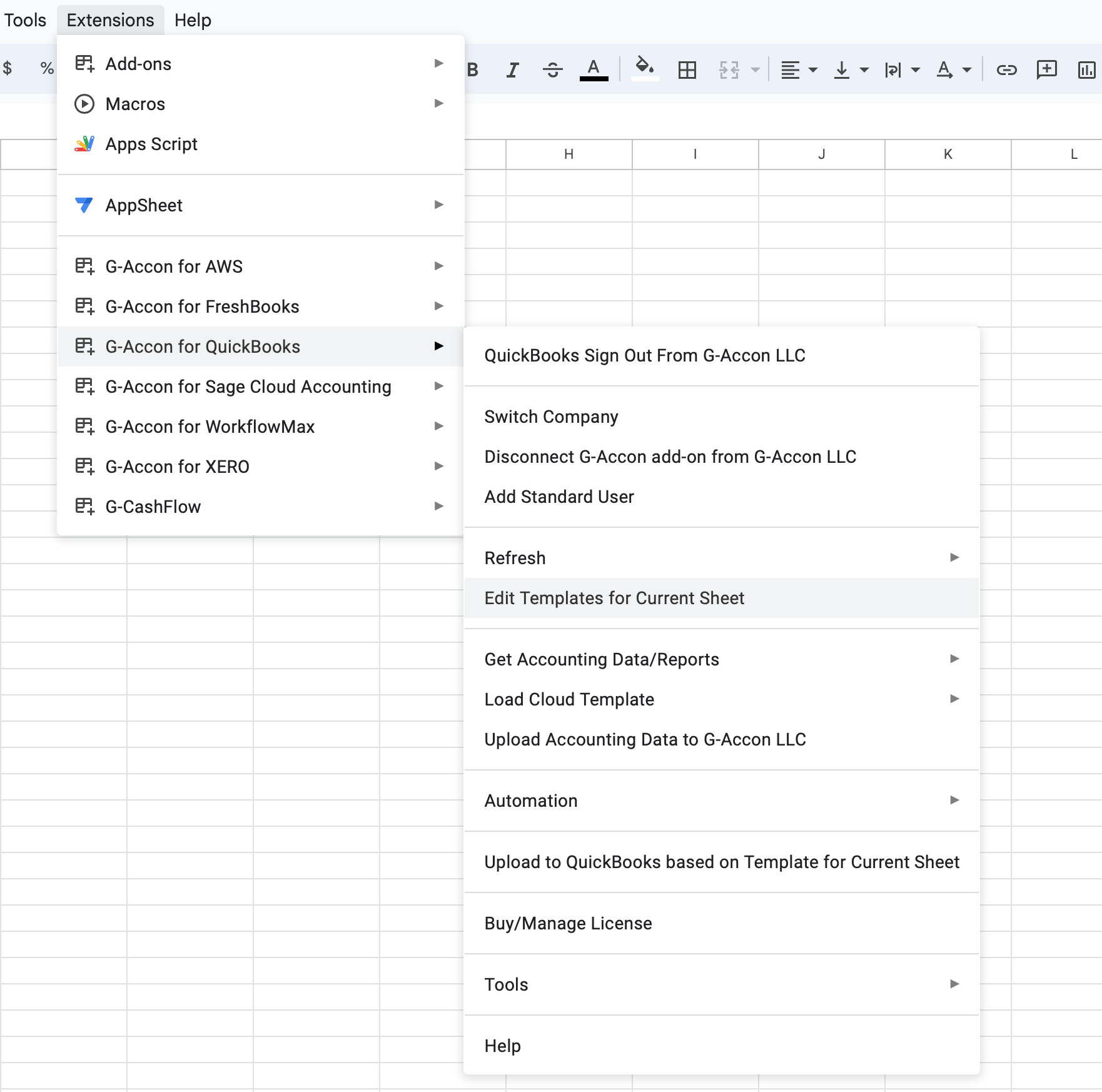
If you need to change the parameters of an existing report — for example to adjust the date range, add a comparison period, or change filters — you can edit the template directly without needing to rebuild it from scratch. You also do not need to be signed in to your QuickBooks organisation to modify or refresh a template.
Go to Extensions → G-Accon for QuickBooks → Edit Templates for Current Sheet.
Select the template you want to modify from the list.
Make your changes in the Edit Template panel.
Click Update to save the changes without re-running the report, or Update and Execute to save and immediately refresh the data.
Edit Templates — select, modify, and update an existing report template
To provide the best experiences, we use technologies like cookies to store and/or access device information. Consenting to these technologies will allow us to process data such as browsing behavior or unique IDs on this site. Not consenting or withdrawing consent, may adversely affect certain features and functions.
Functional
Always active
The technical storage or access is strictly necessary for the legitimate purpose of enabling the use of a specific service explicitly requested by the subscriber or user, or for the sole purpose of carrying out the transmission of a communication over an electronic communications network.
Preferences
The technical storage or access is necessary for the legitimate purpose of storing preferences that are not requested by the subscriber or user.
Statistics
The technical storage or access that is used exclusively for statistical purposes.The technical storage or access that is used exclusively for anonymous statistical purposes. Without a subpoena, voluntary compliance on the part of your Internet Service Provider, or additional records from a third party, information stored or retrieved for this purpose alone cannot usually be used to identify you.
Marketing
The technical storage or access is required to create user profiles to send advertising, or to track the user on a website or across several websites for similar marketing purposes.