Your Complete Guide to G-Accon

G-Accon Help Center

Explore step-by-step guides, troubleshooting tips, and best practices to make the most of G-Accon. Whether you're setting up integrations, automating reports, or optimizing workflows, our help center has everything you need to succeed.
Wiki Menu

Xero Account Transactions Report

Export the Xero Account Transactions report straight into Google Sheets: every transaction line with its date, account, source, reference and amounts. Filter it the way you need, convert currencies, and refresh it automatically.
AppG-Accon for Xero
Report typeCustom Report
RefreshManual or scheduled
Interactive demo: Account Transactions reportOpen full screen ↗
1
Open

Open the report

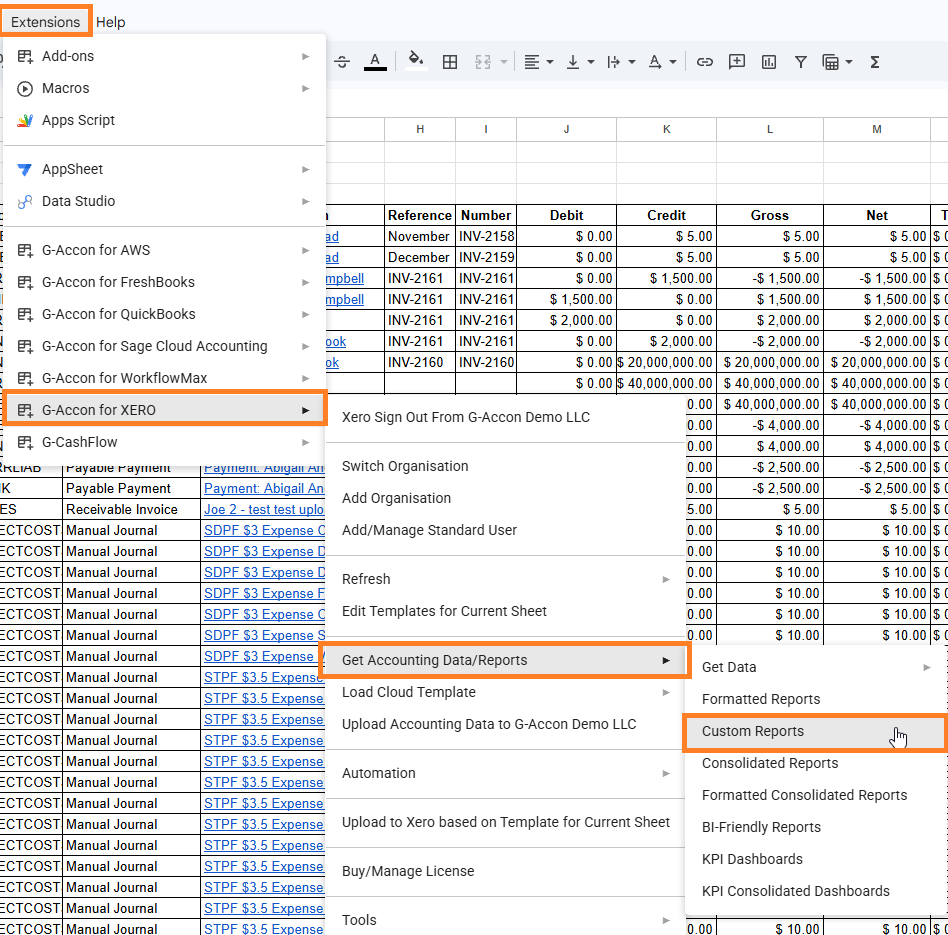
  • In Google Sheets, go to Extensions›G-Accon for Xero›Get Accounting Data/Reports›Custom Reports
  • In the Report dropdown, choose Account Transactions.
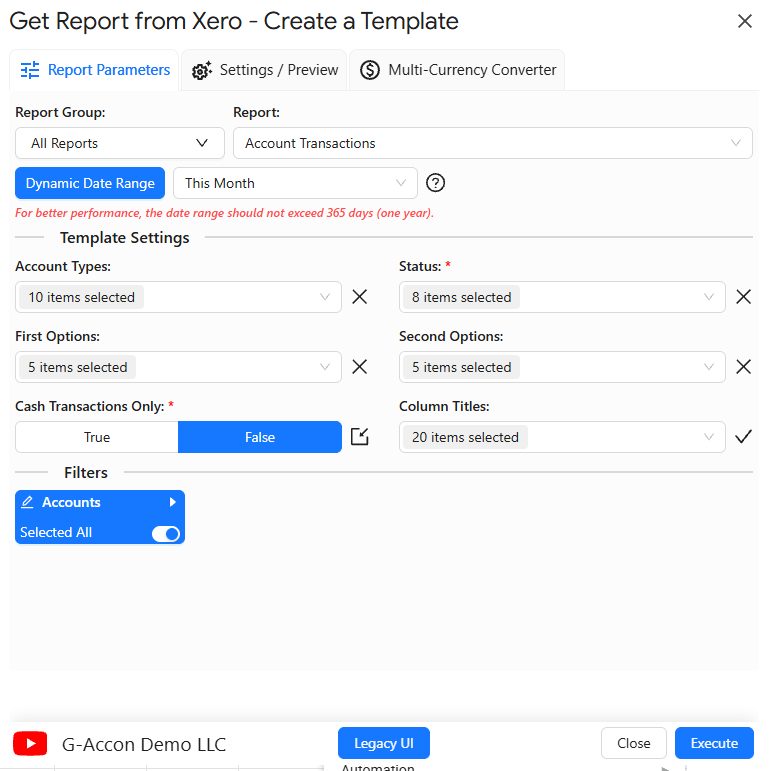
  • The Get Report from Xero - Create a Template window opens. It has three tabs:
Extensions menu with G-Accon for Xero, Get Accounting Data/Reports and Custom Reports highlighted
Custom Reports in the G-Accon for Xero menu.
2
Report Parameters tab

Set the date range and filters

Get Report from Xero, Create a Template window with Account Transactions selected and its template settings
The Report Parameters tab for Account Transactions.

Choose a date range

DynamicRelative periods such as This Month, This Quarter, This Year or Last Month.Best for recurring reportsDynamic Date Range set to This Month
StaticA fixed start and end date that stays the same on every refresh.Best for period-end snapshotsStatic Date Range with a start and end date
CustomDates read from cells in your sheet, so one cell can drive many reports.Best for dashboardsCustom Date Range referencing sheet cells
For better performance, keep the date range to 365 days or less.

Template settings and filters

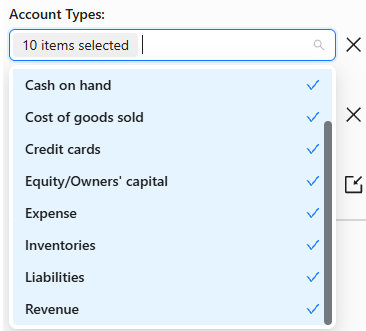
Account TypesInclude all account types, or only some, such as revenue, expenses, assets or liabilities.Show optionsAccount Types dropdown
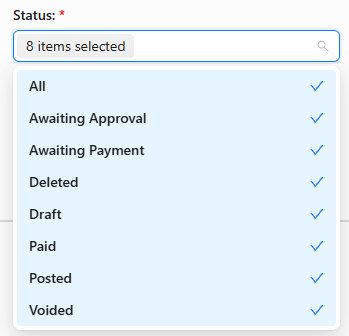
StatusRequiredFilter by transaction status, or choose All.Awaiting ApprovalAwaiting PaymentDeletedDraftPaidPostedVoidedShow optionsStatus dropdown
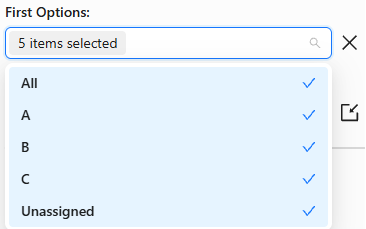
First OptionsFilter by an option in your first tracking category, such as a region, or by Unassigned.Show optionsFirst Options dropdown
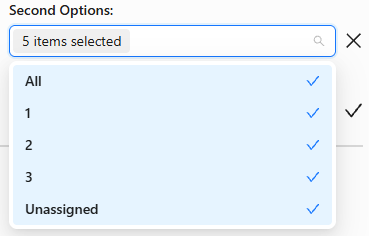
Second OptionsThe same for your second tracking category. Combine both to narrow by two segments.Show optionsSecond Options dropdown
Cash Transactions OnlyRequiredTrue shows only cash transactions, such as direct payments and receipts. False also includes invoices and bills.Show optionsCash Transactions Only set to True or False
AccountsChoose which accounts to include. All accounts are selected by default.Show optionsAccounts filter with Selected All switched on
3
Settings / Preview tab

Choose how the data looks

All optional. Tick any combination. See every setting with examples

  • Create a New Google SheetPut the report in a new tab.
  • Display Report TitleAdd the report name as a header row.
  • Retrieve HeadersShow column titles above the data.
  • Display Only Account CodesShow codes instead of account names.
  • Display Fully Qualified NamesShow full names, including the parent hierarchy.
  • Freeze Data Table HeaderKeep the header row visible as you scroll.
  • Create a Data Table Around Pulled DataWrap the data in a table for easy filtering and sorting.
  • Keep Original FormattingKeep your own fonts, cell sizes and colors.
  • Highlight Every Other RowShade alternate rows for readability.
  • Remove Empty Dividing RowsDrop the blank rows between sections.
  • Only Data RowsLine items only, without subtotals or summaries.
  • Only Report SummariesSubtotals and summaries only, without line items.
  • Create Deep Links to XeroClick a line to open the transaction or account in Xero.
  • Append to the Previous TemplateAdd new data below an existing report instead of replacing it.
  • Add Company Name ColumnAdd the company name to each row, useful for several entities.
Start CellWhere the report starts, for example A1.
Template NameA name to tell templates apart in the same spreadsheet.
4
Multi-Currency Converter tab · optional

Convert to another currency

To show the report in a currency other than your Xero base currency, pick a target currency, for example EUR, and choose how rates are applied:

Use Latest RatesG-Accon fetches the current rate on every refresh. Nothing to enter.Best for live reporting
Use Custom RatesSet a rate for a specific date, in the panel or in a rates tab in your sheet.Best for audit and compliance
Use Custom Rates for PeriodsA different rate for each period, in the panel or in a rates tab.Best for multi-period comparisons
5
Run

Click Execute

The report appears in your sheet with every transaction line: date, account, source, description, reference, debit, credit, gross, net and tax.
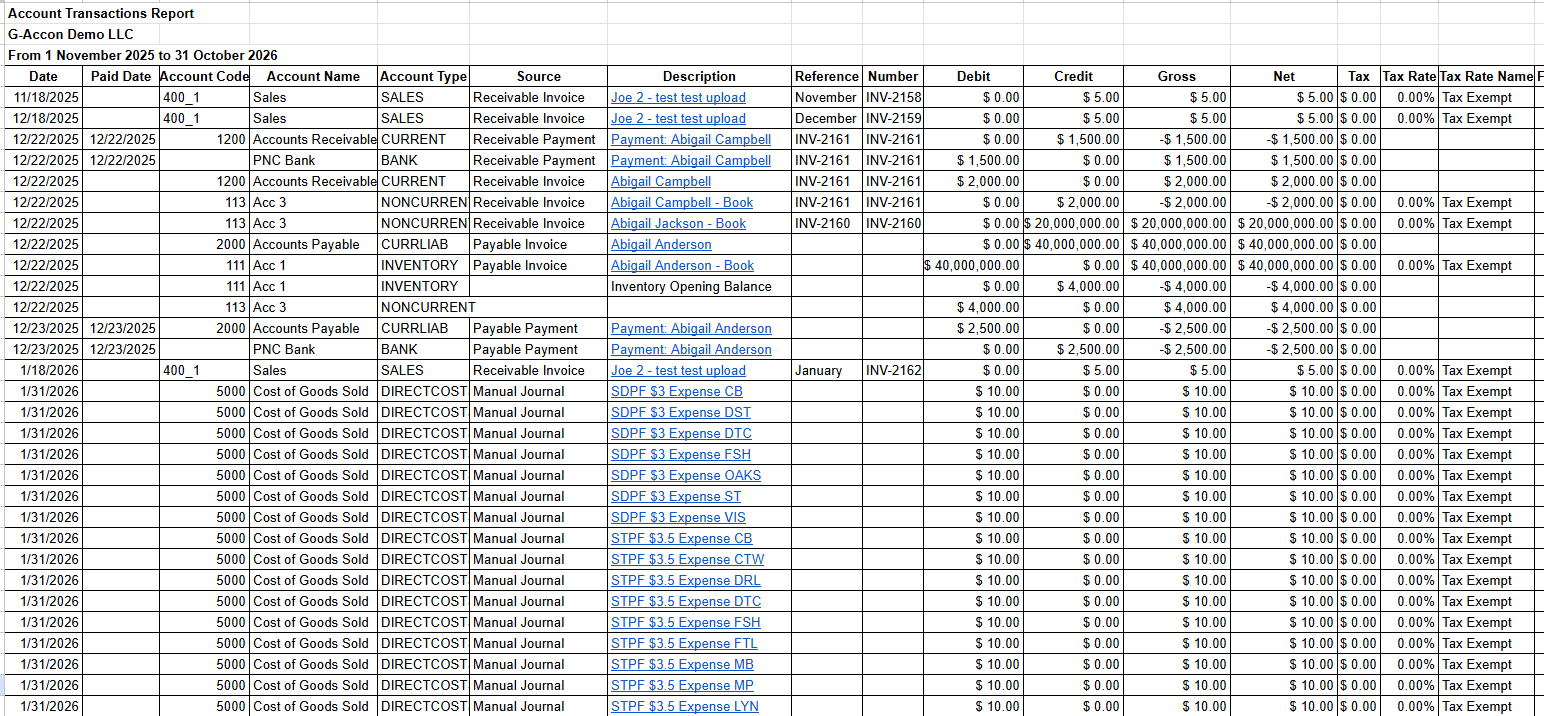
Account Transactions report in Google Sheets with transaction lines and amounts
The Account Transactions report in Google Sheets.
Automate

Refresh it automatically

  • Go to Extensions›G-Accon for Xero›Automation›Create Workflow
  • Add the Account Transactions template and set a schedule, such as daily, weekly or monthly.
  • Optionally, email your team, clients or stakeholders when the refresh completes.

Read the full Automatic Refresh guide

Edit

Change the report later

Change the date range, filters or settings without rebuilding the report. You don't need to be signed in to Xero to edit or refresh a template.
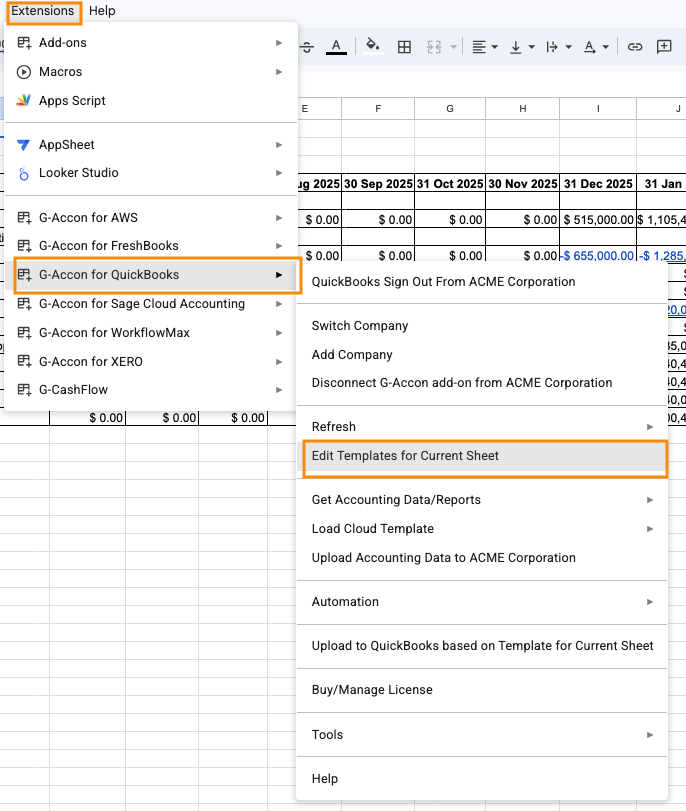
  • Go to Extensions›G-Accon for Xero›Edit Templates for Current Sheet
  • Pick the template and make your changes.
  • Save with one of these buttons:UpdateSave onlyUpdate and ExecuteSave and refresh now
Edit Templates for Current Sheet in the G-Accon menu
Edit Templates for Current Sheet. The option is in the same place in every G-Accon app.
Need help with this report?

Browse the Xero guides, or ask our support team.

© Copyright 2026 G-Accon
crossmenuchevron-down