Your Complete Guide to G-Accon

G-Accon Help Center

Explore step-by-step guides, troubleshooting tips, and best practices to make the most of G-Accon. Whether you're setting up integrations, automating reports, or optimizing workflows, our help center has everything you need to succeed.
Wiki Menu

QuickBooks Reports Overview

Custom Accounting Reports let you pull standard QuickBooks reports into Google Sheets and save each one as a reusable template. Pick a report, set its options to fit your business, and refresh it whenever you need.

AppG-Accon for QuickBooks
Menu itemCustom Accounting Reports
Saved asReusable template
1
Open

Open Custom Accounting Reports

  • Make sure you're signed in to QuickBooks in G-Accon.
  • In Google Sheets, go to Extensions›G-Accon for QuickBooks›Get Accounting Data/Reports›Custom Accounting Reports
  • The Create a Template window opens.
2
Report

Pick a report

Keep All Reports in the Report Group list, or choose a group to shorten the list. Then pick the report in the Report list.

Create a Template
Report Group
All Reports
Report
Select Report
Account ListAged Payables DetailBalance SheetBalance Sheet By ClassesCash FlowCustomer Balance
Browse every QuickBooks reportSearch the full list by group, with a step-by-step guide for each report.
See it in G-Accon
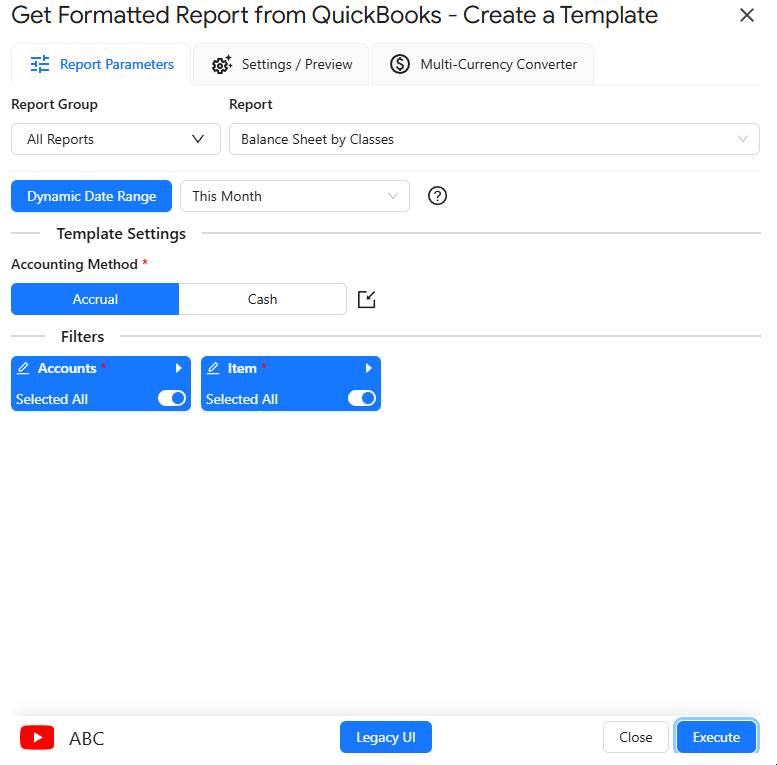
Report Parameters tab with Report Group set to All Reports, Balance Sheet by Classes selected, a This Month dynamic date range, Accrual accounting method and the Accounts and Item filters
The Report Parameters tab with Balance Sheet by Classes selected.
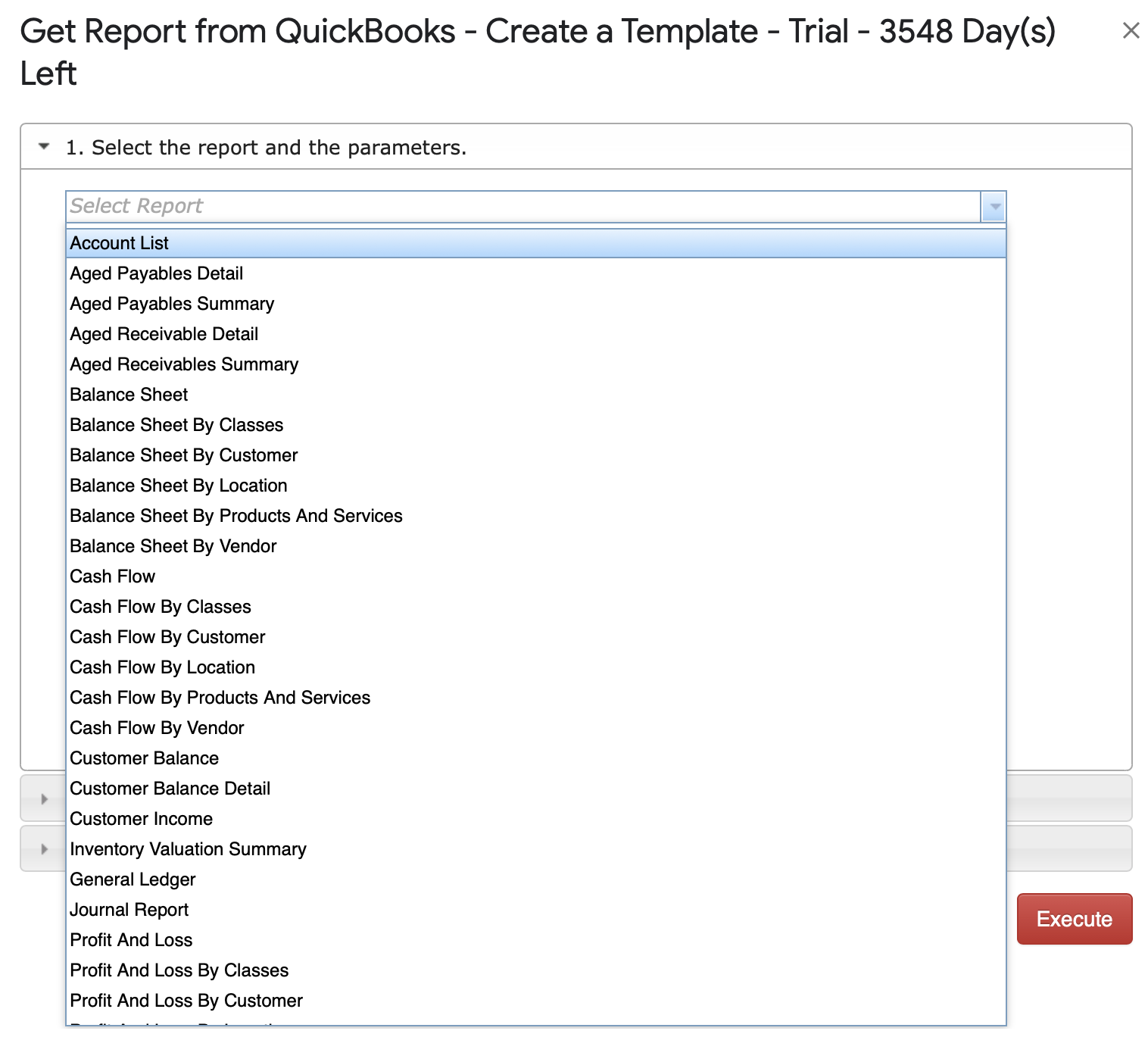
Legacy report window with the Select Report list open, from Account List to Profit And Loss By Customer
Legacy UI: Account List to Profit And Loss By Customer.
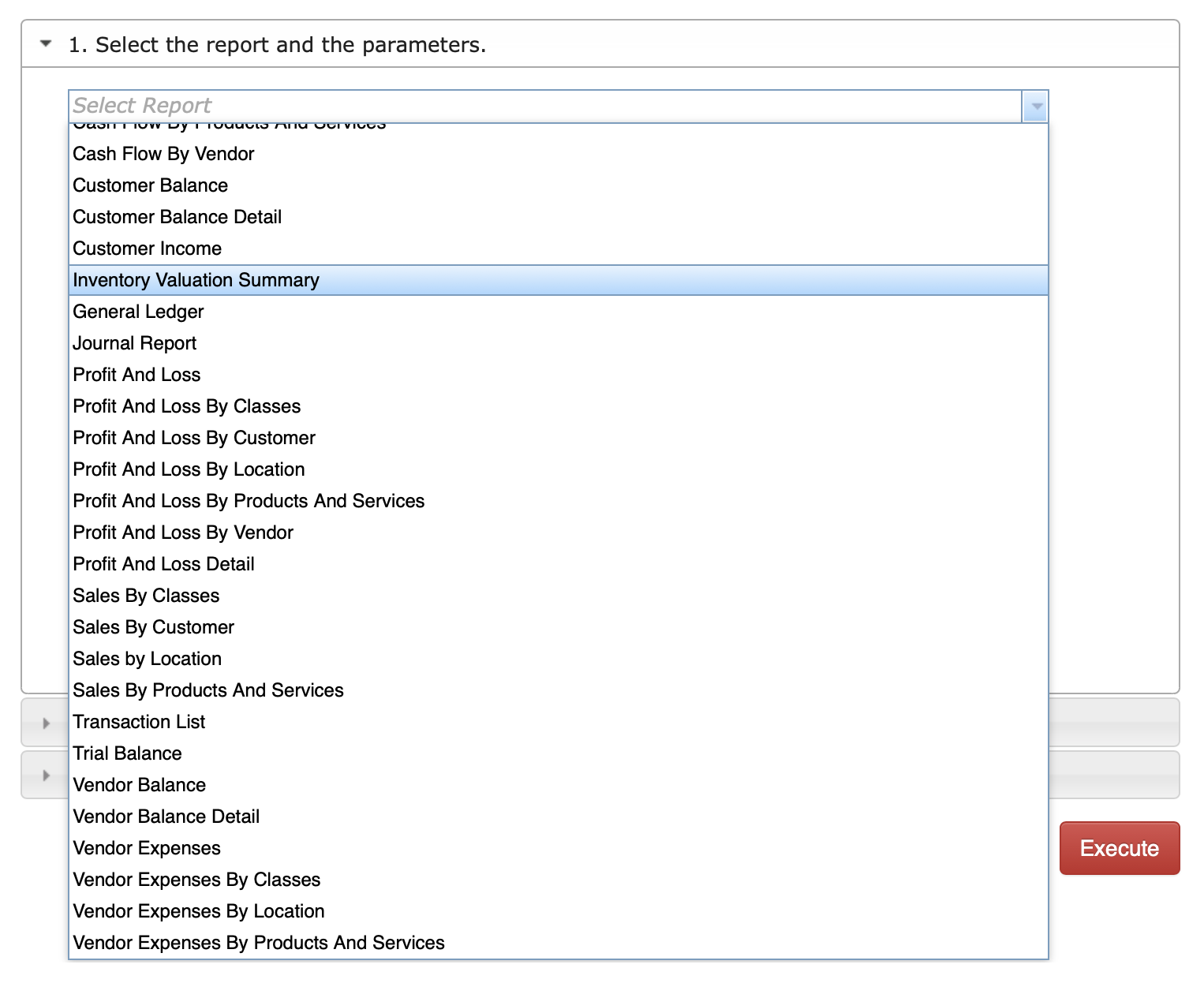
Legacy Select Report list scrolled from Cash Flow By Vendor to Vendor Expenses By Products And Services
Legacy UI: the rest of the list.
3
Options

Set the options

Every report uses the same window. Set what you need on each tab:

Tab 1Report ParametersThe date range, dynamic, static or custom, plus the report's own options, such as Accrual or Cash and filters for accounts or items.
Tab 2Settings / PreviewOptional: new sheet, deep links to QuickBooks, negatives in red, white label, report styles and more. See all settings
Tab 3Multi-Currency ConverterOptional: show the report in another currency, with the latest rates or your own.
Each report has its own parameters. Required ones are marked with a red asterisk. The report's guide lists them all.
See the Settings / Preview tab
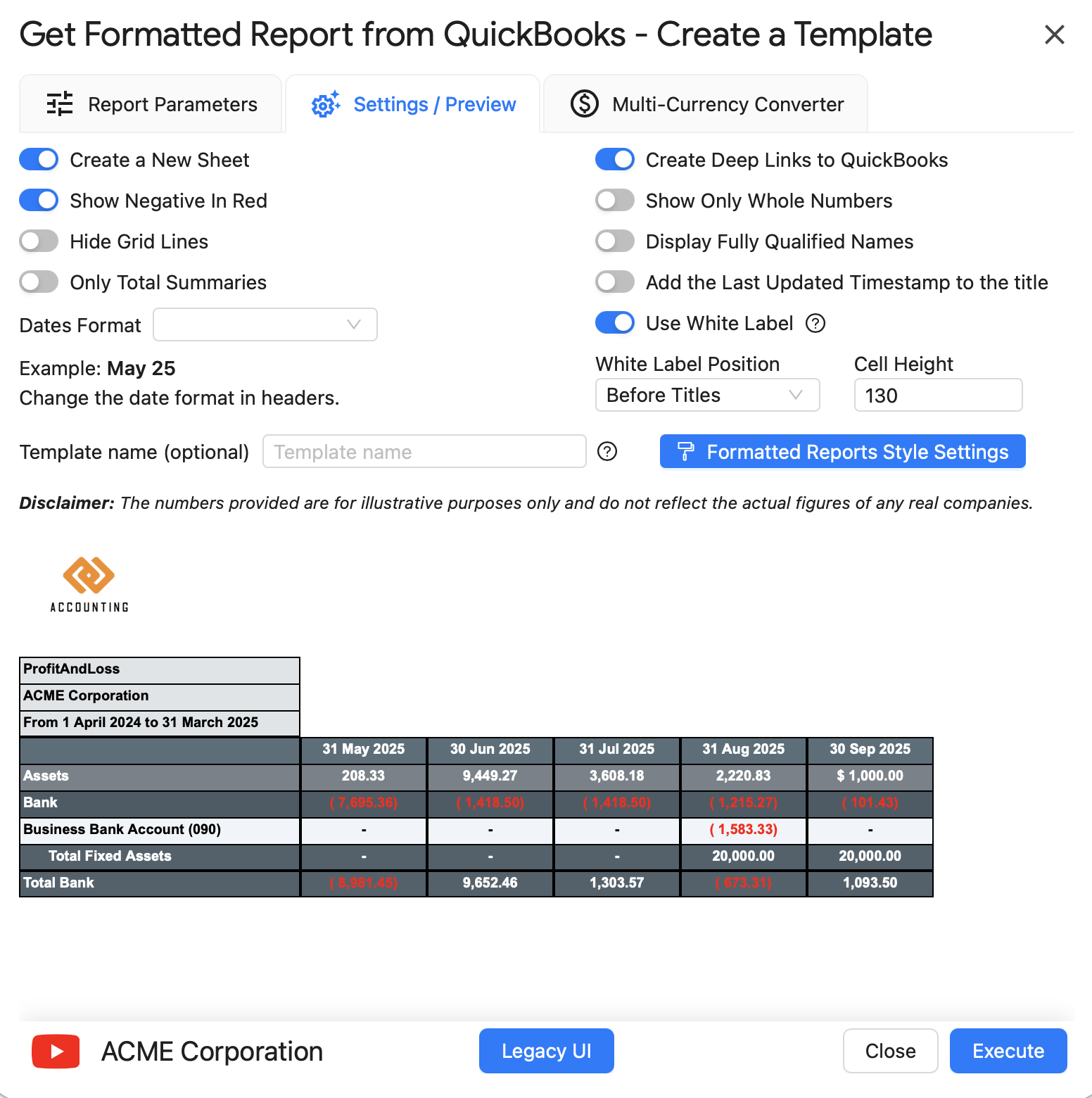
Settings / Preview tab with switches such as Create a New Sheet, Show Negative In Red, Create Deep Links to QuickBooks and Use White Label, and a preview of the formatted report
Switch settings on or off and see a preview below.
4
Run

Click Execute, then reuse it

The report lands in your sheet and is saved as a template, so you can refresh or change it later without setting it up again.

Need help with a report?

Browse the QuickBooks guides, or ask our support team.

© Copyright 2026 G-Accon
crossmenuchevron-down